
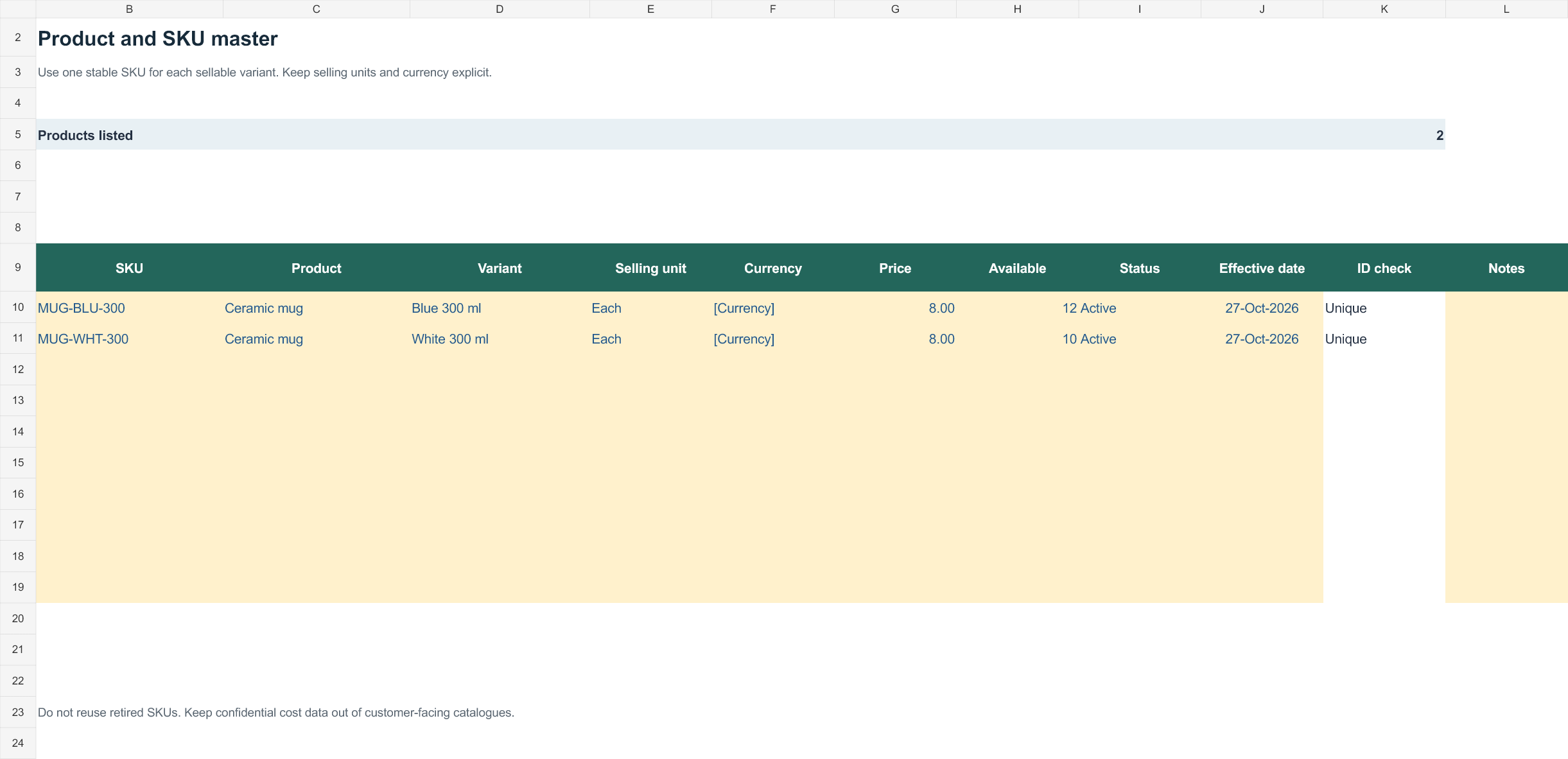
A product list should distinguish one sellable item from its variants. Use a stable SKU for each combination of size or colour, retain consistent product names, and keep the units, selling price, cost, and availability status in clearly defined columns.
Editable downloads and previews
Download the editable Excel workbook
Private, non-commercial use. Download help and usage terms.
Download Product sku master (.xlsx)
Open in Microsoft Excel. Replace the fictional example data in the highlighted input cells; keep formula cells intact so the summaries update.
More template previews and sources
Use the file links where provided. Links labeled “View original source” open another website; check its current format, availability and terms. A preview image alone is not an editable document.
Template previews and source links
Sample Product List
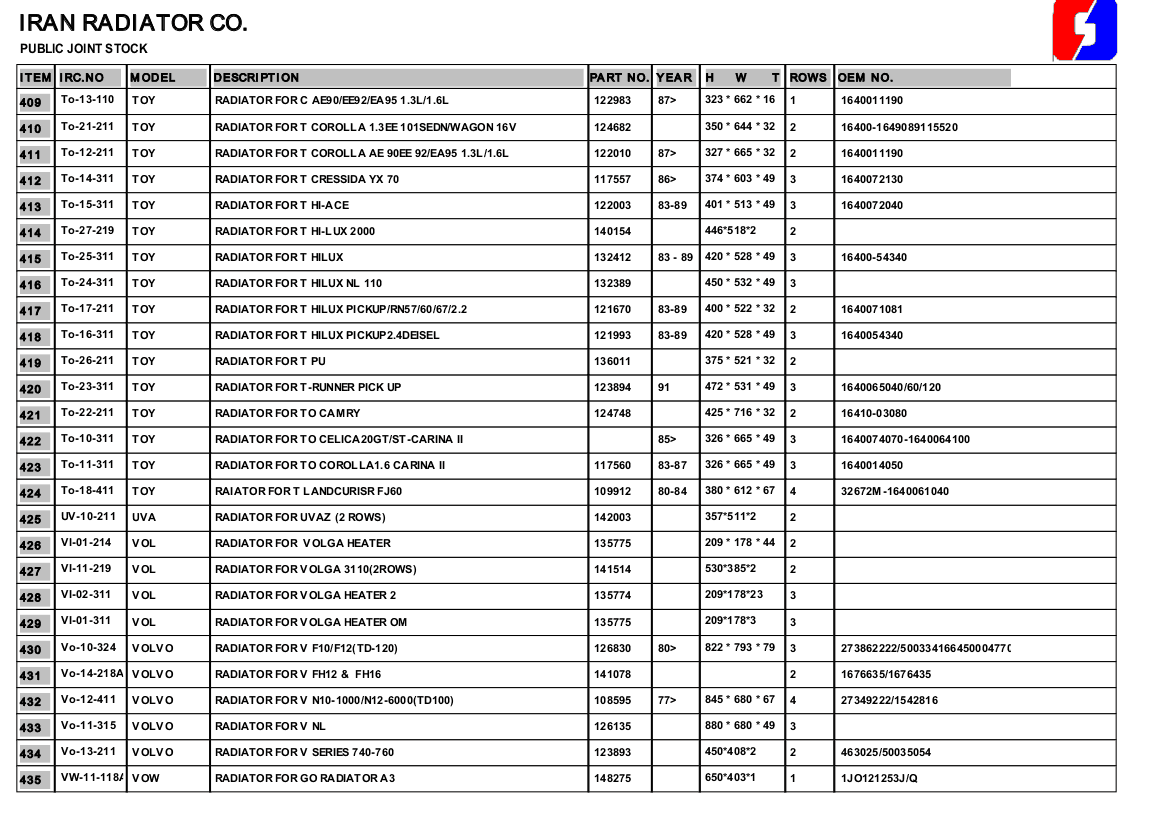
Product List Example Free

Product List Sample Template

Bonus template: SKU and product-variant master template
Give each sellable variant its own stable identifier. Keep price and availability separate so a discontinued item is not confused with an out-of-stock item.
Set up the record
- Catalogue owner: [name]
- Price currency: [currency]
- Last review: [date]
| SKU | Product | Variant | Selling unit | Price | Availability | Effective date |
|---|---|---|---|---|---|---|
| MUG-BLU-300 | Ceramic mug | Blue; 300 ml | Each | [price] | [in stock / unavailable] | [date] |
| MUG-WHT-300 | Ceramic mug | White; 300 ml | Each | [price] | [in stock / unavailable] | [date] |
How to use this template
- Create one row for each combination that can be sold or ordered separately.
- Define the selling unit, such as each, pack or carton.
- Record price-effective dates and retain the reference used on historic orders.
Worked example: A blue mug sold individually and a carton of twelve blue mugs need clearly distinguished selling units. Do not compare their prices as though both figures are for one item.
Check before use
- Do not reuse a retired SKU for another product.
- Keep internal cost data out of customer-facing lists.
- Check duplicated identifiers before importing or sharing the catalogue.
Build a product list that stays consistent across channels
Worked example: A shirt offered in three sizes and two colours needs six distinct SKU rows if each variation has its own stock level. Include descriptions that customers can understand and avoid silently mixing wholesale and retail prices.
Check before use: Choose a single naming convention, check that SKU values are unique, and note when prices were last reviewed. A spreadsheet list is not automatically synchronized with inventory or an online storefront.
For a related planning task, see 3 Product Description Templates and Inventory Tracking Spreadsheet Templates.
What’s Included in the Product List Template
- Product name and code: A clear identifier for each item, including SKU or product code where relevant.
- Description: A short summary of the product’s features or specifications to help customers understand what they’re buying.
- Category: A grouping field so related products can be filtered or sorted together.
- Price: The current selling price, which can be updated as often as needed.
- Stock or availability status: An optional column to flag whether an item is in stock, low stock, or unavailable.
How to Start Using the Template in 3 Simple Steps
- Step 1 — Download a template: Choose any of the three product list layouts below and save it to your computer.
- Step 2 — Add your products: Enter your product names, descriptions, categories, and prices into the sheet.
- Step 3 — Share and maintain it: Distribute the list to your team or customers, and update it whenever your catalog changes.
Product List vs. Price List: What’s the Difference?
A price list typically shows just the product name and its price, while a product list goes further by including descriptions, specifications, and sometimes images or stock status. If your customers need more context to choose between similar products, a product list is the better fit. Many businesses maintain both: a simple price list for quick reference, and a more detailed product list for customers who want to understand exactly what they are buying before committing to a purchase.
Frequently Asked Questions
Is this Excel product list template free to download?
Use the download links provided above, and check the format and any source-site terms before use.
Can I edit the template after downloading it?
Yes, the templates are fully editable, so you can add columns, change formatting, and update product details anytime.
What’s the difference between a product list and a price list?
A product list usually includes more detail, such as descriptions and specifications, while a price list focuses mainly on product names and prices.
Do I need Microsoft Excel to use this template?
The templates are designed for Excel but also open in free alternatives such as Google Sheets or LibreOffice Calc.
How many products can I list in the template?
There is no fixed limit; you can add as many rows as needed to cover your full product catalog.
Can I use this template for an online store?
Yes, many online sellers use a product list like this to organize catalog information before uploading it to their store platform.
Can I add images to my product list?
Yes, Excel allows you to insert product images directly into cells or link to images hosted elsewhere if you want a visual catalog.

You must be logged in to post a comment.