
A Gantt chart in Word is best for communicating a relatively stable project plan. Use clear task names, start and finish dates, owners and milestones; update it manually when the schedule changes.
Set up a Gantt chart that reflects task dependencies
- Saves setup time: A ready-made layout means you can focus on planning tasks instead of building a chart grid from scratch.
- Improves project visibility: A visual timeline makes it easy for stakeholders to see task overlaps, dependencies, and deadlines at a glance.
- Supports better communication: A clear chart helps project managers explain the plan to clients, team members, and other stakeholders.
- Keeps projects on track: Tracking progress against a visual timeline makes it easier to catch delays before they become serious problems.
- Works for any project type: Templates are available for sales activities, marketing campaigns, product launches, and more.
- Free and reusable: Download once and reuse the same template structure for every future project.
Worked example: For an office renovation, demolition must finish before electrical work starts, but furniture ordering may run in parallel. Show those dependencies and note which dates are estimates rather than confirmed commitments.
Check before use: Word tables and shapes usually lack the automatic rescheduling of specialist project software. Review the calendar scale and print layout after changing task lengths or inserting rows.
For related resources, see 9 FREE Project Timeline Templates [EXCEL & PPTX] and 4 Project Timeline Excel Templates.
What’s Included in the Gantt Chart Word Template
- Task list column: Space to list every task or activity required to complete the project.
- Timeline bars: Horizontal bars representing the start date, duration, and end date of each task.
- Milestone markers: Visual indicators for key project milestones and deadlines.
- Team member assignments: Space to note who is responsible for completing each task.
- Progress tracking: Room to mark how far along each task is as the project moves forward.
- Date headers: Weekly, monthly, or quarterly headers to align tasks with your project’s overall timeframe.
Who Should Use These Templates?
- Project managers who need a clear visual plan to track tasks, deadlines, and resource allocation.
- Marketing teams planning the rollout of a campaign across multiple channels and dates.
- Sales teams mapping out activities and targets across a sales cycle or quarter.
- Small business owners managing product launches or seasonal planning without dedicated project software.
- Students organizing coursework, research projects, or thesis timelines.
- Event planners coordinating vendors, deadlines, and logistics leading up to an event.
How to Start Using the Template in 3 Simple Steps
- Step 1 — Choose a template style: Browse the 10 options below and select the design that best fits your project.
- Step 2 — List your tasks: Enter each task, its start date, and its expected duration into the chart.
- Step 3 — Track progress: Update the chart regularly as tasks are completed to keep the whole team aligned.
Gantt Chart Word Templates vs. Dedicated Project Software
While both approaches help visualize a project timeline, a Word-based Gantt chart and dedicated project management software serve different needs depending on your team’s size and budget. A Word template is simple, free, and familiar to almost everyone, making it ideal for small teams or single projects that don’t require complex automation. Dedicated project software, by contrast, can automatically update timelines, track dependencies, and sync changes across a whole team in real time, but often comes with a subscription cost and a learning curve. Choosing the right approach depends on whether you need a straightforward, one-time visual or an ongoing, automated planning system.
Customizing the Template for Your Project
These templates are designed to be a flexible starting point rather than a fixed format. You can add your company’s branding and colors, adjust the timeframe from weeks to months depending on your project’s length, or add extra rows for tasks specific to your industry. Since the templates are provided in editable Word format, most adjustments take only a few minutes and let you tailor the chart to fit your specific project and team structure.
Choosing the Right Format
With 10 different templates available, choosing the right one depends on the type and scale of the project you’re planning. A simpler layout works well for short-term projects with just a handful of tasks, while a more detailed template is better suited for longer projects with multiple phases and dependencies. Reviewing what each template includes before downloading can help you find one that requires minimal restructuring for your specific project.
Common Mistakes to Avoid
- Overcomplicating the chart: Including too many tasks at once can make the chart difficult to read and follow.
- Ignoring task dependencies: Failing to account for tasks that rely on others being completed first can throw off your entire timeline.
- Not updating regularly: An outdated chart quickly loses its value as a planning and communication tool.
- Unrealistic timeframes: Setting overly tight deadlines can set your team up for missed milestones.
- Skipping stakeholder review: Always share the chart with key stakeholders before finalizing the project plan.
Tips to Get the Most Out of Your Gantt Chart Word Template
- Color-code tasks by team or category to make the chart easier to scan at a glance.
- Update the chart weekly to keep it an accurate reflection of the project’s current status.
- Share the chart with your whole team so everyone understands their role in the timeline.
- Keep task descriptions concise so the chart remains readable even with many rows.
- Save a copy before major projects so you have a reusable starting point for future planning.
Using Gantt Charts for Marketing Campaign Planning
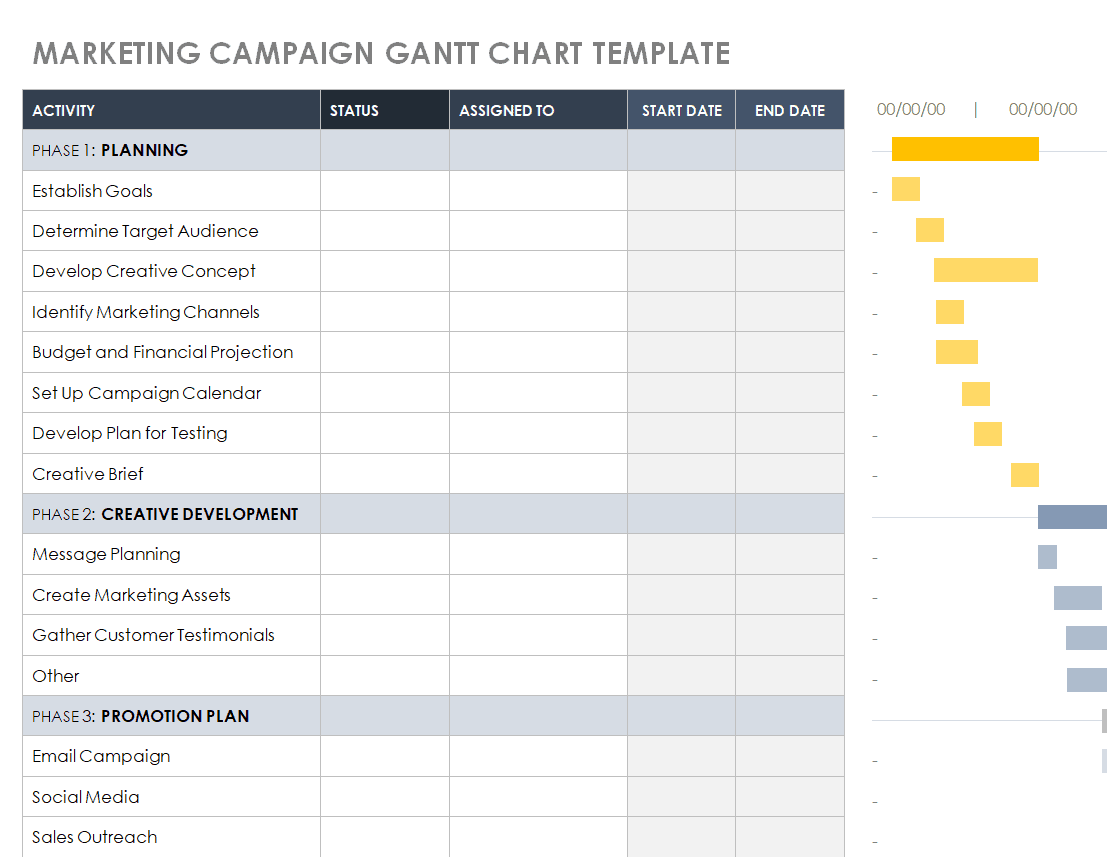
Marketing teams often juggle multiple moving pieces at once, from content creation and design approvals to ad scheduling and launch dates, making a Gantt chart especially useful for keeping a campaign on track. Mapping out each phase of a campaign, from initial planning through post-launch analysis, helps teams spot scheduling conflicts before they become a problem, such as a launch date that overlaps with a competing internal event. A well-organized campaign chart also makes it easier to coordinate across departments, since designers, copywriters, and media buyers can all see exactly when their piece of the puzzle is due.
Using Gantt Charts for Product Launches
A product launch typically involves coordinating manufacturing, marketing, distribution, and sales teams around a single hard deadline, which makes a clear visual timeline essential for keeping everyone aligned. A Gantt chart helps launch teams see how delays in one area, such as a manufacturing slowdown, might affect downstream tasks like marketing campaigns or retail placement. By building in buffer time around critical milestones and reviewing the chart regularly in the weeks leading up to launch, teams can catch potential bottlenecks early and adjust the plan before the launch date is put at risk.
Tracking Task Dependencies in Your Chart
Many projects include tasks that can’t begin until a previous task is finished, and clearly marking these dependencies on your Gantt chart helps prevent scheduling conflicts down the line. For example, a construction project can’t move to interior finishing until the framing and electrical work are complete, and marking that dependency visually helps everyone understand why certain tasks are sequenced the way they are. Even in a simple Word-based chart, using arrows, notes, or color coding to indicate which tasks depend on others makes the plan far easier to follow and reduces the chance of teams starting work out of order.
Sharing and Presenting Your Gantt Chart
Once your Gantt chart is complete, deciding how to share it with your team and stakeholders can make a real difference in how effectively it’s used throughout the project. Exporting the Word document as a PDF keeps the formatting consistent when sharing with clients or external partners who may not have the same fonts or software installed. For internal teams, keeping the chart in a shared drive or project folder, updated on a regular schedule, ensures everyone is always looking at the most current version rather than an outdated copy from an earlier email thread.
Adjusting Your Gantt Chart When Timelines Shift
Even the most carefully planned projects run into delays, whether from a vendor missing a deadline, a team member being out sick, or a client requesting last-minute changes, and knowing how to adjust your Gantt chart when this happens keeps the whole team working from accurate information. Rather than scrapping the chart and starting over, most delays can be handled by shifting the affected task’s bar forward and reviewing whether any dependent tasks need to move as well. Communicating these changes promptly, along with a brief note explaining the reason for the shift, helps stakeholders understand the new timeline without losing confidence in the overall plan.
Combining a Gantt Chart With a Budget Tracker
Many project managers find it useful to pair their Gantt chart with a separate budget tracking document, since staying on schedule and staying within budget are often closely connected. When a task’s timeline stretches beyond its original estimate, that delay frequently comes with added labor or resource costs that are easier to catch if you’re reviewing both documents side by side. Reviewing the Gantt chart and budget tracker together at regular checkpoints, such as the end of each project phase, makes it easier to spot early warning signs before a small overrun becomes a much larger problem.
Download Gantt Chart Word Templates Below
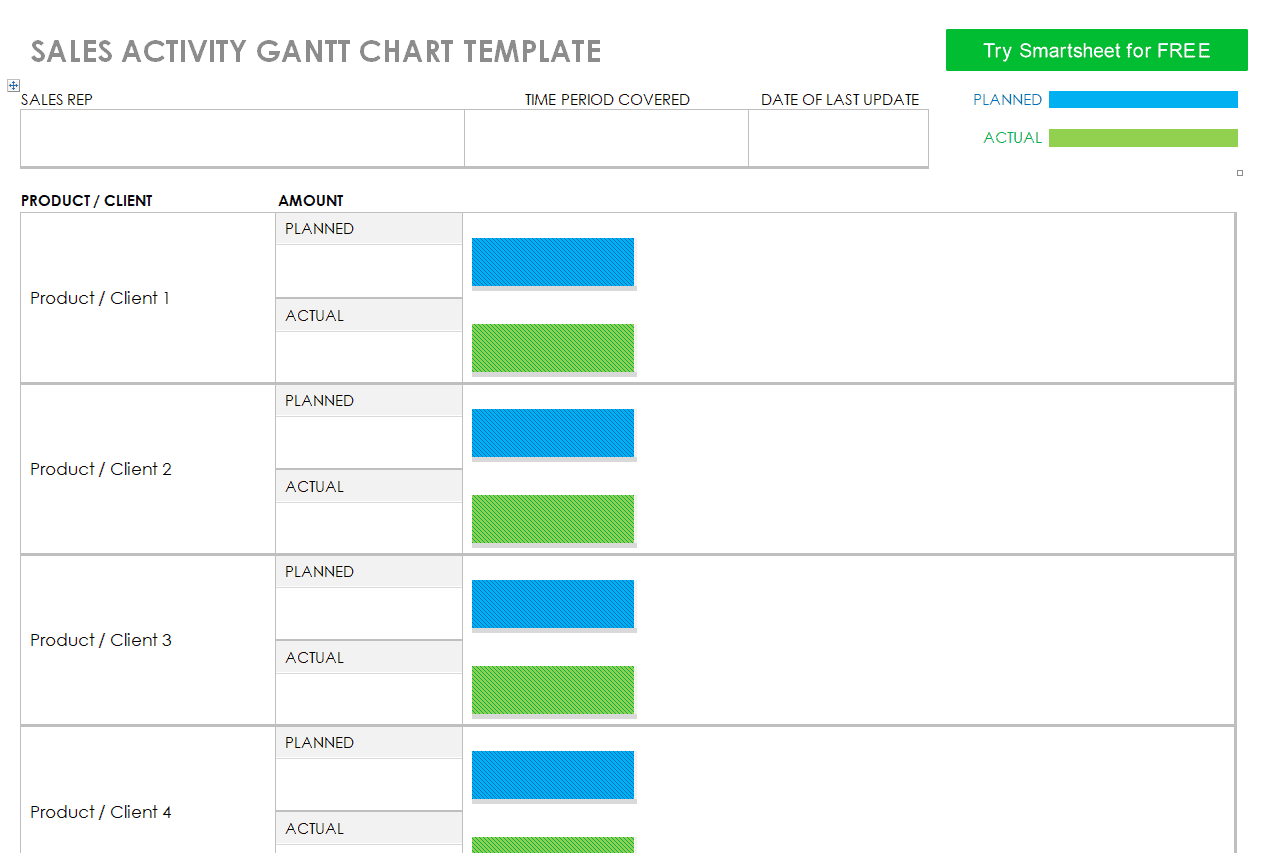
Gantt Chart Template for Sales Activity
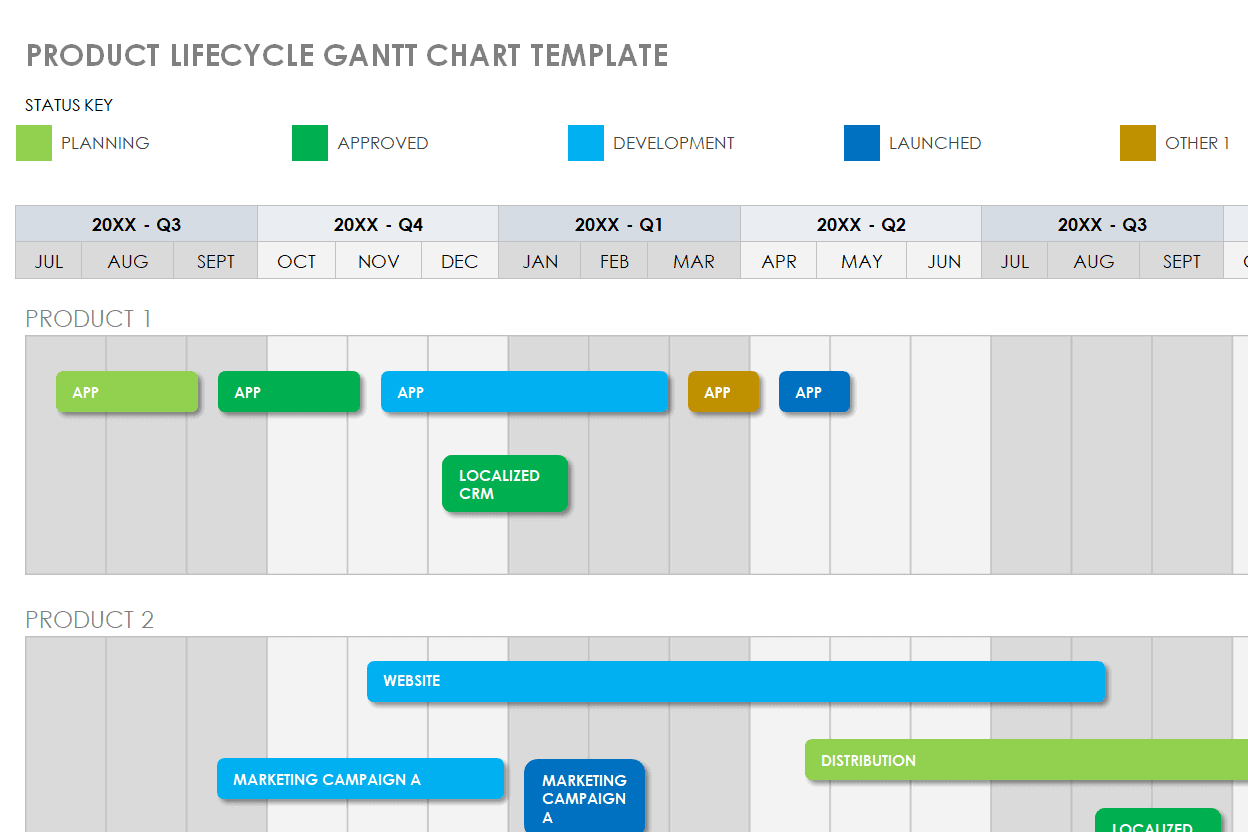
Gantt Chart Template for Product Lifecycle
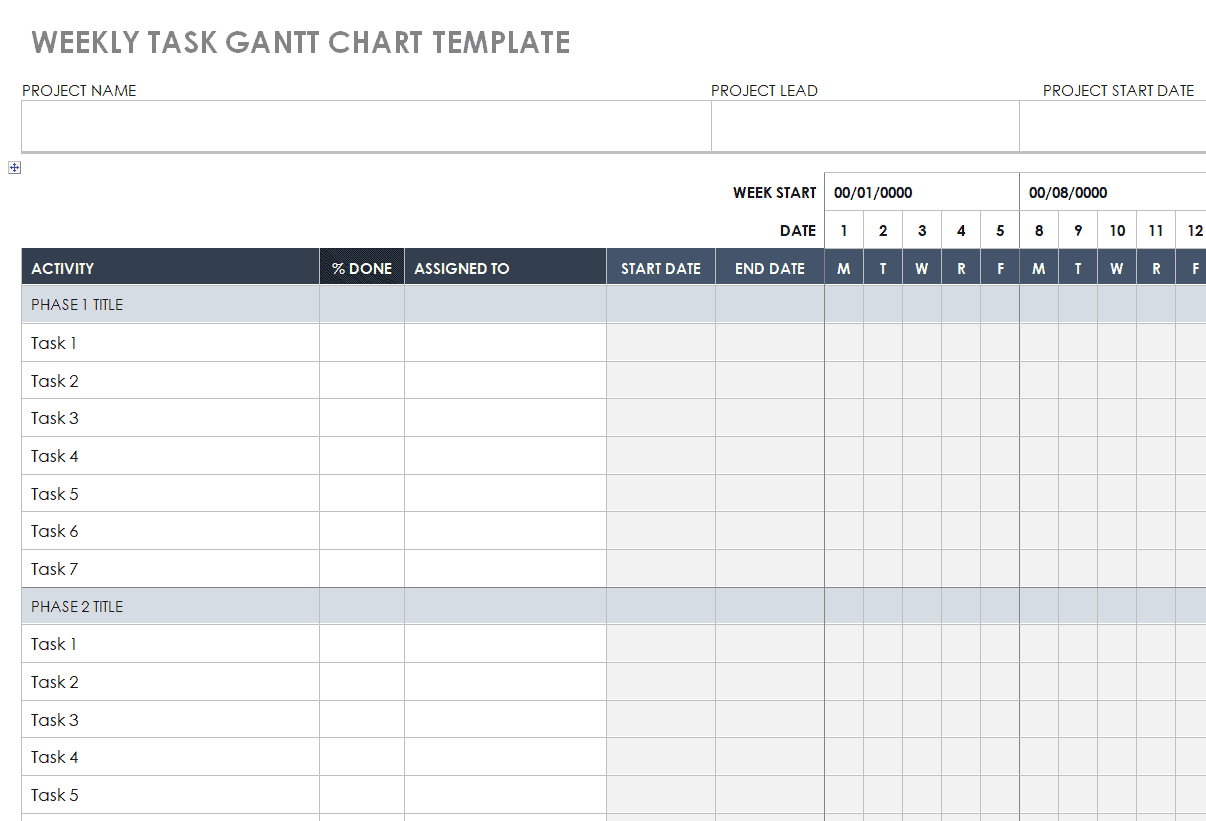
Gantt Chart Template for Weekly Tasks
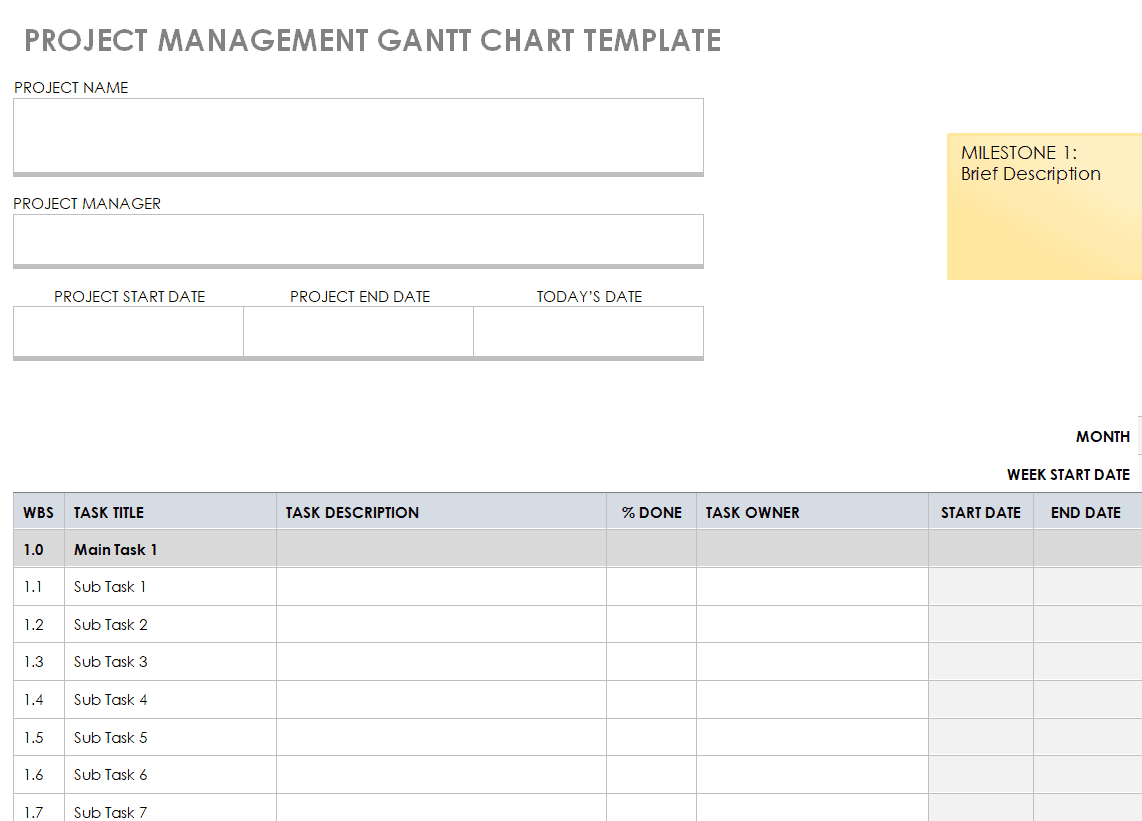
Sample Project Management Gantt Chart Template
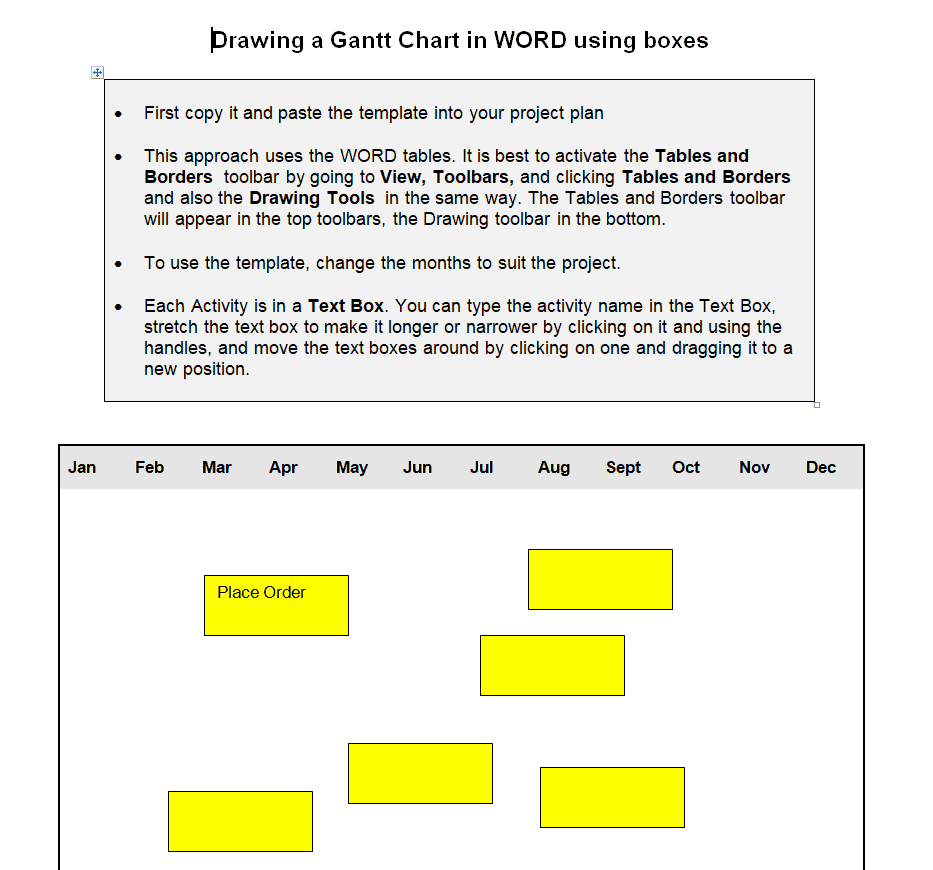
Gantt Chart Drawing Guidelines
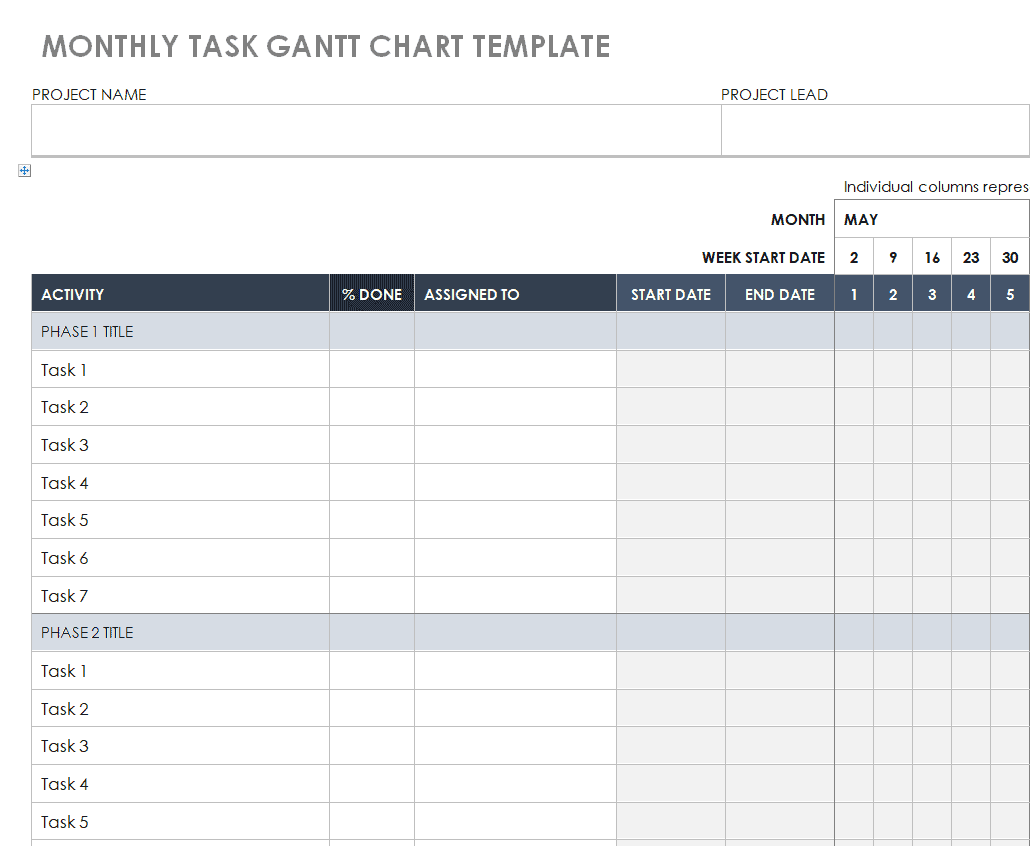
Gantt Chart Template for Monthly Tasks
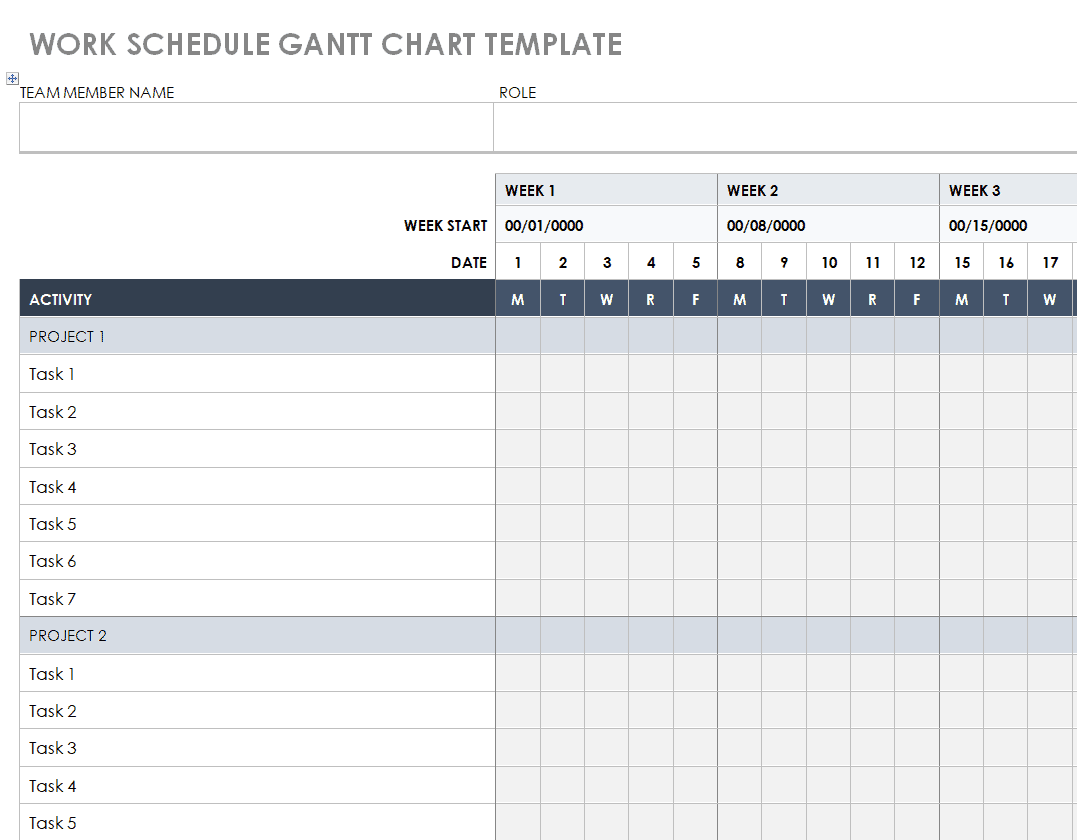
Gantt Chart Template for Work Schedule
Sample Gantt Chart Template for Marketing Campaign
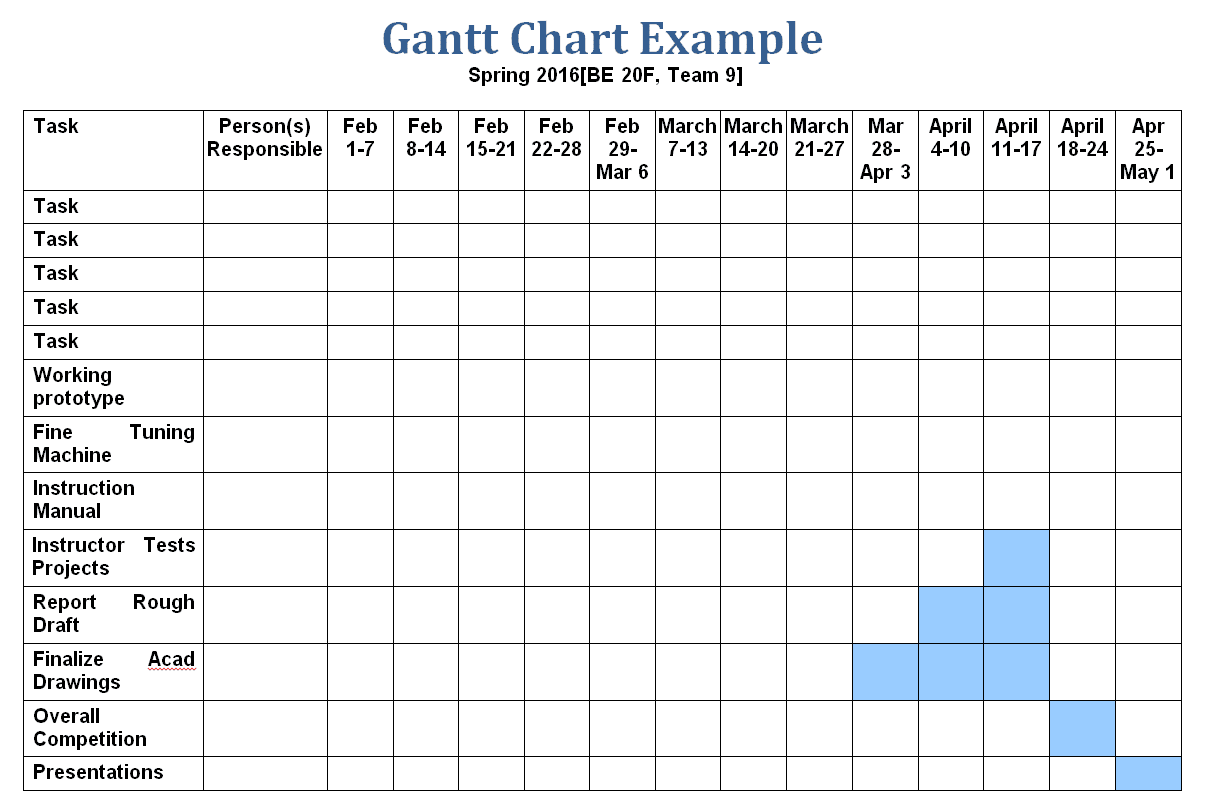
Example Gantt Chart Template
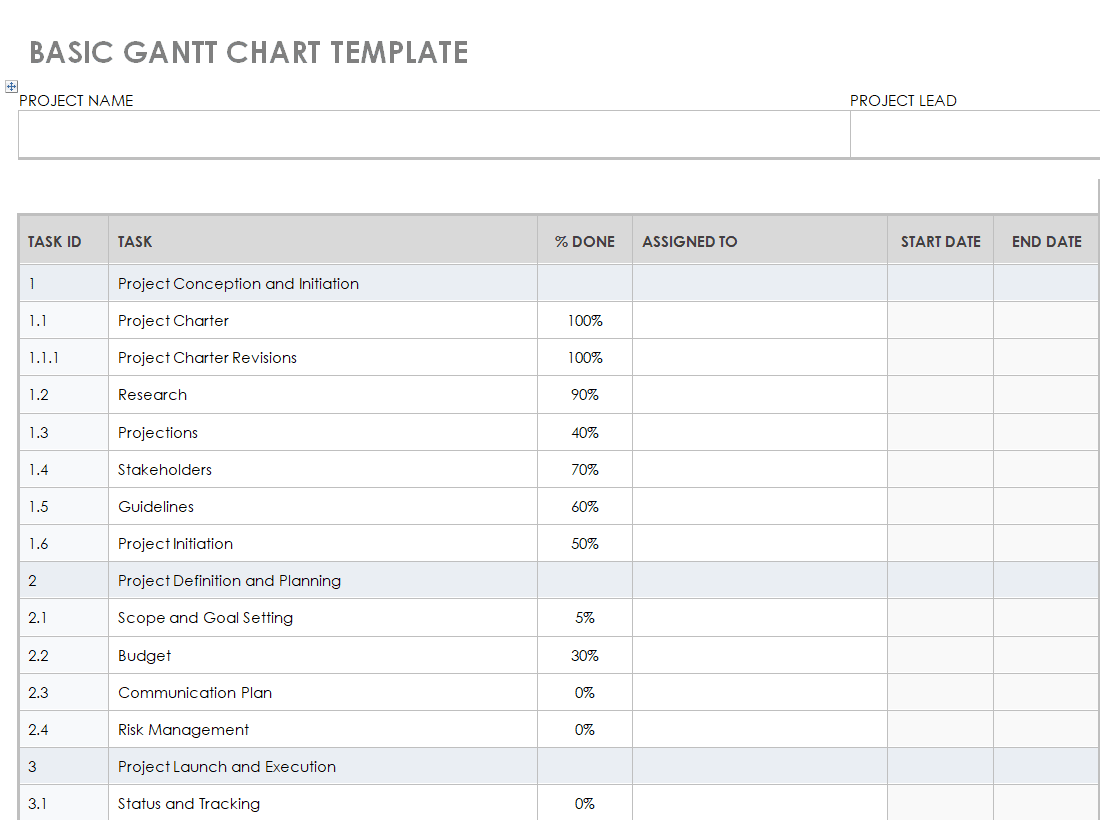
Basic Gantt Chart Format Template
Frequently Asked Questions
Are these Gantt chart Word templates free to download?
Yes, all 10 Gantt chart templates on this page are free to download and use.
Which file format are these templates available in?
The templates are available in editable Microsoft Word format.
Do I need project management software to use these templates?
No, these templates are built for Microsoft Word and don’t require any dedicated project management software.
Can I use these templates for marketing campaigns?
Yes, several templates are well suited for planning marketing campaigns and product launches.
Can I customize the timeframe shown on the chart?
Yes, since the templates are fully editable, you can adjust the timeframe to weeks, months, or quarters.
Are these templates suitable for small business use?
Yes, these templates work well for small businesses managing projects without dedicated project software.
Can I track task dependencies with these templates?
Yes, you can mark task dependencies manually using notes, arrows, or color coding within the chart.

You must be logged in to post a comment.