
An inventory spreadsheet can serve as a master item list, count sheet or movement register. Identify which task needs support before selecting the design, then maintain consistent item codes, units and dates.
Choose the inventory sheet based on stock movement
Worked example: For a workshop, record 50 bolts at opening, 12 received and 17 used to reach 45 remaining, assuming no adjustments. A count sheet verifies quantity; a transaction log explains the change.
Check before use: Investigate negative stock and physical-count differences. Do not assume the downloaded sheet handles purchase orders or live synchronization unless those features are present.
- Saves setup time: A ready-made grid means you can focus on recording stock instead of designing a tracking sheet from scratch.
- Reduces stockouts and overstock: Clear visibility into quantities on hand helps you reorder at the right time.
- Improves accuracy: A structured spreadsheet reduces the errors that come with tracking inventory manually or from memory.
- Supports better purchasing decisions: Historical quantity data makes it easier to spot which items sell fastest.
- Easy to customize: Editable fields let you quickly adapt the template to your product line and business needs.
- Free and reusable: Download once and reuse the same structure for every counting period.
For related resources, see 3 Excel Inventory Tracking Spreadsheet Templates and 3 Excel Inventory Count Sheet Templates.
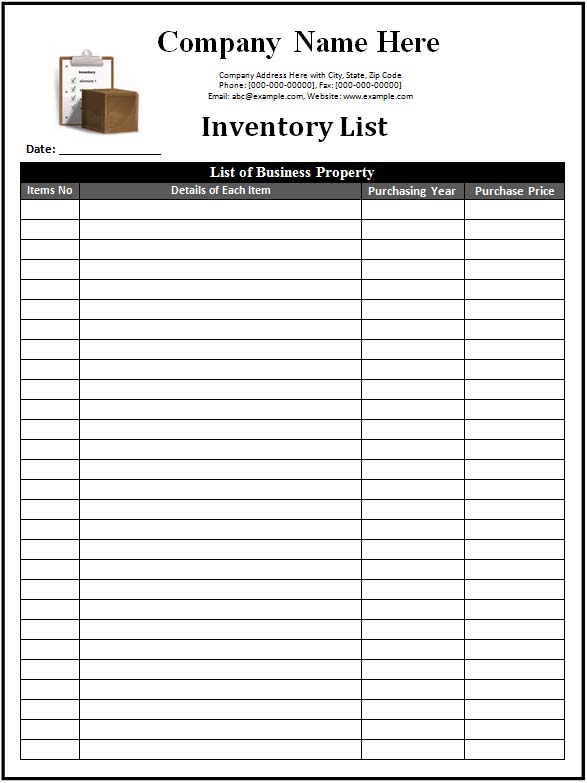
What’s Included in the Inventory Template Spreadsheet Excel
- Item description fields: Space to list the name, category, and SKU or barcode number of each product.
- Quantity fields: Columns for recording units on hand, units received, and units sold or used.
- Cost and value fields: Areas to note unit cost, total value, and selling price for each item.
- Reorder level fields: Space to flag when stock has fallen below a minimum threshold.
- Location fields: Columns for noting where an item is stored, such as a warehouse shelf or bin number.
- Notes section: An area for additional comments about specific items or shipments.
Who Should Use These Templates?
- Small business owners tracking stock without dedicated inventory management software.
- Online sellers managing products across multiple marketplaces or storage locations.
- Warehouse managers keeping detailed records of incoming and outgoing shipments.
- Retail store owners monitoring shelf stock and reorder timing.
- Restaurant and cafe operators tracking ingredients and supplies.
- Manufacturers tracking raw materials and finished goods.
How to Start Using the Template in 3 Simple Steps
- Step 1 — Choose a template style: Browse the 3 options below and select the layout that fits your business.
- Step 2 — Enter your items: List each product along with its SKU, quantity, and cost details.
- Step 3 — Update stock regularly: Adjust quantities as items are received, sold, or used to keep the record current.
Inventory Spreadsheet vs. Inventory Management Software
While the two options can achieve similar goals, an inventory spreadsheet and dedicated inventory management software serve different scales of business. A spreadsheet works well for smaller operations with a manageable number of SKUs, offering a free, flexible, and easy-to-understand solution. Inventory management software, on the other hand, typically offers automated reordering, barcode scanning, and real-time syncing across multiple sales channels, but comes with a subscription cost and a steeper learning curve. Many small businesses start with a spreadsheet and move to dedicated software as their product catalog grows.
Customizing the Template for Your Business
These templates are designed to be a flexible starting point rather than a fixed format. You can add columns for supplier names, adjust reorder thresholds to match your typical lead times, or include a section for tracking damaged or returned items separately. Since the templates are provided in editable Excel format, most adjustments take only a few minutes and let you tailor the sheet to fit the specific products and workflow of your business.
Choosing the Right Format
With 3 different templates available, choosing the right one depends on your business’s specific needs and how detailed your tracking needs to be. A simple layout works well for a small product catalog, while a more detailed spreadsheet suits businesses managing inventory across multiple locations. Reviewing each option before committing to one can help you find the layout that best fits your stock tracking needs.
Common Mistakes to Avoid
- Forgetting to update counts regularly: Delaying updates increases the risk of the spreadsheet drifting from actual stock levels.
- Not setting reorder thresholds: Without a clear minimum level, it’s easy to run out of popular items unexpectedly.
- Mixing units of measurement: Inconsistent units, such as boxes versus individual units, can make totals inaccurate.
- Skipping periodic physical counts: Relying only on the spreadsheet without occasional manual verification can let errors accumulate.
- Not backing up the file: Inventory data is valuable and should be stored securely with regular backups.
Tips to Get the Most Out of Your Inventory Template Spreadsheet Excel
- Update the sheet immediately after receiving or shipping stock to keep quantities accurate at all times.
- Use color coding or conditional formatting to visually flag items that are low in stock.
- Keep the template consistent across counting periods to make comparisons easier over time.
- Back up your inventory records regularly to avoid losing important data.
- Schedule regular physical counts to verify that the spreadsheet matches actual stock on hand.
Using Inventory Data to Improve Purchasing Decisions
Beyond simply knowing what’s in stock, a well-maintained inventory spreadsheet can become a valuable tool for planning future purchases. By reviewing how quickly different items move over time, you can identify which products deserve larger standing orders and which ones might be better ordered in smaller, more frequent batches. This kind of historical insight, built up gradually as you keep the sheet updated, helps prevent both the lost sales that come from stockouts and the tied-up cash that comes from overordering slow-moving items.
Tracking Inventory Across Multiple Locations
Businesses that operate from more than one storefront, warehouse, or storage unit face an added layer of complexity when tracking stock, since the same product might exist in different quantities at different sites. Adding a location column to the spreadsheet, or maintaining a separate tab for each site with a summary tab that totals everything together, helps keep this complexity manageable. Reviewing location-specific totals periodically also makes it easier to spot opportunities to transfer slow-moving stock from one location to another rather than ordering more of an item that is already sitting unused elsewhere.
Reconciling Inventory Counts After a Physical Audit
Even the most carefully maintained spreadsheet can drift from reality over time due to miscounts, theft, damage, or simple data entry errors, which is why periodic physical audits remain an important complement to digital tracking. When a physical count doesn’t match the spreadsheet, resist the urge to simply overwrite the number without investigation, since repeated discrepancies in the same items can point to a process issue worth addressing, such as a receiving step that’s being skipped or a product that’s frequently damaged in storage. Documenting these reconciliations, rather than silently correcting the numbers, builds a more accurate picture of where inventory accuracy problems tend to originate.
Seasonal Inventory Planning Using Historical Data
For businesses with seasonal demand swings, a spreadsheet that’s been maintained consistently over multiple periods becomes an increasingly useful planning tool, since past quantities sold during a similar season give a much more reliable basis for ordering than guesswork. Reviewing the same time period from a prior year before placing seasonal orders can help you avoid both understocking popular seasonal items and being left with excess inventory once demand drops off. Keeping a dedicated tab or archived copy of each season’s data, rather than overwriting it, makes this kind of year-over-year comparison far easier to perform when the next season approaches.
Using Formulas to Automate Inventory Calculations
One of the biggest advantages of tracking inventory in Excel rather than on paper is the ability to use simple formulas to automate repetitive calculations. A running total column that automatically adds new stock and subtracts sold or used units removes the need for manual arithmetic and reduces the chance of a simple math error throwing off your entire count. Conditional formatting rules can also be set up to automatically highlight any row where the quantity on hand drops below the reorder threshold, giving you an at-a-glance visual cue without having to scroll through every line of the sheet looking for low-stock items.
Assigning Responsibility for Keeping the Sheet Updated
In businesses with more than one person handling stock, inventory spreadsheets tend to stay accurate only when there’s a clear understanding of who is responsible for updating them and when. Assigning a specific person, or a specific point in the receiving and shipping process, as the trigger for updating the spreadsheet removes ambiguity and prevents the common situation where everyone assumes someone else has already made the update. Setting a simple, consistent rule, such as updating the sheet immediately after any shipment is received or any sale is finalized, helps the spreadsheet stay a reliable source of truth rather than a document that’s only accurate right after a manual recount.
Integrating the Spreadsheet with Your Broader Business Records
While an inventory spreadsheet is a useful standalone tool, its value increases further when it’s used alongside your other business records, such as sales reports and purchase orders. Cross-referencing inventory quantities against recent sales figures can help confirm that the numbers in your spreadsheet make sense, and it can also surface discrepancies worth investigating, such as a sales spike that wasn’t matched by a corresponding drop in stock. Over time, building this habit of cross-checking related records helps catch data entry mistakes early, before they compound into larger accounting or fulfillment problems down the line.
Get Free Inventory Templates Spreadsheet Excel Here
Sample Inventory Template Spreadsheet Excel

Online Inventory Template Spreadsheet Excel
Downloadable Inventory Template Spreadsheet Excel
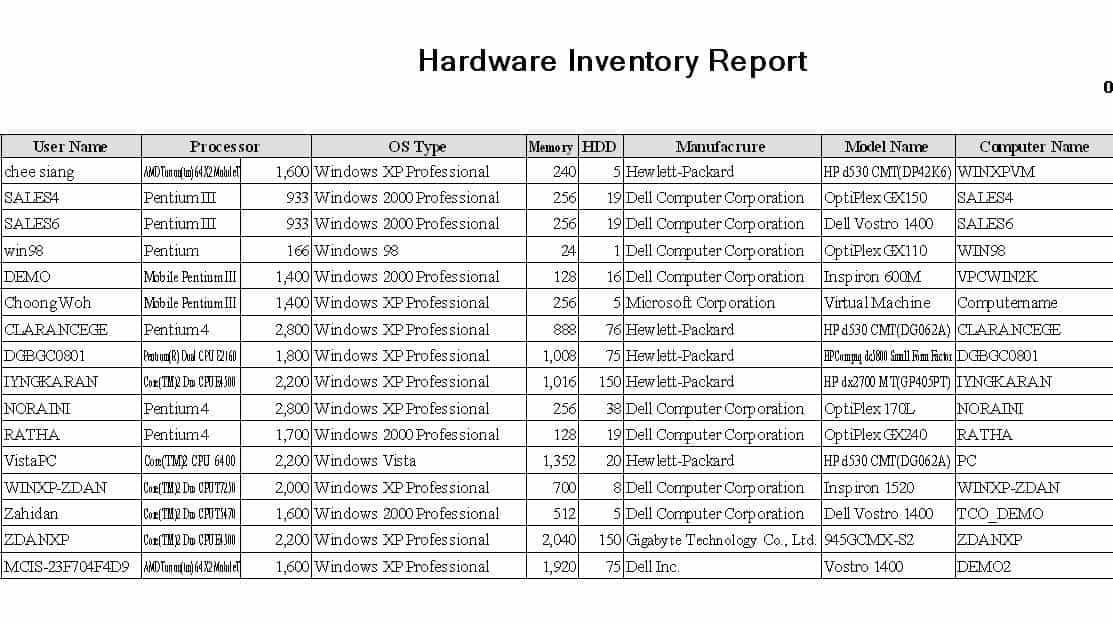
Frequently Asked Questions
Are these inventory templates free to download?
Yes, all 3 inventory templates spreadsheet excel on this page are free to download and use.
Can I customize the fields on these templates?
Yes, since the templates are editable in Excel, you can add columns, change categories, and adjust formulas to fit your products.
What’s the difference between an inventory spreadsheet and inventory management software?
A spreadsheet is a free, manual tracking tool, while dedicated software typically offers automated reordering and real-time syncing at a cost.
Are these templates suitable for online sellers?
Yes, these templates can be adapted to track products sold across one or multiple online marketplaces.
How often should I update my inventory spreadsheet?
It’s best to update the sheet immediately after receiving new stock or completing a sale to keep the record accurate.
Can these templates track multiple storage locations?
Yes, you can add a location column or a separate tab for each site to track stock across multiple warehouses or stores.

You must be logged in to post a comment.