
A useful price comparison starts with identical product specifications and quantities; list each supplier’s unit price, minimum order, shipping charge, discount, taxes, warranty, and lead time before deciding which quote wins.
Bonus template: Landed-cost supplier comparison worksheet
Compare the same specification and quantity before choosing a supplier. Keep delivery timing and mandatory requirements visible alongside the cost calculation.
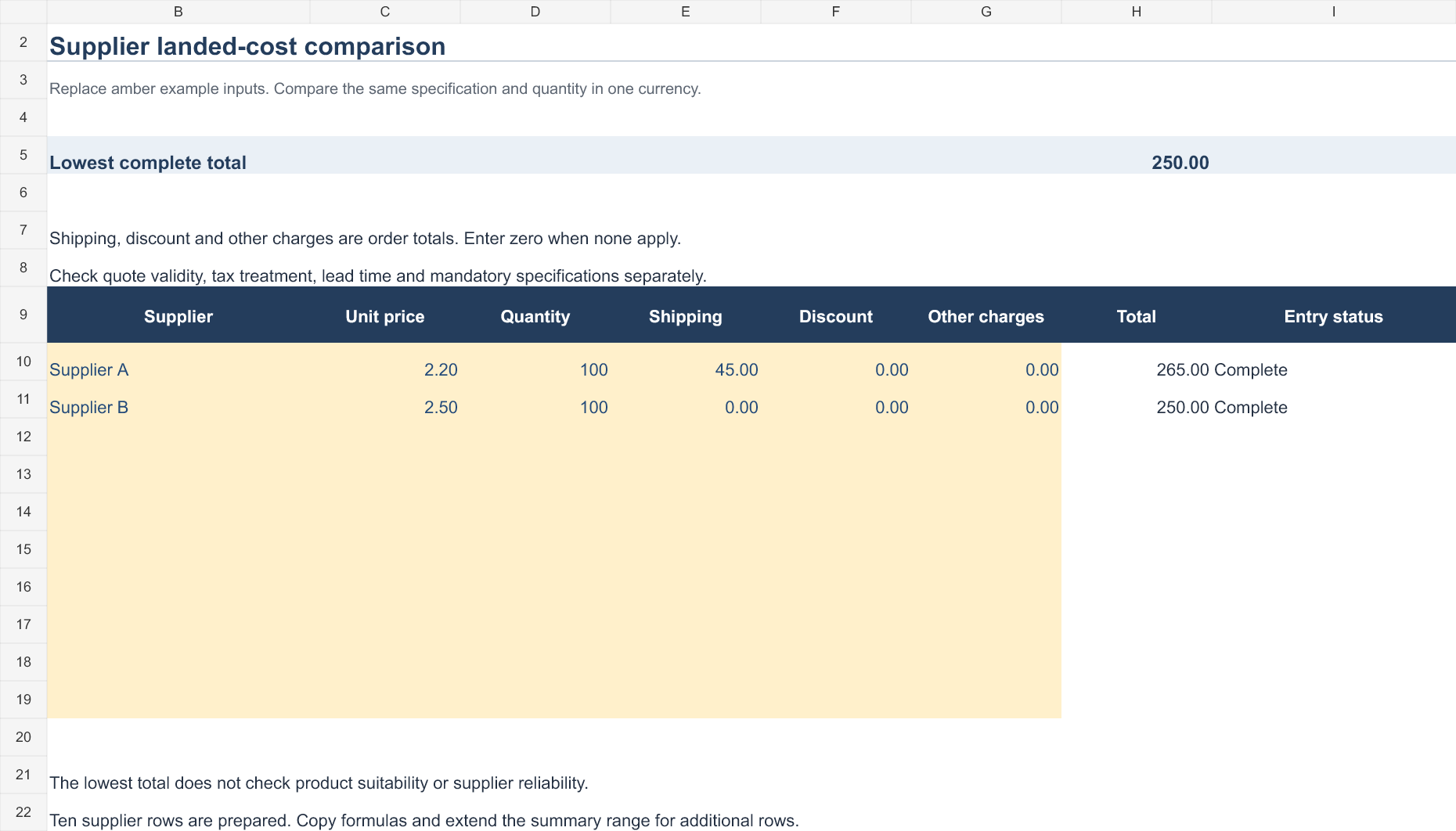
Excel calculator: Download the supplier landed-cost calculator (.xlsx). Replace the amber example inputs to update the calculated results. Ten supplier rows are prepared. Use one currency and compare the same specification and quantity.
Set up the record
- Item specification: [details]
- Required quantity: [quantity and unit]
- Currency: [currency]
- Quotes checked on: [date]
| Supplier | Unit price | Quantity | Shipping | Discount | Other charges | Total |
|---|---|---|---|---|---|---|
| A | 2.20 | 100 | 45.00 | 0.00 | 0.00 | 265.00 |
| B | 2.50 | 100 | 0.00 | 0.00 | 0.00 | 250.00 |
How to use this template
- Calculate total as unit price multiplied by quantity, plus shipping and other charges, minus the discount.
- Record quote validity, lead time and return terms beside the comparison.
- If a quote uses another currency, state the conversion rate and date before comparing totals.
Worked example: Supplier B costs 15.00 less for this order even though its unit price is higher. That conclusion assumes the same specification and no additional charges.
Check before use
- Do not subtract a discount twice.
- Compare total cost in one currency.
- Check delivery and specification requirements before selecting the lowest total.
Compare suppliers using the complete landed cost
- Saves money: Seeing every price side by side makes it easy to spot overpriced items and choose the vendor offering genuine value rather than just the lowest sticker price on its own.
- Saves time: Instead of revisiting multiple stores, marketplaces, or websites every time you need to decide, you record prices once and refer back to the sheet whenever needed.
- Improves budgeting: Because the template shows the total cost of each option, including extra charges, it is far easier to plan how much money to set aside before you shop or place an order.
- Supports smarter negotiation: When you approach a supplier with documented competitor pricing in hand, you are in a much stronger position to negotiate a better rate or additional terms.
- Reduces impulse buying: Comparing options in writing, rather than deciding on the spot, naturally slows down the purchase decision and reduces regret purchases later.
- Works for any budget size: The same simple structure works whether you are comparing grocery prices for a weekly shop or evaluating six-figure supplier contracts for a business.
Worked example: For 100 identical notebooks, Vendor A may quote $2.20 each plus $45 shipping, while Vendor B quotes $2.50 each with free shipping. Enter both extended totals ($265 and $250) so the apparent cheaper unit price does not mislead you.
Check before use: Check quotation dates and currency, and keep quality and return terms alongside the totals. Inspect the workbook before assuming any highlighted result or formula automatically updates.
For a related planning task, see 3 Excel Pricing Model Templates and 5+ Free Price List Templates.
How the Excel Price Comparison Template Is Structured
Both templates available on this page follow a simple, logical layout so that you can start using them within minutes of downloading, without any setup:
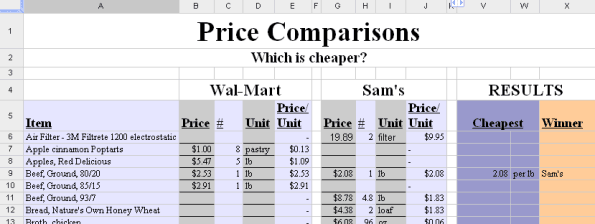
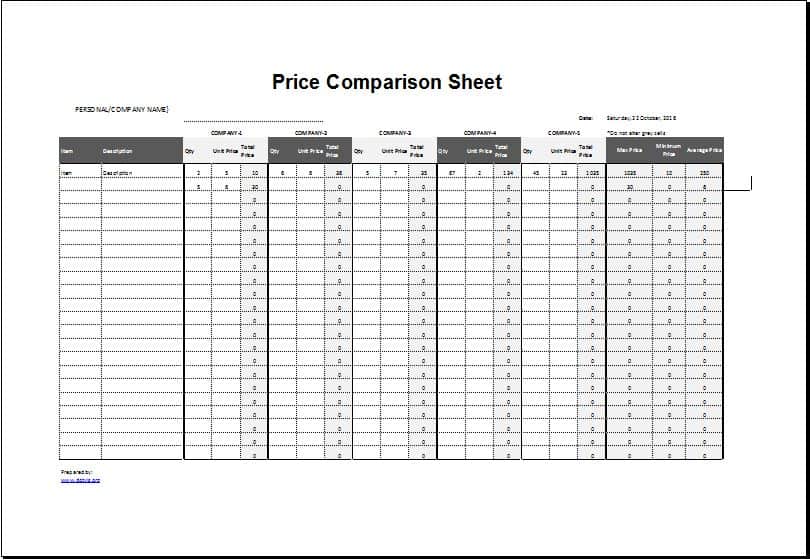
- Item or product name: The exact product, service, or material you are pricing out, so every row is easy to identify at a glance.
- Vendor or supplier name: Every store, brand, marketplace, or supplier you are considering for that item.
- Unit price and quantity: The cost per unit and how many units you need, so the sheet can calculate the total cost automatically.
- Additional costs: Shipping, tax, delivery, or handling fees that affect the true final price but are easy to forget when comparing headline prices.
- Quality or rating notes: A dedicated place to record reviews, warranty terms, return policy, or your own personal notes about each option.
- Best price highlight: A summary row or column designed to make the lowest total cost stand out immediately, even in a long list.
Because the sheet is built with standard Excel formulas, you can freely edit the column headings, add your own comparison categories, or extend the number of rows to compare as many vendors or products as your project requires.
How to Start Using the Template in 3 Simple Steps
Getting started with either price comparison template takes only a few minutes:
- Step 1 — Download the template: Click the download button below the preview image that matches the layout you prefer, and save the file to your computer.
- Step 2 — Enter your products and vendors: Add one row for every product, brand, or supplier you want to compare, filling in the price, quantity, and any extra costs.
- Step 3 — Review and decide: Sort or scan the completed sheet to identify the best total value, then keep the file so you can update it the next time you shop or request new quotes.
Who Should Use This Price Comparison Template?
This template is useful in far more situations than a single shopping trip. Some of the most common use cases include:
- Household shoppers comparing grocery, electronics, appliance, or furniture prices across different stores before making a big purchase.
- Small business owners sourcing raw materials, packaging, or office supplies from multiple vendors to control costs.
- Procurement and purchasing teams evaluating formal supplier quotations side by side before signing a contract.
- Event planners comparing venue, catering, decoration, or vendor quotes for weddings, parties, and corporate events.
- Freelancers and consultants benchmarking software subscriptions, tools, or subcontractor pricing before committing.
Common Mistakes to Avoid When Comparing Prices
Even with a good template, a few common mistakes can lead to the wrong conclusion:
- Ignoring hidden costs: Shipping, taxes, and handling fees can turn an apparently cheaper option into the more expensive one once everything is added up.
- Comparing different quantities or specifications: A lower price is meaningless if the pack size, quality grade, or specification is not the same across every option.
- Relying on memory instead of writing it down: Prices and offers are easy to misremember after visiting several stores or receiving several quotes; recording them prevents costly mistakes.
- Never revisiting old data: Prices change frequently, so a comparison sheet from several months ago may no longer reflect the best available option.
- Focusing on price alone: Warranty, return policy, delivery time, and vendor reliability all affect real value, not just the number in the price column.
Excel Price Comparison Template vs. Comparing Prices Manually
Many shoppers and small business owners still compare prices manually, jotting numbers on paper or trying to keep several browser tabs open at once. This approach works for a single quick purchase, but it breaks down quickly once more than two or three options are involved, because nothing is recorded in one place and small details — like a shipping fee or a different pack size — are easy to lose track of. An Excel price comparison template solves this by giving every option a permanent row in the same sheet, with the same columns applied consistently, so comparisons stay accurate even weeks later. It also means you are not starting from zero the next time you need to buy something similar; you can simply duplicate the sheet, update the prices, and compare again in minutes rather than starting the whole research process over.
Customizing the Template for Your Own Needs
While the templates on this page work well as they are, they are meant to be a starting point rather than a fixed form. You can rename columns to match the language of your industry, add a currency conversion column if you are comparing international suppliers, insert a discount or coupon column for promotional pricing, or add a simple formula that automatically flags the cheapest row in the sheet. Because everything is built in standard Excel, none of these changes require advanced spreadsheet skills — basic familiarity with entering data and copying a formula down a column is enough to adapt either template to almost any comparison scenario you have in mind.
Tips to Get the Most Out of Your Price Comparison Template
- List every extra cost. Shipping, tax, and handling fees can quietly change which option is actually cheaper, so record them in their own column instead of estimating.
- Compare like for like. Make sure the quantity, size, or specification is identical across rows before comparing price — otherwise the “cheaper” option may not really be cheaper.
- Update it regularly. Prices change often, so refresh the sheet before every major purchase rather than relying on old research from a previous trip.
- Use conditional formatting. Highlighting the lowest total cost in a bright color makes the best option instantly visible, especially when comparing many rows at once.
- Save a copy per project. Keep a fresh copy of the template for each shopping trip or sourcing project so your comparison history stays organized and easy to reference later.
Download Free Excel Price Comparison Templates Here
Editable Price Comparison Template

Frequently Asked Questions
Is this Excel price comparison template free to download?
Yes. Both price comparison templates on this page are completely free to download and use, for personal shopping or business sourcing.
Can I edit the template after downloading it?
Absolutely. The templates are fully editable Excel files, so you can add or remove columns, change labels, insert your own formulas, and adjust the design to match your needs.
Do I need Microsoft Excel to use this template?
The template is designed for Microsoft Excel, but it will also open in free alternatives such as Google Sheets or LibreOffice Calc, with only minor formatting differences.
How many products or vendors can I compare?
There is no fixed limit. You can insert as many rows as you need to compare additional products, brands, or suppliers.
Can I use this template for business procurement, not just personal shopping?
Yes. The layout works equally well for everyday personal shopping and for formal business procurement, including comparing supplier quotes and supporting contract negotiations.
Will totals update automatically when I change a price or quantity?
Yes, the templates include built-in formulas, so totals and calculated fields update automatically whenever you change the unit price or quantity.
Which of the two templates on this page should I choose?
Both templates follow the same core idea, so you can pick whichever layout looks easier to read for your comparison. If you are unsure, download both and use whichever one you find more convenient.

You must be logged in to post a comment.