
Knowing exactly what stock you have on hand, where it’s located, and when it needs to be reordered is essential to running a smooth operation, and an inventory tracking spreadsheet template makes that process simple and organized. Instead of building a tracking system from scratch or relying on guesswork, a ready-made spreadsheet gives you a proven structure for recording every item, quantity, and reorder point in one place. Below you’ll find 3 downloadable inventory tracking spreadsheet templates in Excel format, suitable for small businesses, warehouses, and retail operations alike.
What Is an Inventory Tracking Spreadsheet Template?
An inventory tracking spreadsheet template is a pre-formatted document designed to help businesses monitor stock levels, track incoming and outgoing goods, and identify when items need to be reordered. Rather than building columns, formulas, and formatting from scratch, a ready-made template gives you a structure already built to capture item names, SKU numbers, quantities on hand, and reorder thresholds. These templates are used by small business owners, warehouse managers, and retail operators to maintain accurate stock records that support smooth day-to-day operations.
Why You Need an Inventory Tracking Spreadsheet Template: Key Benefits
- Saves setup time: A ready-made structure means you can start tracking inventory immediately instead of designing a system.
- Reduces stockouts: Clear visibility into current stock levels helps you reorder before items run out.
- Prevents overstocking: Accurate tracking helps avoid tying up cash in excess inventory that isn’t moving.
- Improves order accuracy: Up-to-date records make it easier to fulfill customer orders without errors.
- Simplifies financial reporting: Well-organized inventory data feeds directly into cost of goods sold calculations.
- Free and reusable: Download once and reuse the same template structure for every inventory cycle.
What’s Included in the Inventory Tracking Spreadsheet Template
- Item description: A column identifying each product or material being tracked.
- SKU or item number: A unique identifier for each inventory item for easy reference.
- Quantity on hand: The current stock level for each item, updated as inventory changes.
- Reorder point: A threshold quantity that signals when it’s time to reorder an item.
- Unit cost and total value: Fields for tracking the cost of each item and the total value of inventory on hand.
- Supplier information: Space to note the vendor or supplier for each inventory item.
Who Should Use These Templates?
- Small business owners managing inventory without dedicated inventory management software.
- Warehouse managers tracking stock across multiple storage locations.
- Retail store operators monitoring product levels to avoid stockouts and overstocking.
- E-commerce sellers keeping accurate records of stock available for online orders.
- Restaurant and food service managers tracking ingredient and supply levels.
- Nonprofit organizations managing donated goods or program supplies.
How to Start Using the Template in 3 Simple Steps
- Step 1 — Download the template: Choose the Excel format below and save it to your computer.
- Step 2 — Enter your inventory items: List each item along with its quantity, cost, and reorder point.
- Step 3 — Update regularly: Adjust quantities as items are received or sold to keep records accurate.
Inventory Tracking Spreadsheet vs. Inventory Management Software
While both approaches help businesses monitor stock, an inventory tracking spreadsheet and dedicated inventory management software serve different needs depending on the scale of the operation. A spreadsheet is fast to set up, completely free, and gives you full control over the layout, making it ideal for small businesses with a manageable number of items. Inventory management software, by contrast, offers advanced features like barcode scanning, automated reordering, and multi-location tracking, which becomes more valuable as inventory complexity grows. Many small businesses start with a spreadsheet and transition to dedicated software only once their inventory needs become more complex.
Customizing the Template for Your Business
These templates are designed to be a flexible starting point rather than a fixed format. You can add extra columns for categories like product size or color, adjust reorder points based on seasonal demand, or include a notes column for tracking damaged or returned items. Since the templates are provided in editable Excel format, most adjustments take only a few minutes and let you tailor the spreadsheet to fit your specific business and inventory type.
Choosing the Right Format
With multiple inventory tracking templates available, choosing the right one depends on how detailed your tracking needs to be. A simple template works well for businesses with a small number of items, while a more detailed template is better suited for operations that need to track inventory across multiple locations or categories. Reviewing what each template includes before downloading can help you find one that requires minimal restructuring for your specific inventory tracking needs.
Common Mistakes to Avoid
- Infrequent updates: Update quantities as soon as items are received or sold rather than batching updates weekly.
- Inconsistent counting methods: Use the same unit of measure consistently to avoid confusion in quantity tracking.
- Ignoring reorder points: Set realistic reorder thresholds based on how quickly items actually sell.
- Skipping physical counts: Periodically verify spreadsheet totals against actual physical inventory counts.
- Not backing up the file: Save copies regularly to avoid losing inventory records to a corrupted file.
Tips to Get the Most Out of Your Inventory Tracking Spreadsheet Template
- Conduct regular physical counts to verify that spreadsheet totals match actual stock on hand.
- Use color coding to flag items that are low in stock or need immediate reordering.
- Track supplier lead times alongside reorder points to avoid running out before new stock arrives.
- Review slow-moving items periodically to identify inventory that may need to be discounted or discontinued.
- Save a backup copy before making major changes to the spreadsheet structure.
Understanding Reorder Points and Safety Stock
Setting an accurate reorder point is one of the most important aspects of effective inventory tracking, since ordering too late results in stockouts while ordering too early ties up cash unnecessarily. A reorder point is typically calculated based on how quickly an item sells combined with how long it takes a supplier to deliver new stock, with some businesses adding a safety stock buffer to account for unexpected demand spikes or shipping delays. Reviewing and adjusting reorder points periodically, especially for seasonal products, helps ensure your inventory tracking spreadsheet continues to reflect realistic ordering needs throughout the year.
Using Your Spreadsheet to Identify Slow-Moving Inventory
Beyond simply tracking current stock levels, a well-maintained inventory spreadsheet can help identify which items are moving slowly and tying up valuable warehouse space or capital. Sorting inventory by how long items have sat on the shelf, or by comparing current stock levels against historical sales data, makes it easier to spot products that may need a promotional push or discontinuation. Regularly reviewing this data helps businesses make more informed purchasing decisions and avoid repeatedly overordering items that don’t sell as quickly as expected.
Conducting Regular Physical Inventory Counts
Even the most carefully maintained inventory spreadsheet can drift from reality over time due to theft, damage, or simple recording errors, which is why periodic physical counts remain an essential part of inventory management. Scheduling regular counts, whether weekly for fast-moving items or monthly for the full inventory, helps catch discrepancies early before they compound into larger accounting problems. Comparing physical count results against spreadsheet totals and investigating any significant differences helps maintain the accuracy that makes an inventory tracking spreadsheet genuinely useful for business decisions.
Tracking Inventory Across Multiple Locations
Businesses that operate more than one warehouse, storefront, or storage location face additional complexity when tracking inventory, since the same spreadsheet needs to reflect stock levels accurately across each site. Adding a location column, or maintaining a separate tab for each site within the same workbook, allows for clear visibility into where specific items are stored without mixing up totals between locations. This structure also makes it easier to identify opportunities to transfer stock between locations rather than placing a new order when a nearby site already has surplus inventory of the same item.
Seasonal Inventory Planning
Many businesses experience significant fluctuations in demand throughout the year, making seasonal planning an important extension of basic inventory tracking. Reviewing historical sales data from previous years alongside current spreadsheet totals helps businesses anticipate when to increase stock ahead of a busy season and when to scale back ordering during slower periods. Building a habit of comparing this year’s inventory levels against the same period last year, directly within the spreadsheet, makes seasonal planning far more data-driven than relying on guesswork alone.
Sharing Your Inventory Spreadsheet With Your Team
As a business grows, inventory tracking often becomes a shared responsibility rather than a task handled by a single person, which raises questions about how best to keep a spreadsheet updated across a team. Storing the spreadsheet in a shared cloud location, with clear guidelines about who updates which sections and when, helps prevent conflicting edits and outdated information from circulating among staff. Establishing a simple routine, such as updating quantities at the end of each shift or after every shipment received, keeps the spreadsheet reliable even as more people become responsible for maintaining it, and it also makes onboarding new team members to the process considerably easier over time.
Get inventory tracking spreadsheet templates Free Here
Inventory Tracking Spreadsheet Sample
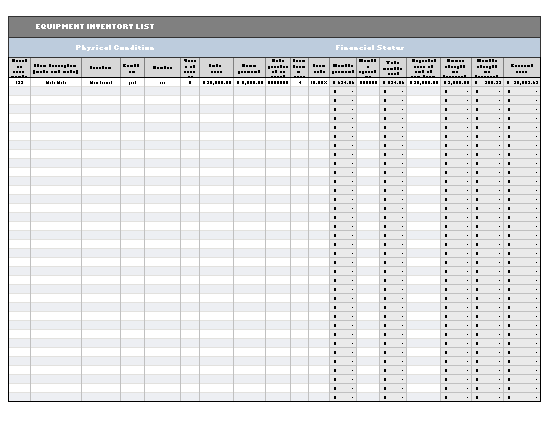

Inventory Tracking Spreadsheet Template Free
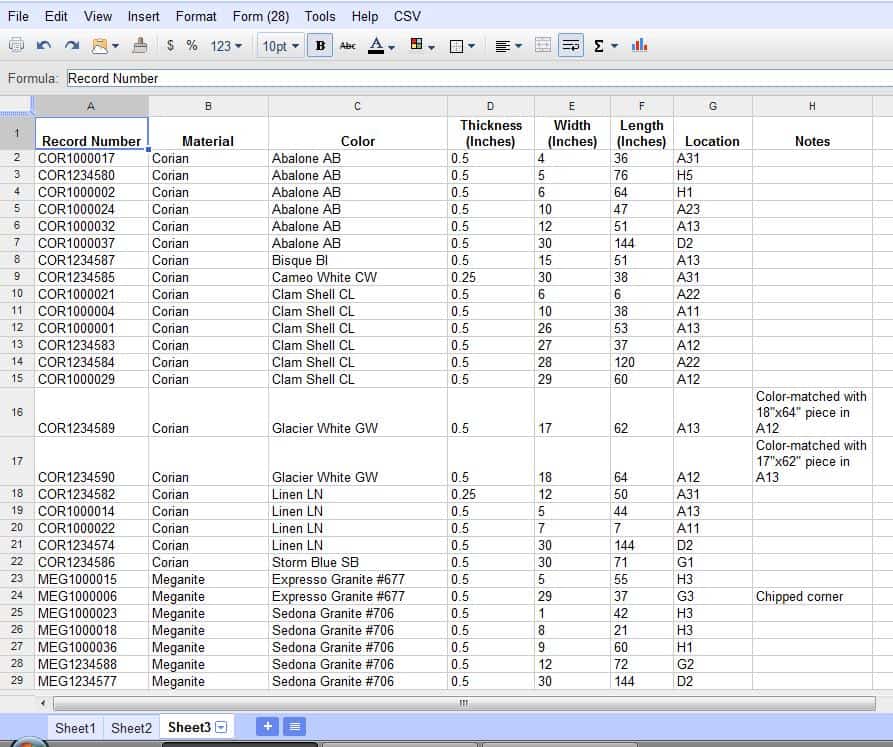
Editable Inventory Tracking Spreadsheet
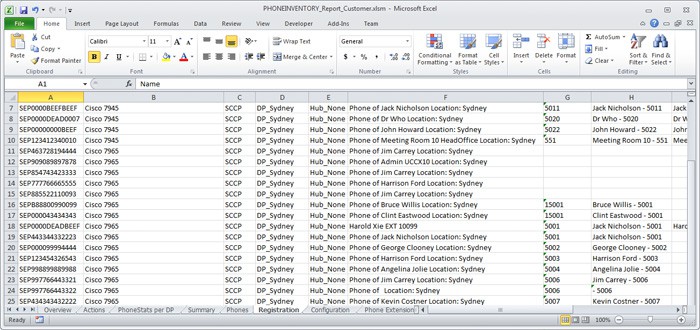
Frequently Asked Questions
Are these inventory tracking spreadsheet templates free to download?
Yes, all 3 inventory tracking spreadsheet templates on this page are free to download and use.
Do I need advanced Excel skills to use these templates?
No, basic Excel knowledge is enough to get started, though built-in formulas make tracking even easier.
Can I use these templates for a small business?
Yes, these templates work well for small businesses managing a limited number of inventory items.
Can I add more columns to track additional details?
Yes, the templates are fully editable, so you can add columns for categories, locations, or suppliers.
Will these templates help me set reorder points?
Yes, the templates include space for tracking reorder points based on your stock levels and demand.
Can I track inventory across multiple locations?
Yes, you can add a location column or use separate tabs within the same workbook for different sites.
Is this template suitable for retail businesses?
Yes, these templates work well for retail stores, e-commerce sellers, and warehouse operations alike.

You must be logged in to post a comment.