
An Excel dashboard is useful when it has a defined audience and a small set of reliable metrics. Label each figure with its calculation, period, unit and source before adding visualisations.
Design a dashboard around decisions, not decorative charts
- Saves significant time: A pre-formatted layout eliminates the need to design charts and tables from scratch for every report.
- Improves data clarity: Visual summaries make trends and outliers far easier to spot than raw spreadsheet data alone.
- Supports better decisions: A clear dashboard helps managers and teams act quickly on accurate, up-to-date information.
- Works across departments: Dashboards can be adapted for sales, finance, HR, marketing, and project tracking alike.
- Easy to update: Most templates use formulas and linked charts that refresh automatically as new data is entered.
- Free and reusable: Download once and reuse the same template structure for every future reporting period.
Worked example: A shop owner might track weekly sales, average order value, returns and inventory turnover. A line chart can show trends over time, while a simple table may be better for finding the ten lowest-stock products.
Check before use: Reconcile dashboard figures to their source sheets, check refresh instructions and beware of charts that omit missing data. A static screenshot is not the same as a live-updating workbook.
For related resources, see 10+ BEST Income Statement Excel Templates & Formats and 4 Business Expense Tracker Templates.
What’s Included in the Excel Dashboard Template
- Summary metrics section: Key performance indicators displayed prominently for quick reference.
- Charts and graphs: Visual elements like bar charts, line graphs, and pie charts to represent trends and comparisons.
- Data tables: Supporting tables that feed the charts and allow for more detailed review when needed.
- Filter and slicer options: Some templates include interactive filters to view data by time period, department, or category.
- Color-coded formatting: Visual cues such as color scales or conditional formatting to highlight performance levels.
- Customizable layout: A flexible structure that can be adjusted to fit your specific business metrics.
Who Should Use These Templates?
- Sales managers tracking monthly or quarterly performance against targets.
- Finance teams monitoring budgets, expenses, and financial performance indicators.
- HR professionals reporting on hiring metrics, turnover rates, and workforce data.
- Project managers overseeing timelines, budgets, and portfolio-wide project status.
- Marketing teams tracking campaign performance and social media engagement.
- Business owners who want a quick, visual overview of overall company performance.
How to Start Using the Template in 3 Simple Steps
- Step 1 — Choose a template style: Browse the 14 options below and select the dashboard that matches your reporting needs.
- Step 2 — Add your data: Enter your own figures into the linked data tables so the charts update automatically.
- Step 3 — Customize and share: Adjust colors, labels, and layout as needed, then share the finished dashboard with your team.
Excel Dashboard vs. Traditional Spreadsheet Report
A traditional spreadsheet report typically presents data in rows and columns without much visual structure, requiring the reader to interpret raw numbers on their own. An Excel dashboard, by contrast, translates that same data into charts, graphs, and highlighted summary metrics that can be understood in seconds rather than minutes. While spreadsheet reports remain useful for detailed record-keeping and audits, dashboards are far more effective for presentations, executive summaries, and situations where quick decision-making is the priority.
Customizing the Template for Your Business
These dashboard templates are built to be a flexible starting point rather than a fixed format. You can rebrand the color scheme to match your company’s branding, swap out chart types to better represent your specific data, or add extra metrics that matter most to your department. Since each template is built in editable Excel format, most customizations take only a few minutes and allow you to create a dashboard that feels tailored specifically to your business.
Choosing the Right Format
With 14 different dashboard templates available, selecting the right one depends on what you need to track. Sales and financial dashboards work well for tracking revenue and budget performance over time, while HR and project management dashboards are better suited for tracking people-related or timeline-based metrics. Reviewing the specific charts and layout included in each template before downloading can help you find one that requires minimal adjustment for your particular reporting needs.
Common Mistakes to Avoid
- Overcrowding the dashboard: Too many charts or metrics on one screen can make the dashboard harder to read rather than easier.
- Using inconsistent data sources: Make sure all linked tables pull from the same reliable data source to avoid reporting errors.
- Ignoring color accessibility: Choose color schemes that remain clear and readable for all viewers, including those with color vision differences.
- Forgetting to update formulas: Double-check that charts and summary cells are linked correctly after adding new data.
- Skipping a clear title or date: Always label the dashboard with the reporting period so viewers know exactly what they’re looking at.
Tips to Get the Most Out of Your Excel Dashboard Template
- Keep the design simple so the most important metrics stand out immediately.
- Update data regularly to ensure the dashboard always reflects current performance.
- Use consistent formatting across dashboards if your team reviews multiple reports side by side.
- Test the dashboard with real data before presenting it to confirm all charts display correctly.
- Save a master copy of the blank template so you always have a clean version to start from.
Static vs. Interactive Dashboards
Some Excel dashboards are static, meaning the charts and figures represent a fixed snapshot of data at a specific point in time, while others are interactive, using features like slicers, dropdown filters, or pivot tables that let viewers adjust what they see on the fly. Static dashboards work well for periodic reports, such as a monthly summary shared with stakeholders, while interactive dashboards are better suited for ongoing analysis where different team members may need to explore the data from different angles. Several of the templates below include filter options that add a layer of interactivity beyond a simple fixed report.
Using Dashboards for Executive Reporting
Executive audiences typically have limited time to review detailed reports, which makes a well-designed dashboard especially valuable for board meetings and leadership updates. A dashboard that highlights only the most critical KPIs, using clear visuals rather than dense tables of numbers, allows executives to grasp performance at a glance before diving into specific areas of concern if needed. Many of the templates below, particularly the KPI and financial dashboard options, are well suited to this kind of high-level executive reporting.
Combining Multiple Dashboards for a Complete Business View
While a single dashboard can effectively track one area of the business, many organizations benefit from combining several dashboard templates, such as sales, finance, and HR, into a broader reporting package that gives a complete view of overall business health. Reviewing these dashboards together on a regular cadence, whether weekly or monthly, helps leadership identify how performance in one area might be influencing results in another, such as how hiring delays could be affecting project timelines or sales output.
Dashboard Formulas and Functions Worth Knowing
Getting the most out of an Excel dashboard template often means becoming comfortable with a handful of key functions, such as SUMIFS and COUNTIFS for calculating totals based on specific criteria, VLOOKUP or INDEX-MATCH for pulling data from other sheets, and simple IF statements for flagging performance against a target. Pivot tables are especially useful for dashboards, since they allow underlying data to be summarized and reorganized quickly without manually rebuilding charts each time new information comes in. Even a basic understanding of these tools makes it much easier to adapt a downloaded template to your own data set, rather than needing to rebuild the dashboard’s logic from scratch.
Maintaining Your Dashboard Over Time
A dashboard is most useful when it stays accurate and current, which means setting up a regular routine for updating the underlying data, whether that’s daily, weekly, or monthly depending on how quickly your metrics change. It’s also worth periodically reviewing whether the dashboard still reflects what matters most to your team, since business priorities can shift and a dashboard built a year ago may need new metrics added or outdated ones removed. Keeping a changelog of major updates to the dashboard’s structure can also help new team members understand how the report has evolved and why certain metrics were included or removed.
Sharing and Presenting Your Dashboard
Once a dashboard is built, how it gets shared matters almost as much as the design itself. Exporting a dashboard to PDF preserves the layout exactly as designed and works well for emailing a static snapshot to stakeholders who don’t need to interact with the underlying data. For team settings where others need to explore the numbers themselves, sharing the live Excel file through a shared drive allows colleagues to filter and review the data directly, though it’s worth protecting the underlying formulas and formatting so the dashboard’s structure doesn’t get accidentally altered. Presenting a dashboard on-screen during a meeting, rather than distributing a static image beforehand, often leads to more focused discussion since the audience is guided through the data in real time rather than skimming ahead.
Get Excel Dashboard Templates Here for FREE
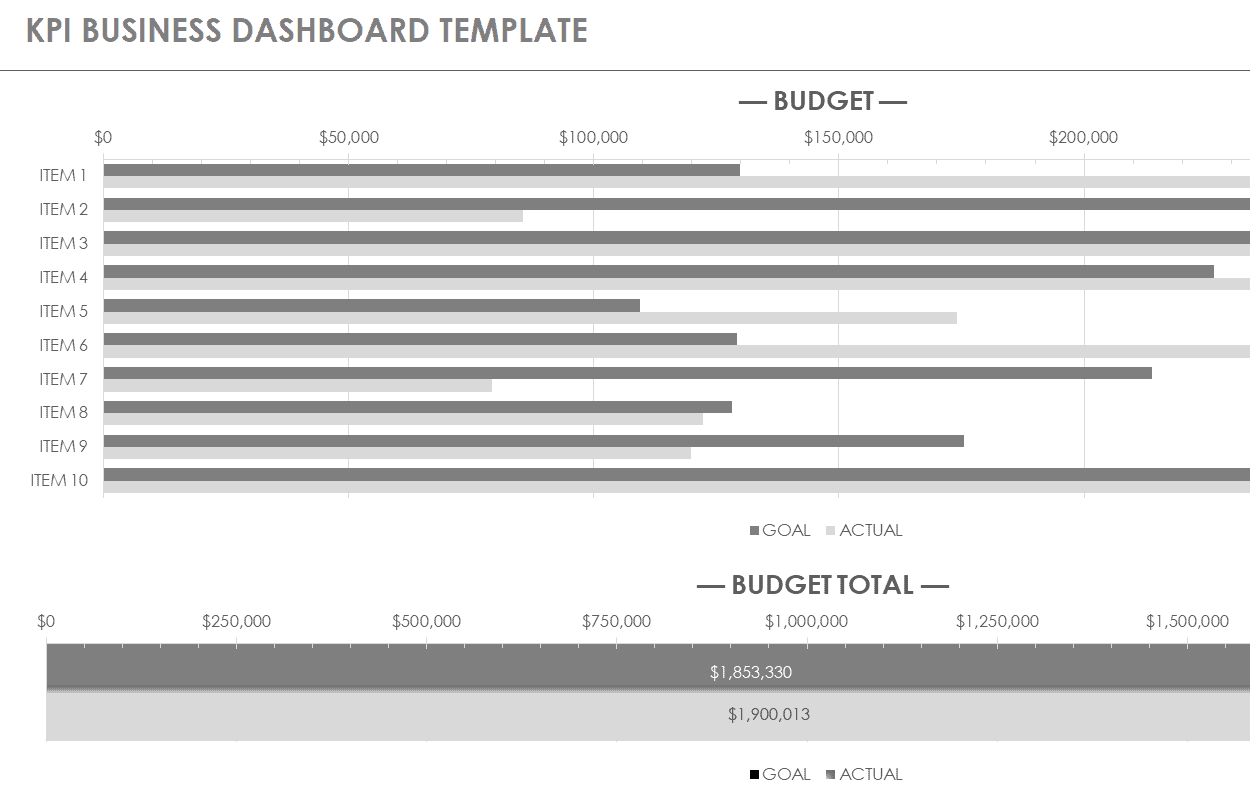
KPI Business Dashboard Template
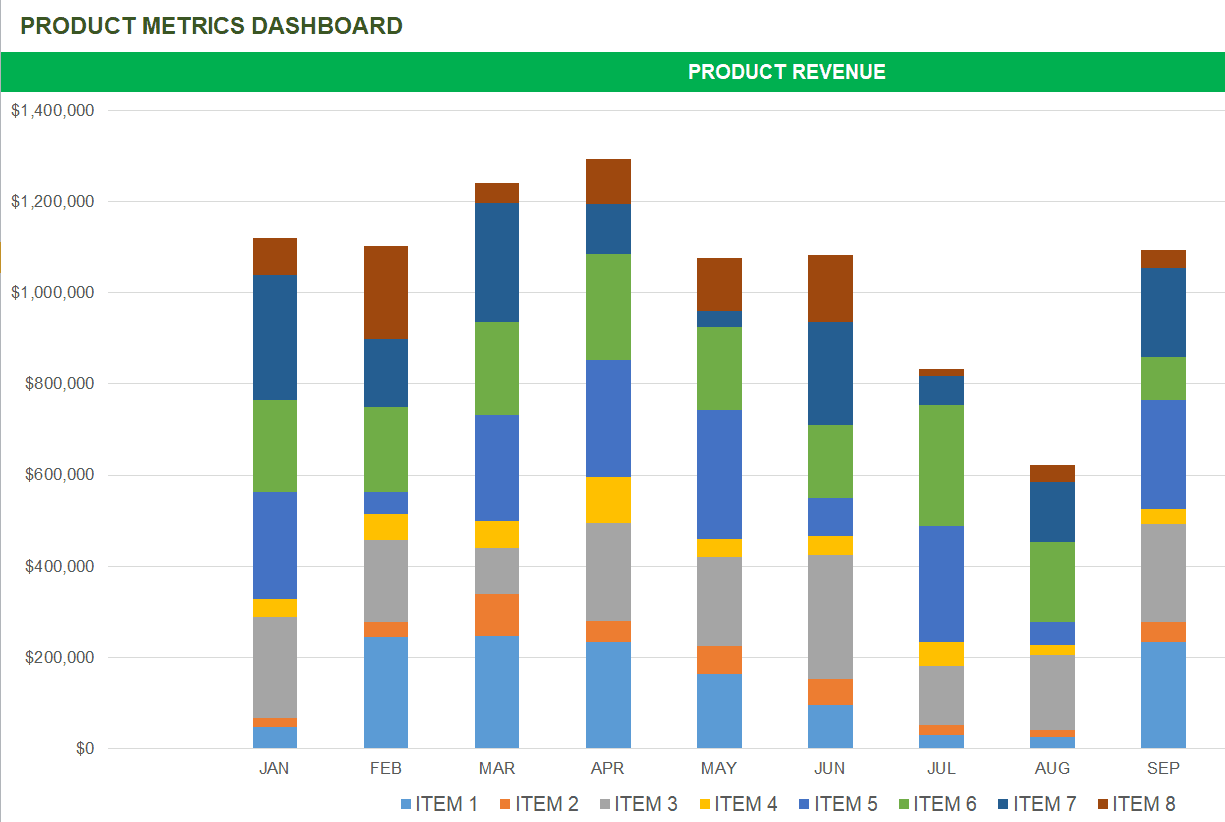
Product Metrics Dashboard Template
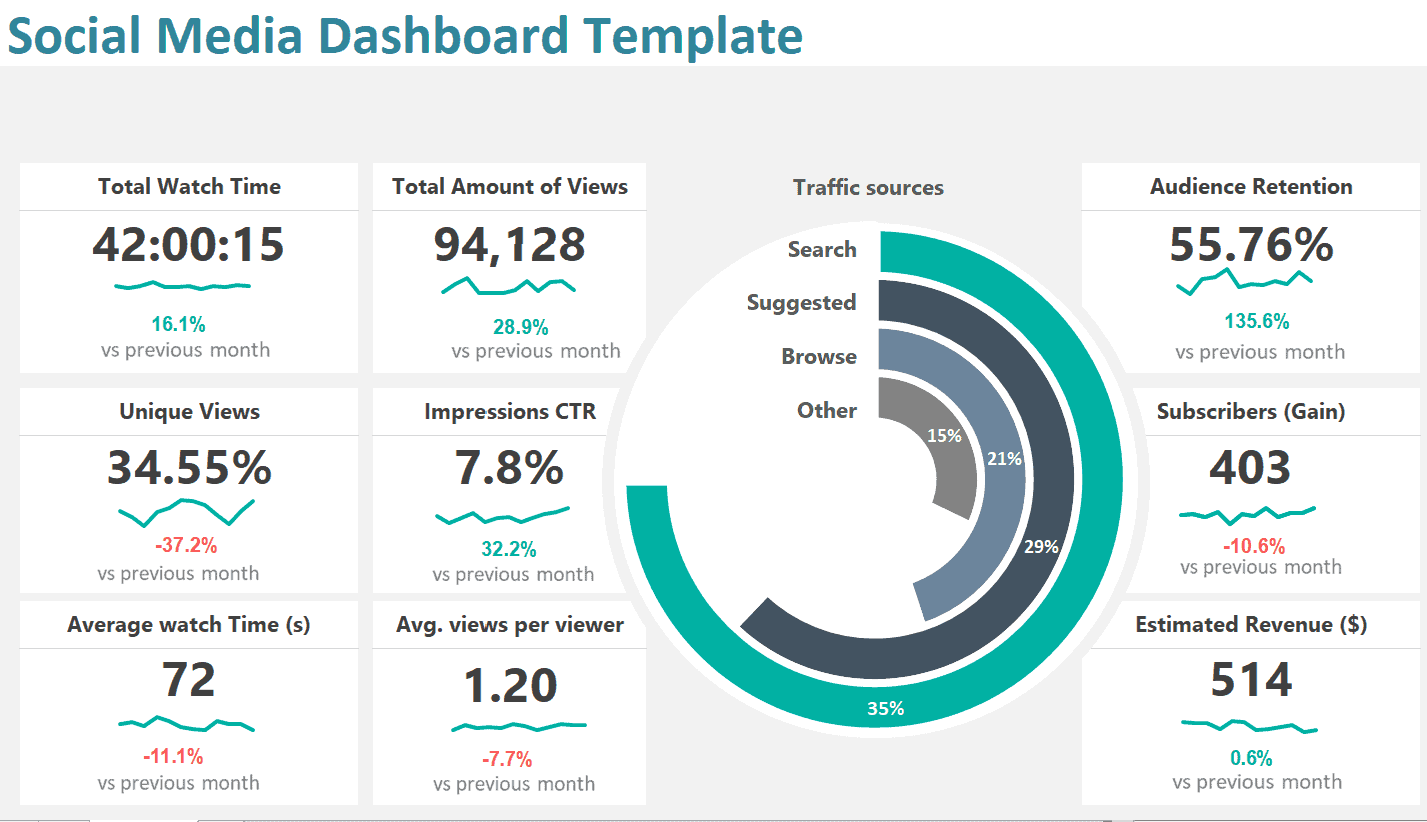
Social Media Dashboard Template
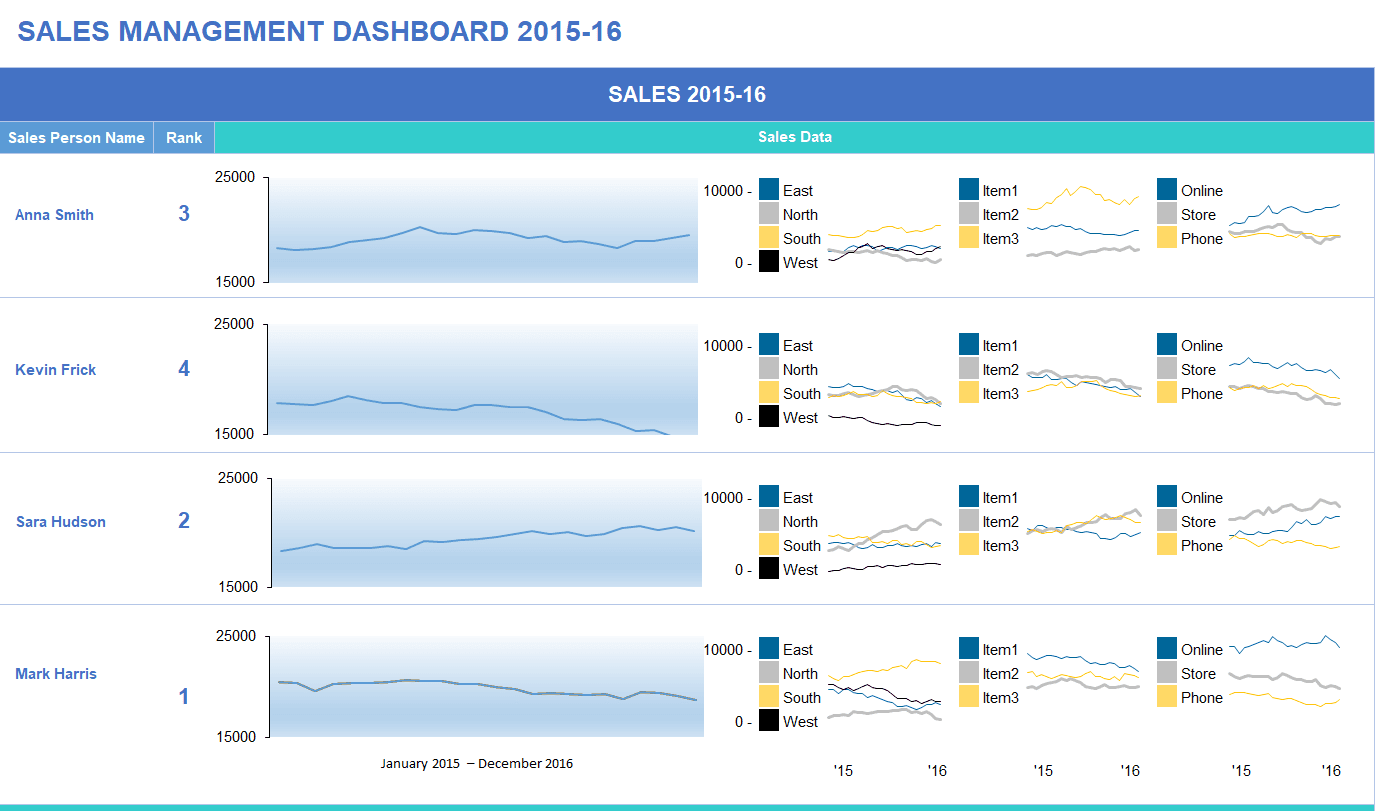
Sales Management Dashboard Template
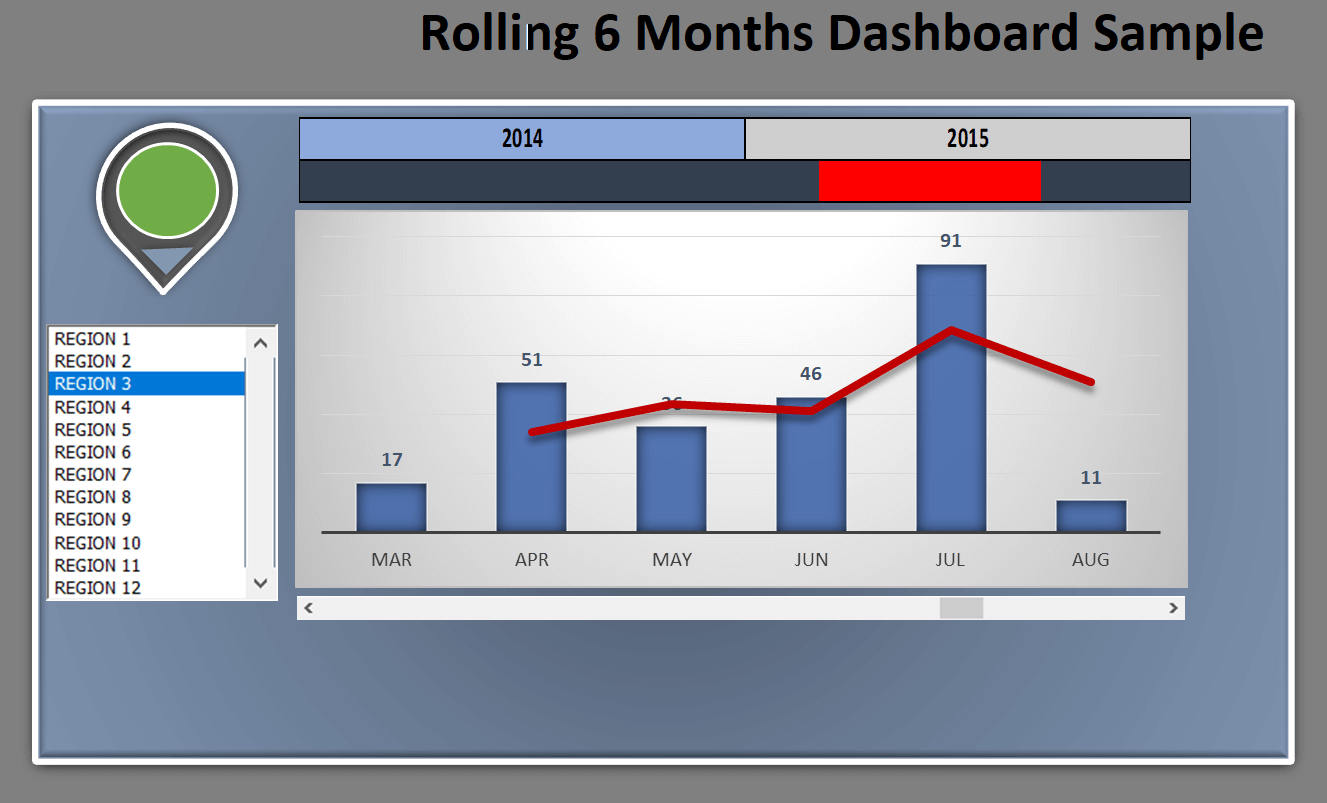
Rolling 6 Months Dashboard Sample Template
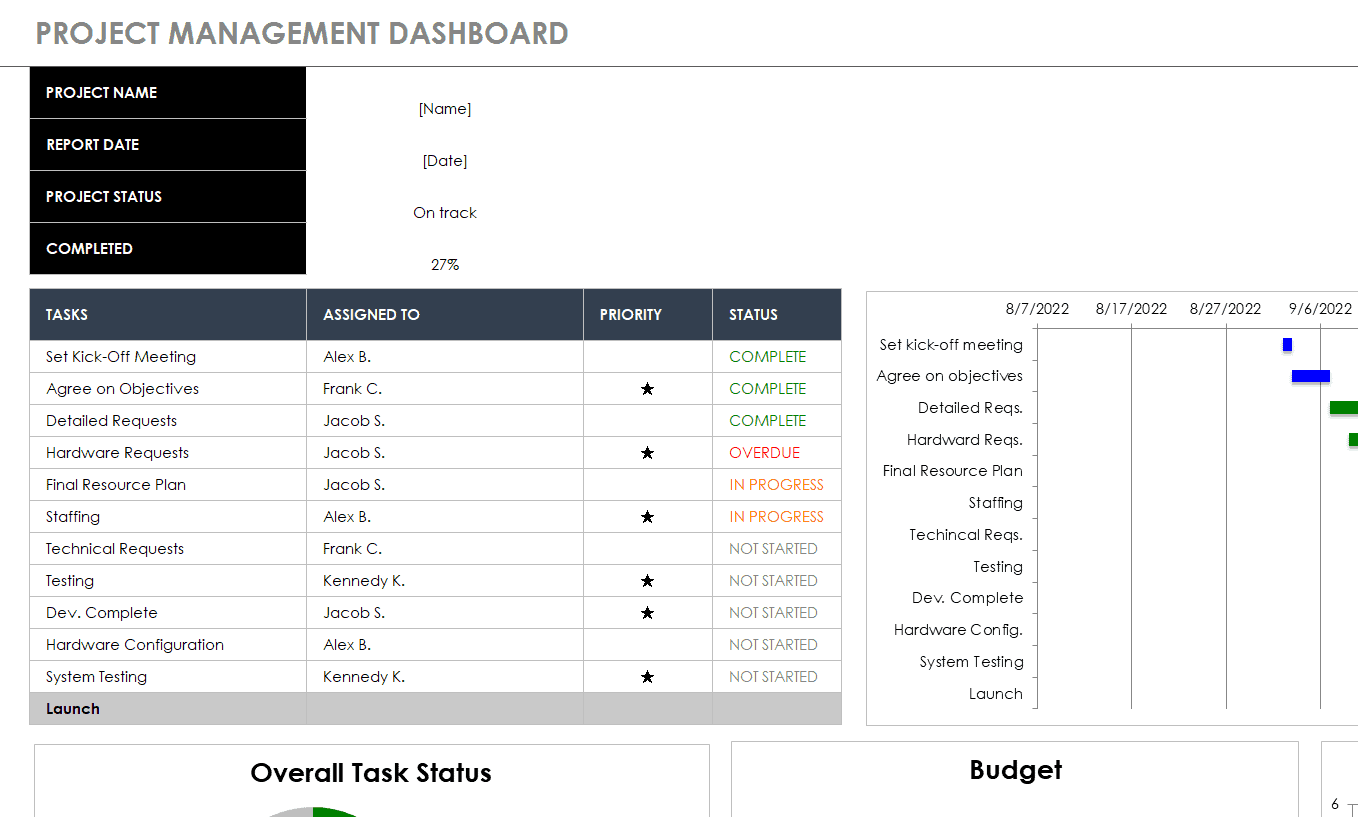
Detailed Project Management Dashboard Template
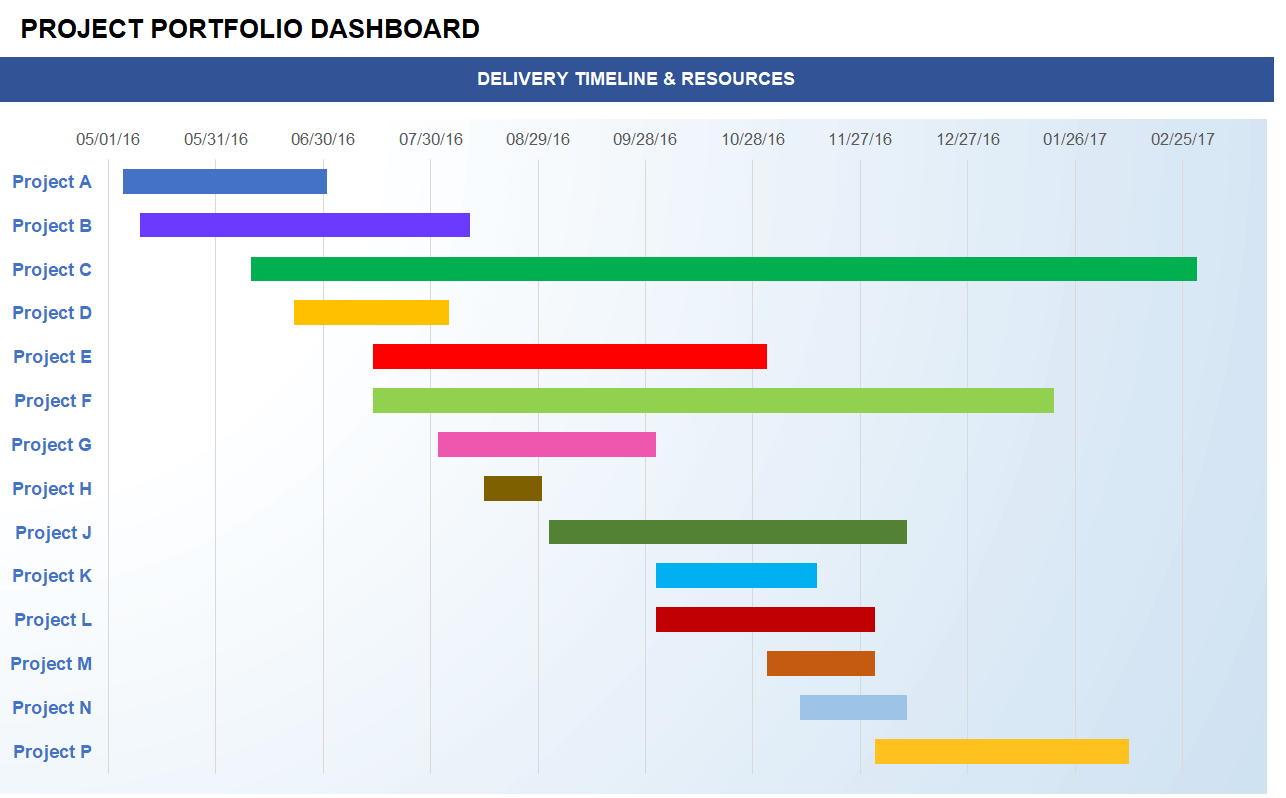
Project Portfolio Dashboard Template
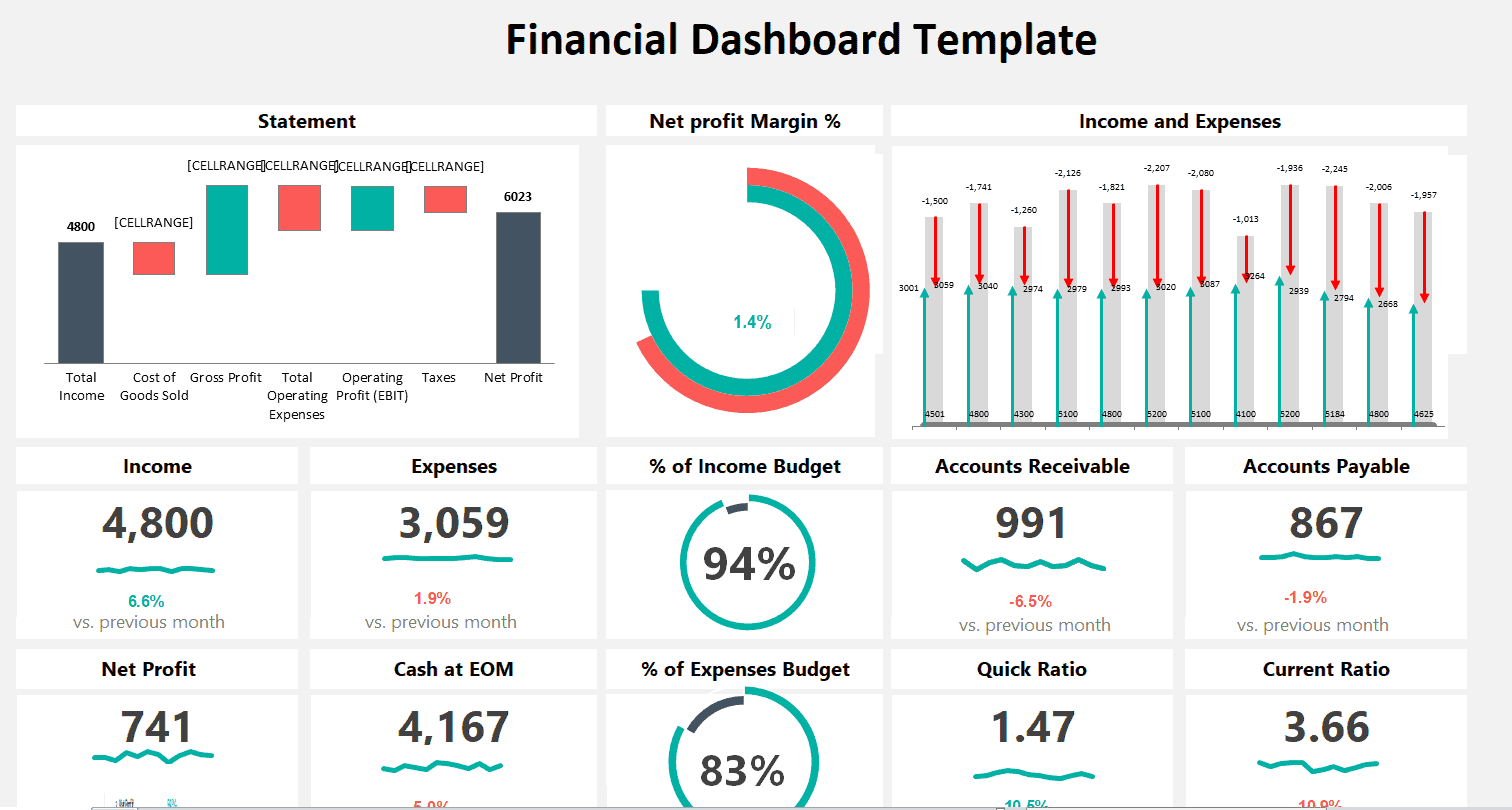
Example Financial Dashboard Template
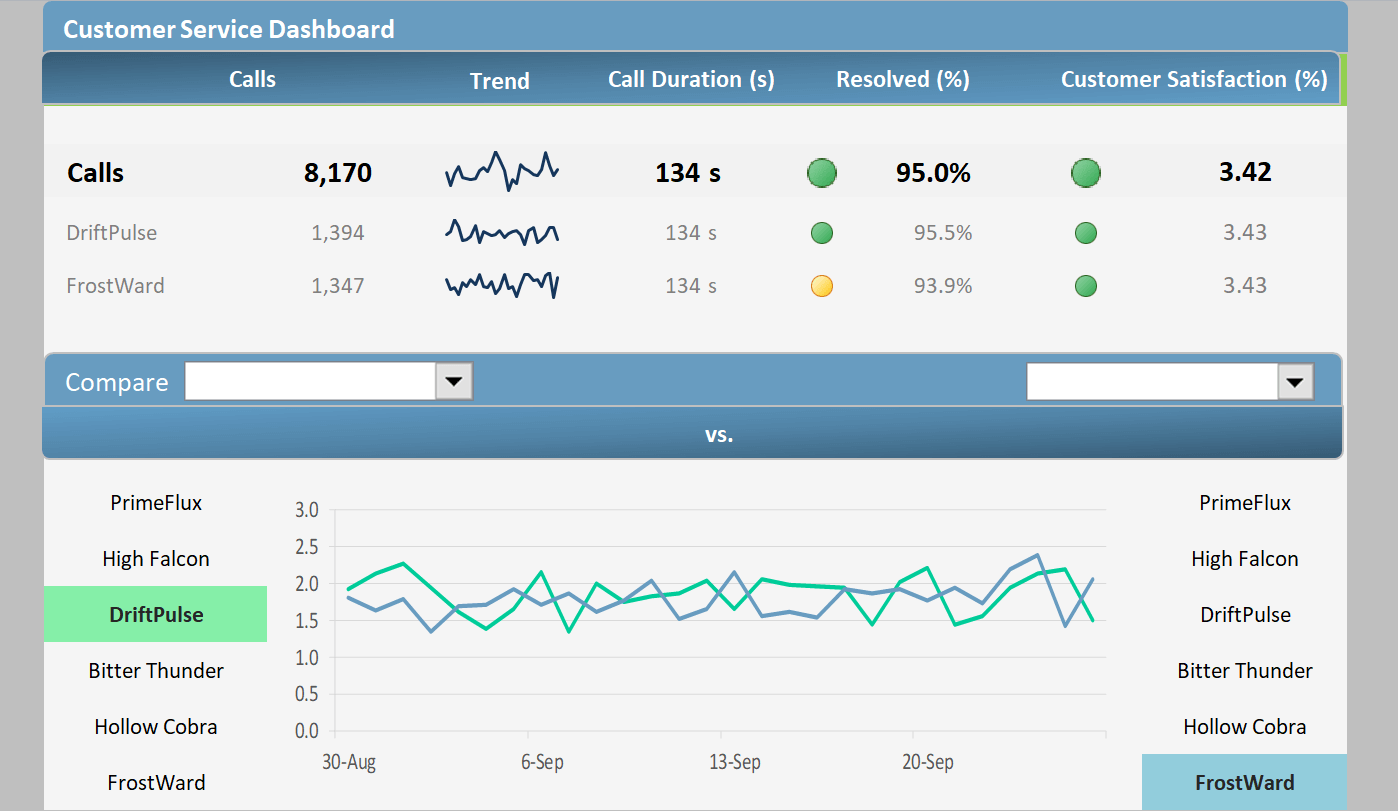
Customer Service Dashboard Template
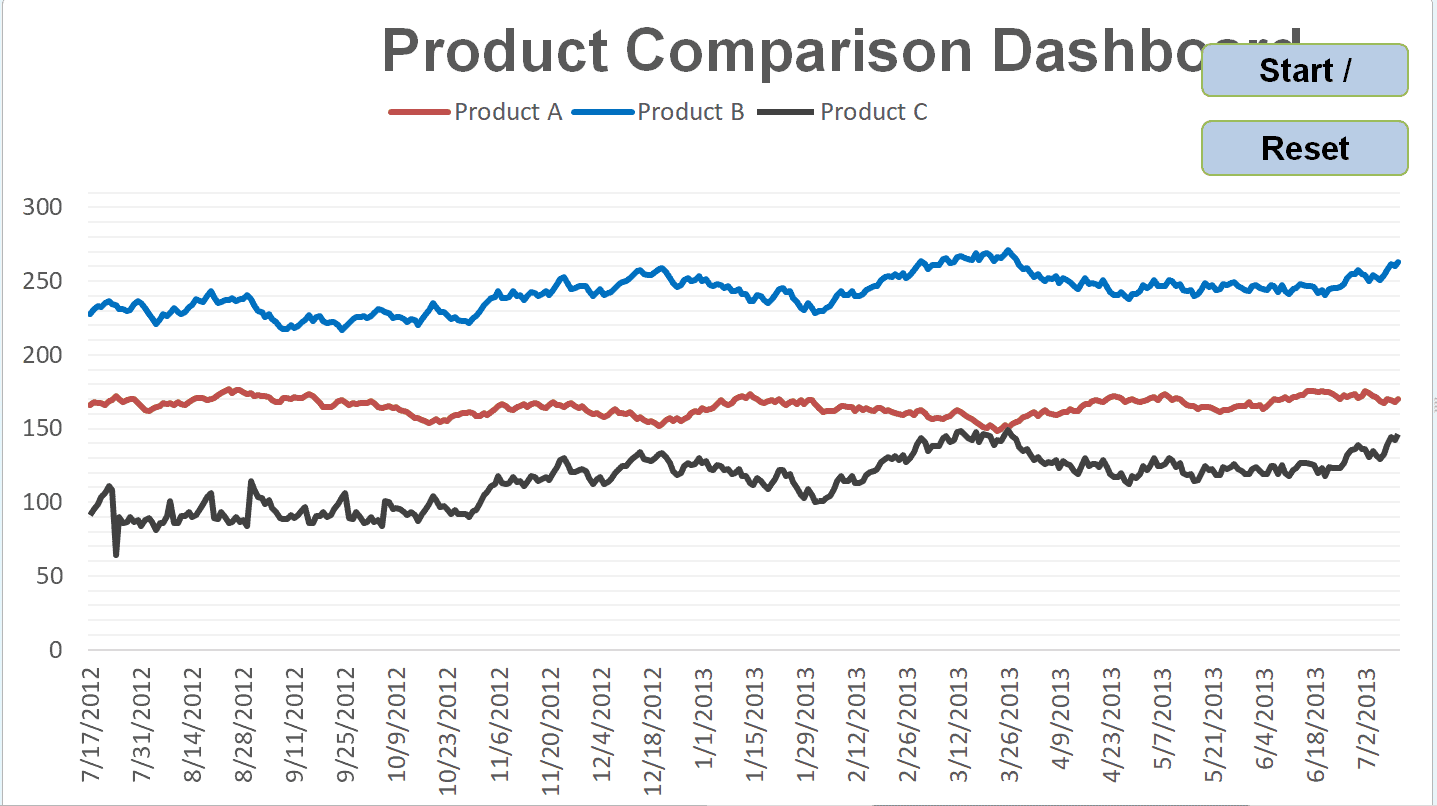
Product Comparison Dashboard Template
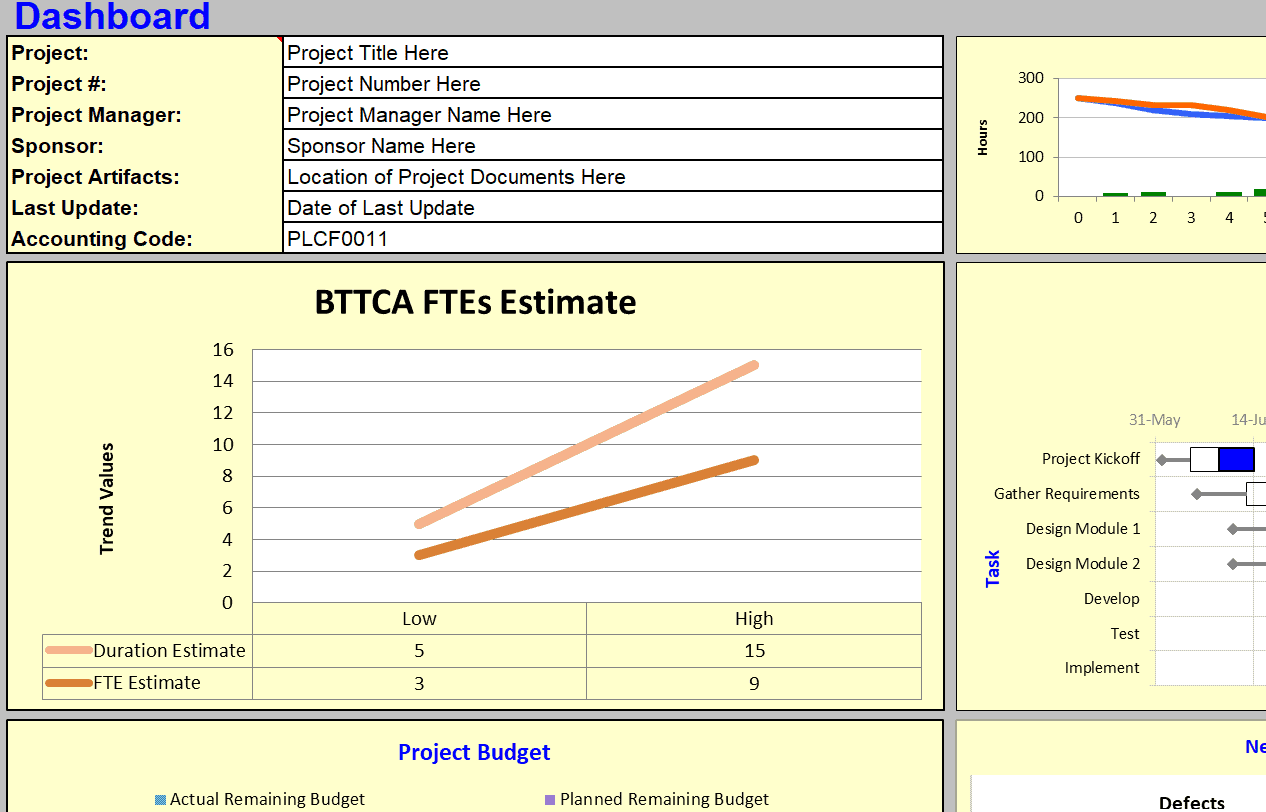
Model Excel Dashboard Template
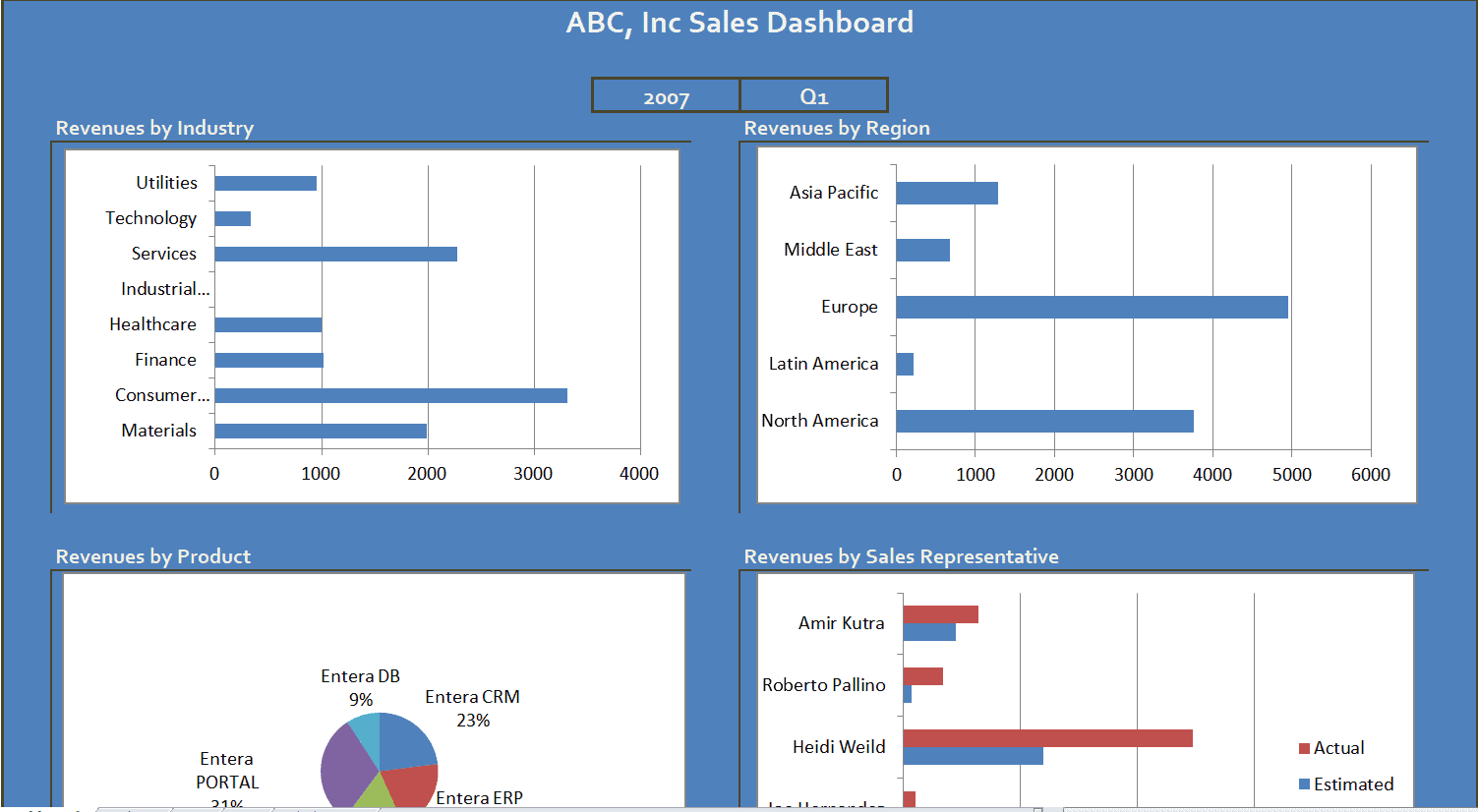
Company’s Sales Dashboard Template
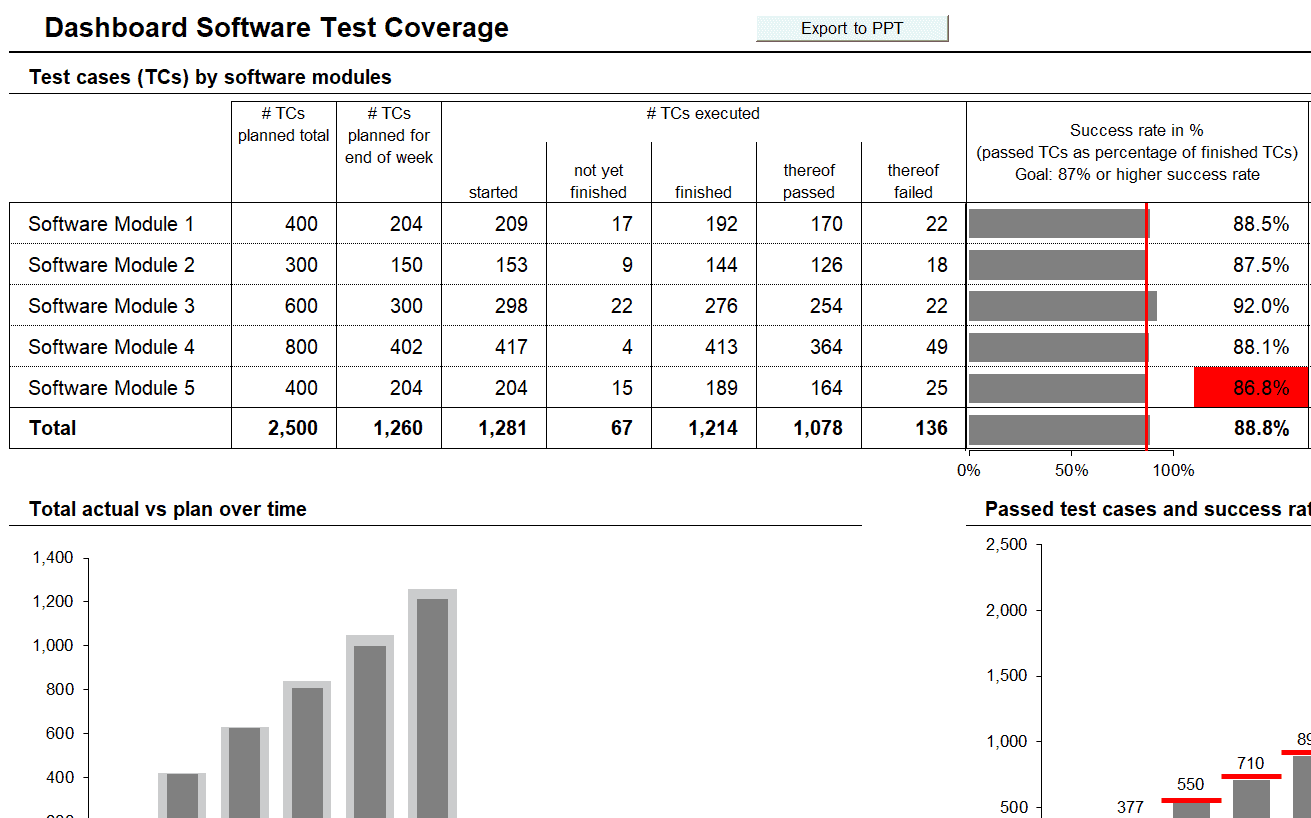
Dashboard Software Test Coverage Template
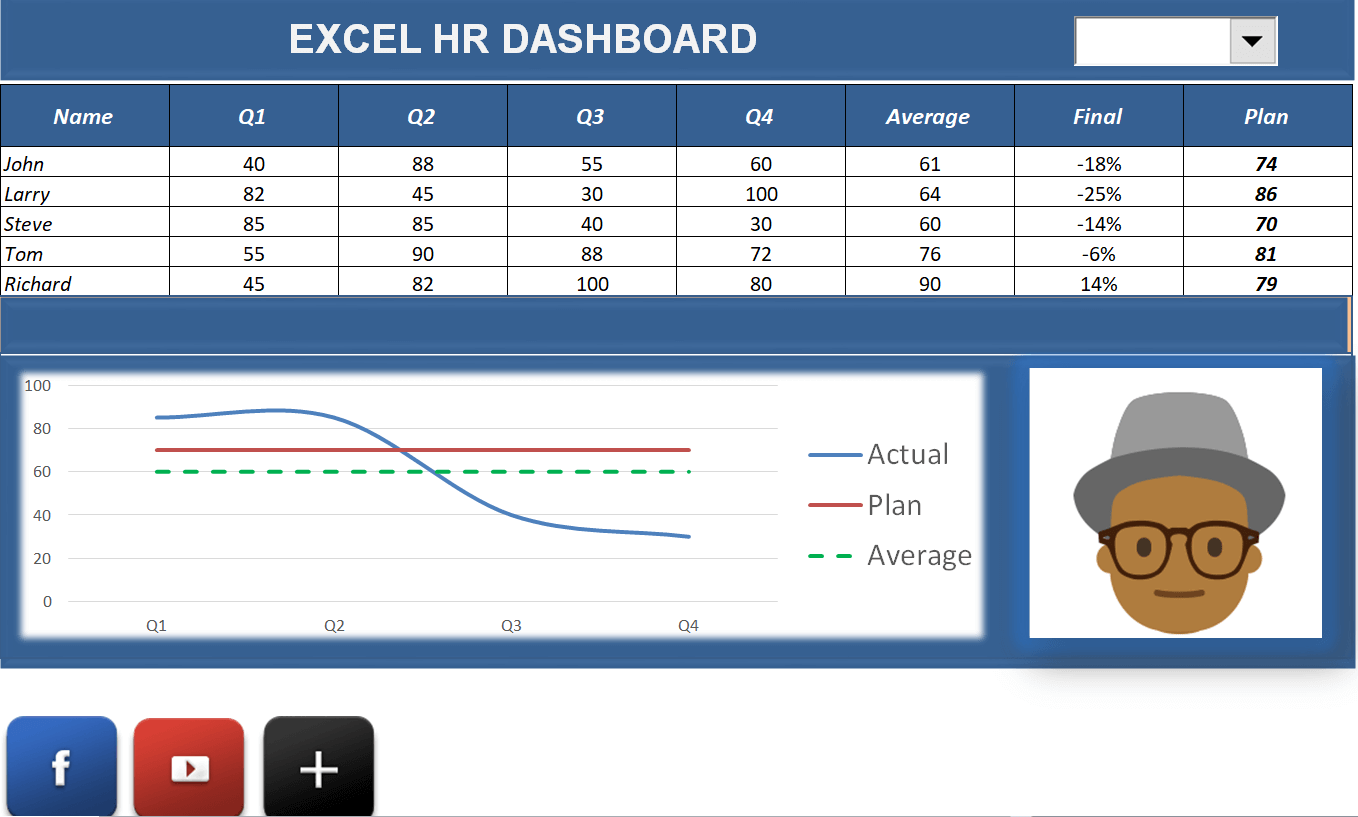
Sample Excel HR Dashboard Template
Frequently Asked Questions
Are these Excel dashboard templates free to download?
Yes, all 14 Excel dashboard templates on this page are free to download and use.
Which software do I need to use these templates?
These templates are built for Microsoft Excel and work best when opened in Excel or a compatible spreadsheet program.
Can I customize the charts and colors in these templates?
Yes, all templates are fully editable, allowing you to adjust charts, colors, and layout to match your needs.
Are these templates suitable for small businesses?
Yes, these dashboard templates work well for businesses of any size, from small teams to large organizations.
Do I need advanced Excel skills to use these templates?
No, basic Excel knowledge is enough to enter your data, though understanding functions like SUMIFS can help with deeper customization.
Can these templates update automatically?
Yes, most templates use linked formulas and charts that update automatically when you enter new data into the tables.
Can I use these dashboards for different departments?
Yes, the collection includes templates suited for sales, finance, HR, marketing, and project management reporting.

You must be logged in to post a comment.