
An invoice tracker gives you one place to see what you billed, what customers paid, and which invoices need attention. Use these free invoice tracker templates for Excel to organize invoices you already send. Each workbook includes sample entries, editable fields, and formulas suited to a specific billing or payment workflow.
If you only need to answer “Who still owes me money?”, start with the Simple Invoice Register. If customers pay the same invoice in several installments, use the Partial Payment Matcher so each receipt has its own record. A finance team reviewing all overdue balances may prefer the Receivables Aging Matrix, while a team paying suppliers should use the Supplier Invoice Approval Queue.
Jump to the 10 Excel downloads or compare the layouts.
Download 10 Free Excel Invoice Tracker Templates
Click a preview to enlarge it. Use the Excel download button to get the editable workbook.
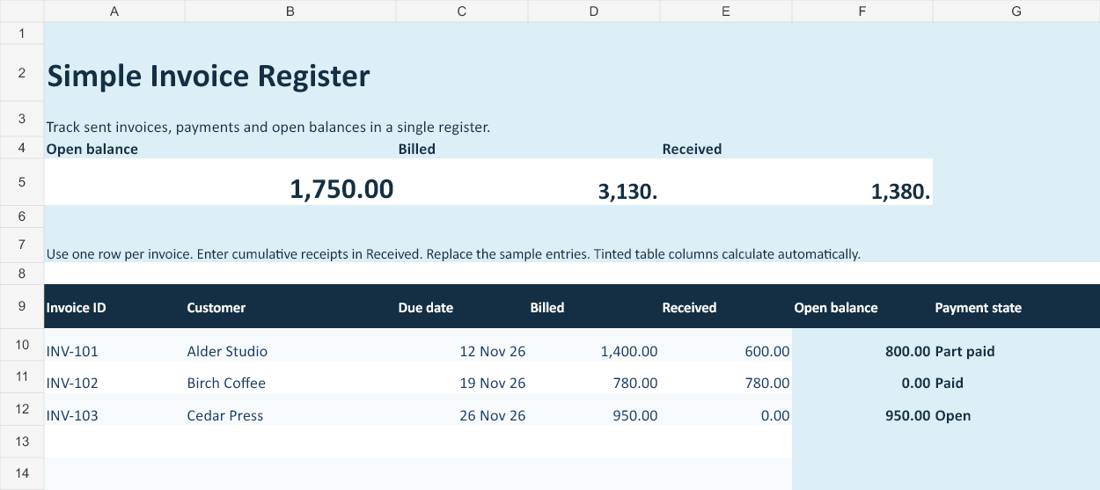
Simple Invoice Register
Use this for a small batch of customer invoices when all receipts for an invoice can be represented by one cumulative figure. The workbook calculates the remaining balance and distinguishes open, part-paid, paid, and overpaid invoices.
Download Excel (.xlsx)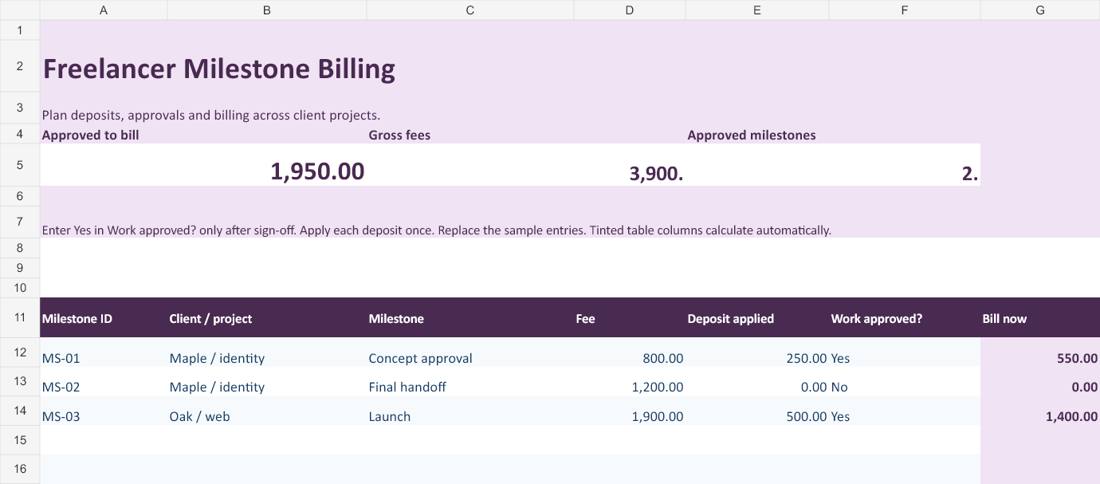
Freelancer Milestone Billing
Use this before sending a project invoice. Enter the milestone fee, the portion of the deposit assigned to it, and whether the client approved the work. The bill-now amount only counts approved milestones.
Download Excel (.xlsx)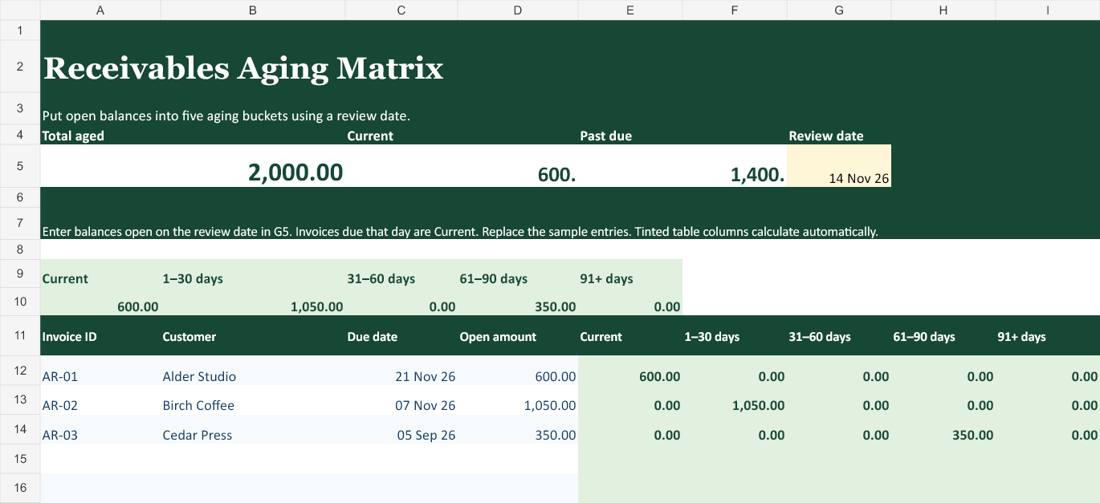
Receivables Aging Matrix
Use this for a review of open receivables on a specific date. The matrix shows amounts due that day or later in Current, then breaks past-due amounts into 1–30, 31–60, 61–90, and 91+ day buckets.
Download Excel (.xlsx)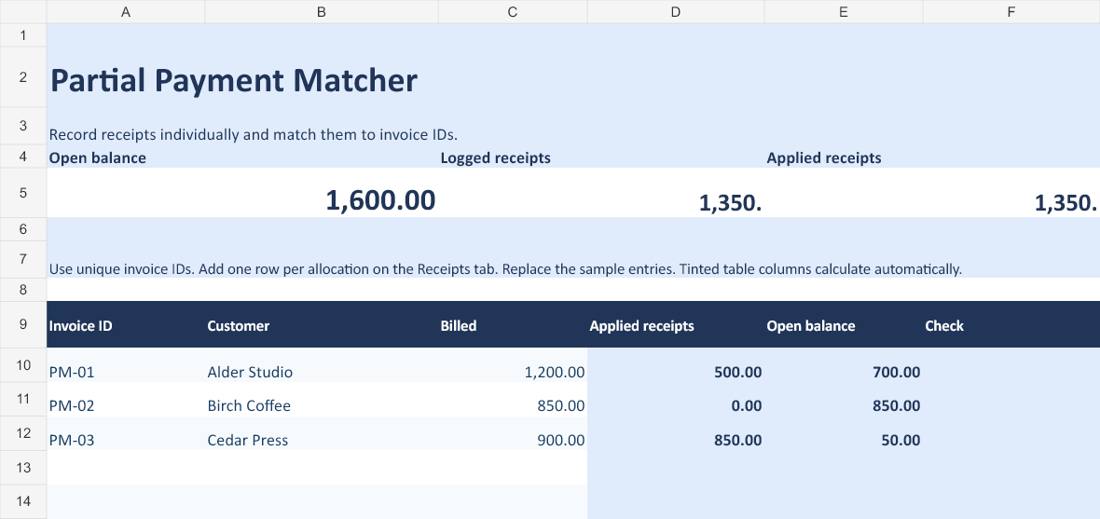
Partial Payment Matcher
Use this when one invoice may have several receipts. Enter each allocation on the separate Receipts sheet. The invoice sheet adds matching amounts and flags duplicate invoice IDs and overpayments.
Download Excel (.xlsx)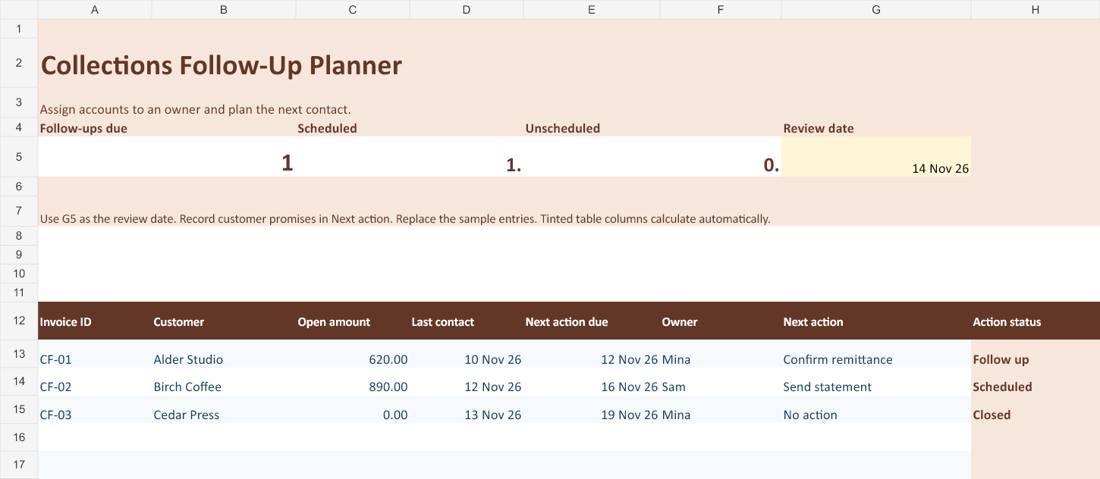
Collections Follow-Up Planner
Use this for a weekly collections handoff. Assign an owner and record the last contact, next contact date, and next action. The workbook flags overdue follow-ups and keeps unscheduled balances visible.
Download Excel (.xlsx)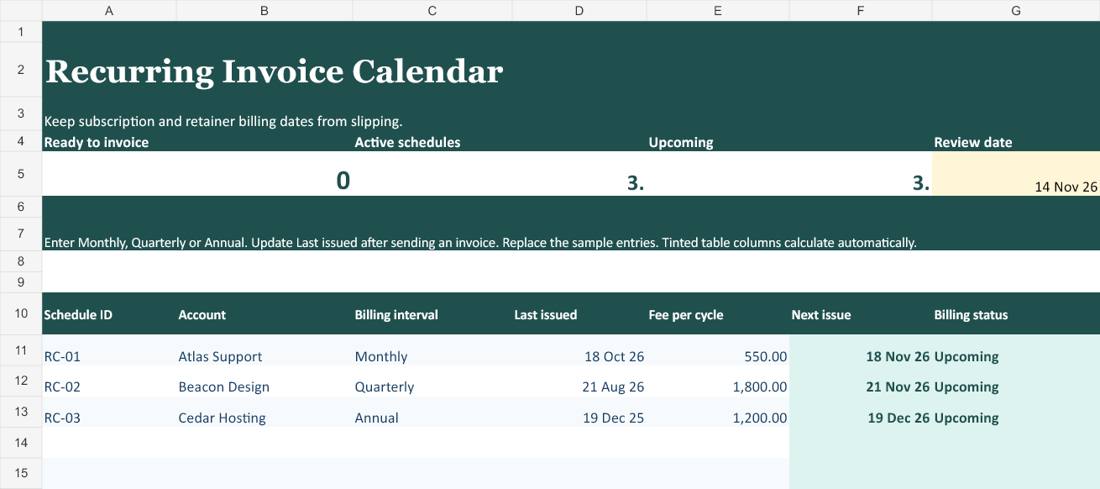
Recurring Invoice Calendar
Use this for retainers, maintenance agreements, or subscriptions with monthly, quarterly, or annual billing. The next issue date is calculated from the last issue date and the chosen interval.
Download Excel (.xlsx)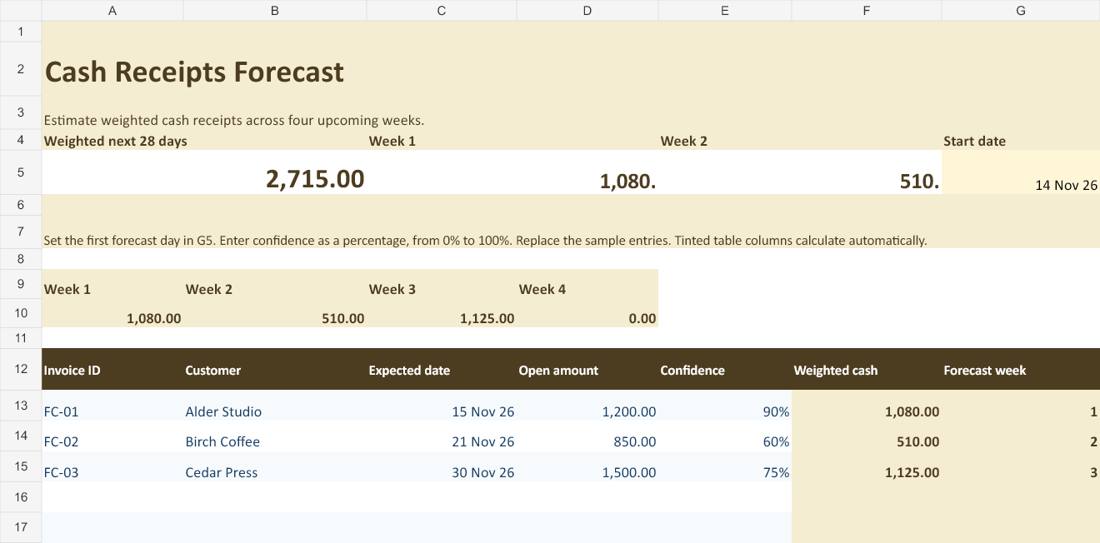
Cash Receipts Forecast
Use this to estimate how much customer cash may arrive across the next four weeks. Enter an expected date and a confidence percentage for each balance, then review the weighted amount by week.
Download Excel (.xlsx)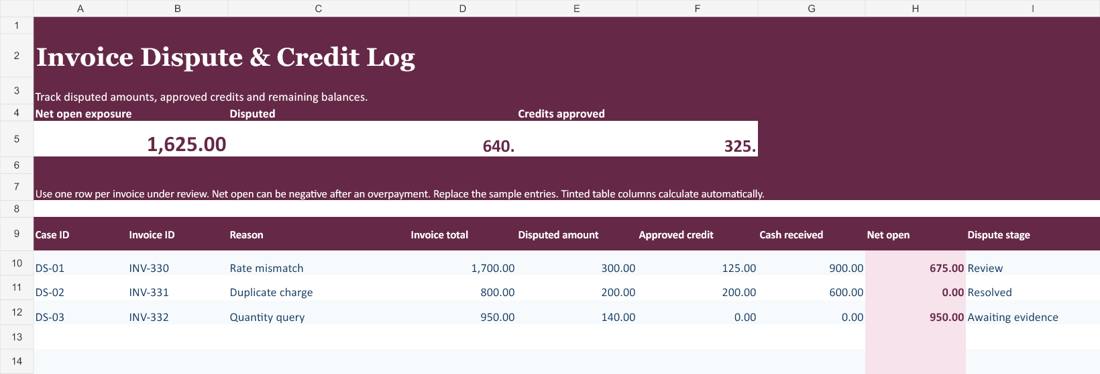
Invoice Dispute & Credit Log
Use this when a customer questions a charge. Record the disputed amount, supporting issue, approved credit, and cash received. The net balance reflects the approved credit rather than the amount requested.
Download Excel (.xlsx)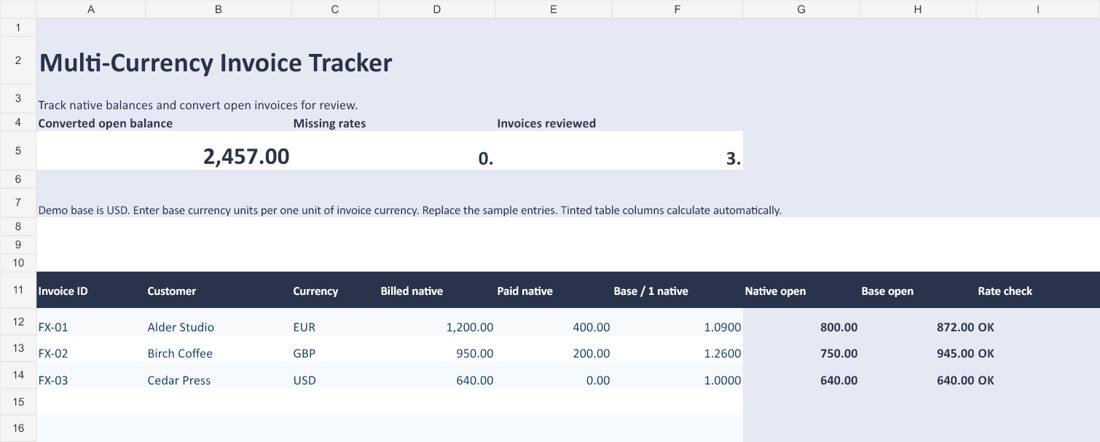
Multi-Currency Invoice Tracker
Use this when invoices are issued in more than one currency. Record amounts in their original currencies and enter a base-currency exchange rate for each invoice. The workbook flags missing rates for review.
Download Excel (.xlsx)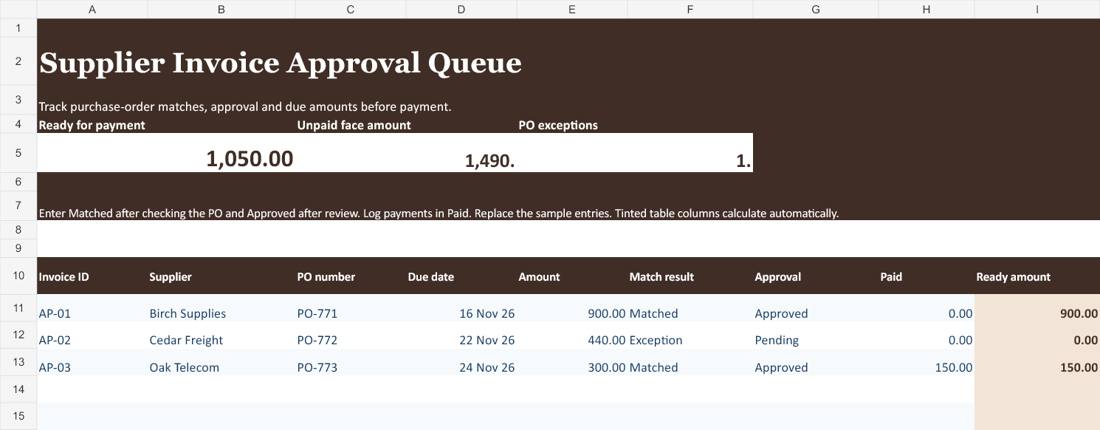
Supplier Invoice Approval Queue
Use this for invoices your business receives. Record the purchase order, match result, approval, and amount already paid. Only approved, matched invoices contribute to the amount ready for payment.
Download Excel (.xlsx)Which invoice tracker should you use?
Pick the workbook based on the next decision you need to make. If the problem is knowing which balances remain open, use the register. If the problem is explaining how a payment was applied, use the matcher. If the problem is deciding what to follow up on this week, use the collections planner. A forecast is useful when you need to plan spending against expected receipts, while aging tells you how long existing balances have been past due.
Keep one authoritative invoice record. If you use the register and an aging sheet together, reconcile the aging sheet to the register as of the same date. If you use the forecast as well, copy only balances that are still open and review expected receipt dates each week. One invoice may have different dates for billing, payment due, expected receipt, and next contact.
How to set up an Excel invoice tracker
- Start with the right level of detail. Enter one row per invoice in the main workbook. Use the Receipts tab when you need several payment records per invoice. Choose stable invoice IDs and reuse the exact same spelling in both tabs.
- Set the reporting date. Replace the demonstration date in workbooks that include a review or forecast start date. Fill in actual due dates and update them only when payment terms have genuinely changed.
- Replace the example inputs. Use the sample rows to understand how data fits. The tinted calculation columns contain formulas. Forty entry rows are prepared in each main tracker, and the matching workbook has forty receipt allocation rows. Expand the formula ranges and summaries together if you need more rows.
- Check an invoice against your records. Compare the amount billed with the invoice document. Match receipts to your bank or payment processor and check how credits were applied. Confirm the open balance independently before using the workbook for follow-ups.
Worked example with two partial payments
Say you sent invoice INV-214 for 1,200 and received two payments of 300 and 200. The open balance is 700. The simple register uses 500 in its Received column. The Partial Payment Matcher records two separate allocations, which makes the original payment references easier to trace.
If the 700 is still open 35 days after the due date, enter it in the Receivables Aging Matrix using the review date. It belongs in the 31–60 day bucket. If the customer promises to pay next Tuesday, note the promise in the Collections Follow-Up Planner. For the cash forecast, use that expected date and check how much of the balance is realistically collectible.
Common invoice tracking mistakes
- Treating a bank deposit as a single invoice payment. If a deposit covers two invoices, split it into separate allocation rows and reuse the bank reference for the split.
- Counting a disputed amount as a credit. Keep it in dispute until the adjustment is approved. Only the approved credit reduces the calculated net open amount in the dispute log.
- Combining raw amounts from different currencies. Report totals in the selected base currency and review missing rates before relying on converted totals.
- Mixing outgoing customer invoices with incoming supplier invoices. Keep the two workflows separate so expected incoming receipts and amounts you owe remain clear.
Frequently asked questions
Can I use these files to create invoices?
The workbooks track invoices, payments, approvals, and supporting decisions. Create the customer-facing invoice in your regular billing process and copy its invoice ID and totals into the workbook.
What counts as overdue?
An unpaid amount goes into a past-due aging bucket starting the day after its due date. Use the same review date when comparing reports and account for all receipts and credits through that date.
How do I handle an overpayment?
Keep the full receipt in the source record. The register flags an invoice paid above its billed amount, while the matcher flags excess allocations. Review whether the extra amount should be refunded, moved to another invoice, or carried as a customer credit.
Which files work for money owed to suppliers?
Start with the Supplier Invoice Approval Queue. It tracks matching, sign-off, and the unpaid amount cleared for payment. For related records, see the payment voucher templates and Excel bookkeeping templates.
