
An Excel project timeline should track task dates, owners, dependencies and status using consistent date fields. A visual bar only helps if it represents the same dates and completion information as the source table.
Bonus template: Task-level project schedule worksheet
Use this task register beneath an Excel timeline. It separates baseline dates from the current forecast so a visually tidy chart does not conceal a changed plan.
Download the editable Excel workbook
Download Project task schedule gantt (.xlsx)
Open in Microsoft Excel. Replace the fictional example data in the highlighted input cells; keep formula cells intact so the summaries update.
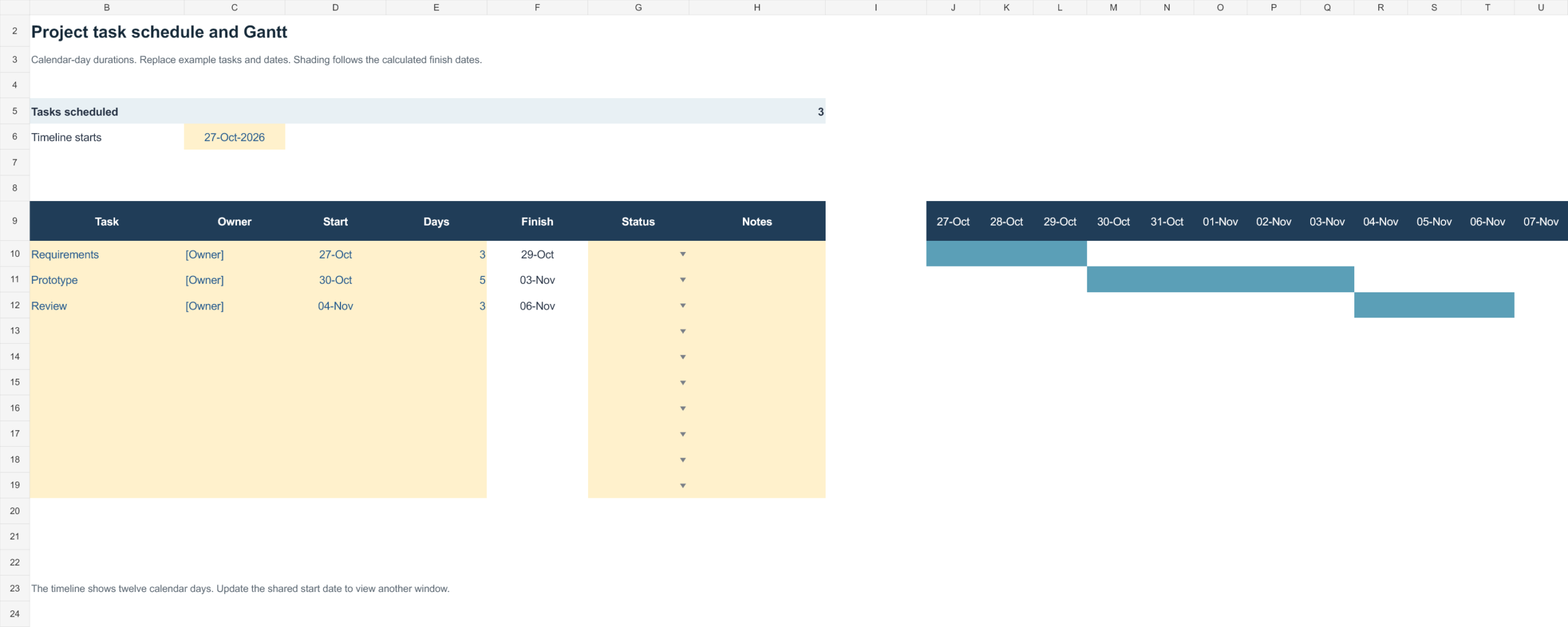
Set up the record
- Project: [name]
- Status date: [date]
- Baseline version: [reference]
| Task ID | Task / owner | Predecessor | Baseline finish | Forecast finish | Status / next action |
|---|---|---|---|---|---|
| T01 | Agree requirements / client lead | — | [date] | [date] | [action] |
| T02 | Build prototype / design lead | T01 | [date] | [date] | [action] |
| T03 | Review prototype / sponsor | T02 | [date] | [date] | [decision] |
How to use this template
- Identify dependencies before committing dates.
- Define whether durations use working days or calendar days, including holidays where relevant.
- Keep actual completion dates separate from forecasts and update the visual chart from the same task records.
Worked example: If T01 finishes late, review the forecast for T02 and T03. Changing only the color of T01 does not explain the effect on the delivery date.
Check before use
- Do not overwrite the baseline without recording an approved change.
- Use a status date on shared exports.
- Check chart ranges after adding tasks.
Keep an Excel project timeline tied to actual status
Worked example: A product launch may require packaging design to finish before manufacturing can begin while the marketing plan progresses in parallel. Mark a delayed dependency before treating the published launch date as achievable.
Check before use: Check date formulas, holidays and working-day assumptions. A template with manually coloured cells will not automatically adjust when tasks move.
- Saves setup time: A ready-made structure means you can focus on planning tasks instead of designing a timeline from scratch.
- Improves project visibility: A visual timeline makes it easy for the whole team to see what needs to happen and when.
- Supports better planning: Mapping out phases in advance helps identify potential scheduling conflicts early.
- Keeps teams aligned: A shared timeline helps everyone understand their responsibilities and deadlines.
- Easy to customize: Editable fields let you quickly adapt the timeline to your specific project.
- Free and reusable: Download once and reuse the same structure for every project you manage.
For related resources, see 9 FREE Project Timeline Templates [EXCEL & PPTX] and 10 Sample Gantt Chart Word Templates.
What’s Included in the Project Timeline Excel Template
- Task or phase fields: Space to list each major task or phase of the project.
- Start and end date fields: Areas to record when each task or phase begins and ends.
- Duration fields: Space to note how long each task or phase is expected to take.
- Responsible person fields: Fields to assign ownership of specific tasks to team members.
- Status indicators: Fields to mark tasks as not started, in progress, or completed.
- Visual timeline chart: A graphical representation of the project schedule for quick reference.
Who Should Use These Templates?
- Project managers planning and tracking multi-phase projects.
- Small business owners mapping out timelines for business initiatives.
- Marketing teams planning campaign launches and milestones.
- Event planners organizing the steps leading up to an event.
- Students planning research projects or long-term assignments.
- Freelancers and consultants presenting project plans to clients.
How to Start Using the Template in 3 Simple Steps
- Step 1 — Choose a template style: Browse the 4 options below and select the layout that fits your project.
- Step 2 — Enter your project details: Fill in tasks, phases, dates, and responsible team members.
- Step 3 — Share and update as the project progresses: Distribute the timeline to your team and update it as tasks are completed.
Project Timeline vs. Gantt Chart
While the two are closely related, a project timeline and a Gantt chart serve slightly different purposes. A project timeline typically provides a simpler, high-level view of major milestones and phases across the life of a project. A Gantt chart, on the other hand, offers a more detailed breakdown, often showing task dependencies, overlapping activities, and precise durations for each task. Many project managers use a simple timeline for stakeholder presentations and a detailed Gantt chart for day-to-day task management.
Customizing the Template for Your Project
These templates are designed to be a flexible starting point rather than a fixed format. You can adjust the phases to match your project’s specific structure, add columns for budget or resource tracking, or include a section for key milestones and deliverables. Since the templates are provided in editable Excel format, most adjustments take only a few minutes and let you tailor the timeline to fit your particular project.
Choosing the Right Format
With 4 different templates and examples available, choosing the right one depends on the complexity of your project and how you plan to present it. A simple downloadable template works well for straightforward projects, while a more detailed example suits larger projects with multiple phases and dependencies. Reviewing each option before committing to one can help you find the layout that best fits your particular project.
Common Mistakes to Avoid
- Underestimating task durations: Building in unrealistic timeframes can set the whole project up for delays.
- Not accounting for dependencies: Failing to note which tasks depend on others can cause scheduling conflicts.
- Skipping regular updates: A timeline that isn’t kept current quickly becomes unreliable for tracking progress.
- Overcomplicating the visual layout: A timeline that’s too cluttered can be harder to read than one that’s simple and clear.
- Not sharing the timeline with the full team: A timeline only useful to one person defeats its purpose as a planning tool.
Tips to Get the Most Out of Your Project Timeline Excel Template
- Build in buffer time between phases to account for unexpected delays.
- Update the timeline regularly as tasks are completed or dates shift.
- Share the timeline with all stakeholders so everyone stays aligned on deadlines.
- Highlight key milestones to make important dates stand out visually.
- Review the timeline at regular check-ins to catch issues early.
Breaking Down a Project Into Manageable Phases
One of the most valuable aspects of building a project timeline is the process of breaking a large, complex project into smaller, more manageable phases. Rather than viewing the entire project as one overwhelming task, dividing it into distinct stages, such as planning, execution, review, and delivery, makes it easier to estimate durations and assign responsibilities accurately. This phased approach also makes it simpler to track progress along the way, since completing each phase provides a clear, tangible sense of momentum toward the final goal.
Using Project Timelines to Communicate With Stakeholders
Beyond internal planning, a well-organized project timeline is also one of the most effective tools for communicating progress and expectations to clients, executives, or other stakeholders who aren’t involved in the day-to-day work. A visual timeline gives stakeholders a quick, digestible overview of where the project stands and what’s coming next, without requiring them to sift through detailed task lists or status reports. Presenting an updated timeline at regular intervals also helps build trust, since stakeholders can see tangible evidence that the project is progressing according to plan.
Adjusting the Timeline When Delays Occur
Even the most carefully planned project timeline will occasionally need adjustment when unexpected delays or scope changes arise. Rather than treating a delay as a failure of the original plan, updating the timeline promptly and communicating the change to the team and stakeholders helps maintain trust and keeps everyone working from accurate information. Building some flexibility into the original schedule, rather than planning every phase down to the exact day, also makes it easier to absorb minor setbacks without needing to rebuild the entire timeline from scratch.
Identifying Critical Milestones in Your Timeline
Not every task on a project timeline carries equal weight, and identifying which milestones are truly critical to the project’s success helps focus attention where it matters most. A critical milestone is typically one that other tasks depend on, meaning a delay there ripples forward and affects the entire remaining schedule, unlike a minor task that can slip without derailing the broader plan. Marking these critical milestones clearly on the timeline, often with a different color or symbol, helps the team quickly recognize which deadlines demand the most careful attention and contingency planning.
Using Project Timelines Across Different Industries
While project timelines are commonly associated with software development or construction, the same basic structure applies usefully across a wide range of industries and project types. A marketing team might use a timeline to coordinate a product launch across multiple channels, while an event planner uses one to track vendor bookings, invitations, and setup logistics leading up to the big day. Regardless of the industry, the core value remains the same: turning a complex sequence of interdependent tasks into a visual format that’s easy to understand, track, and communicate to everyone involved.
Combining Project Timelines With Other Planning Tools
A project timeline works best as part of a broader set of planning tools rather than as the sole source of project information. Pairing the timeline with a detailed task list or a budget tracker gives the team both the big-picture schedule and the granular details needed to execute each phase effectively. Many teams also find it useful to hold regular check-in meetings structured around the timeline, using it as a visual anchor to discuss what’s on track, what’s falling behind, and what adjustments might be needed going forward.
Get Project Timeline Excel Templates Free
Downloadable Project Timeline Excel Template
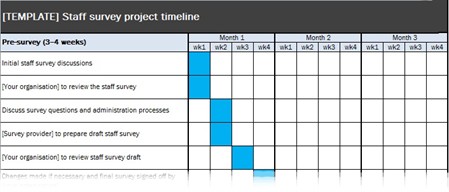

Free Project Timeline Template
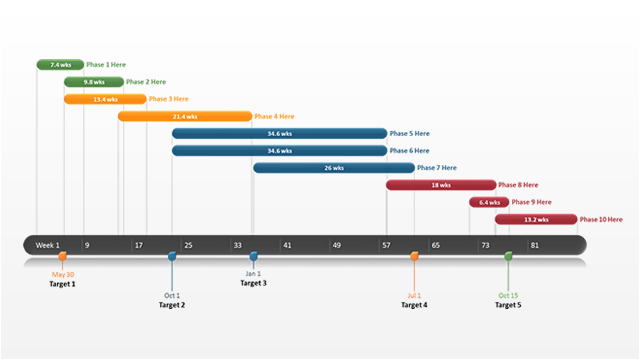
Project Timeline Example
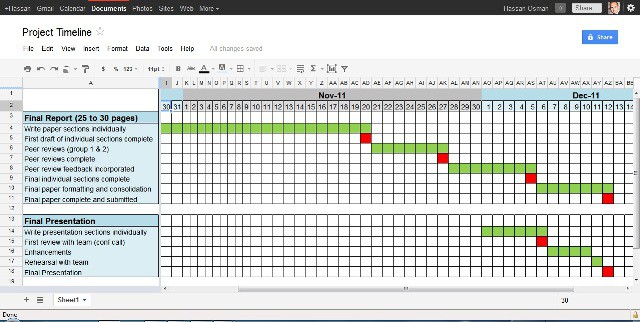
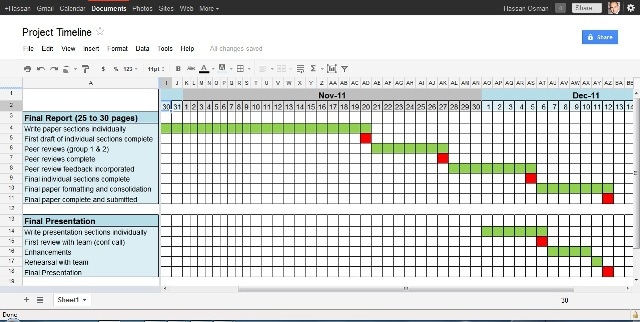
Project Timeline Template PDF
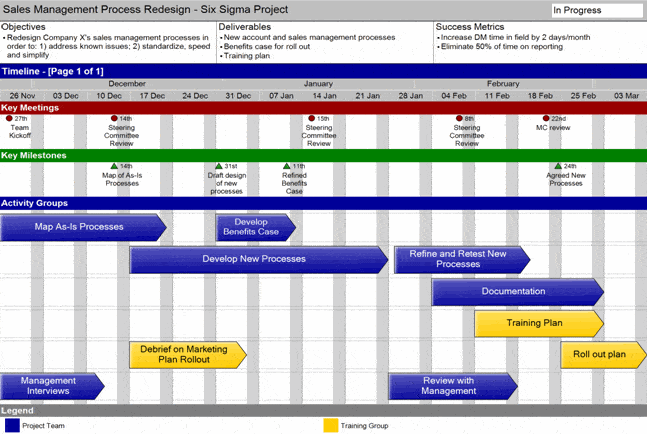
Frequently Asked Questions
Are these project timeline templates free to download?
Yes, all 4 project timeline templates and examples on this page are free to download and use.
Can I customize the fields on these templates?
Yes, since the templates are editable in Excel, you can adjust phases, dates, and add your own categories.
What’s the difference between a project timeline and a Gantt chart?
A timeline shows a high-level view of milestones, while a Gantt chart offers a more detailed breakdown with task dependencies.
Are these templates suitable for team projects?
Yes, these templates can be shared with a team to coordinate tasks, deadlines, and responsibilities.
Can students use these templates?
Yes, students can use these templates to plan research projects or long-term assignments.
How often should I update my project timeline?
It’s best to update the timeline regularly as tasks are completed or deadlines shift.

You must be logged in to post a comment.