
A table of contents template provides a starting layout for showing the main sections of a document and where readers can find them. It is useful for reports, manuals, booklets, proposals, and other documents that are too long to navigate comfortably by scrolling or turning pages.
The examples below show different visual arrangements. Choose one that suits the document, then build the contents from the actual headings rather than treating it as a separate decorative page. This guide explains how to choose heading levels, manage page references, and check the finished contents page after the document changes.
Understand what the contents page should do
A table of contents helps readers understand the structure and reach a relevant section quickly. It should reflect the order of the document and use the same wording as the headings inside it. A reader should not have to guess whether “Implementation” in the contents means “Delivery Plan” in the main text.
Decide how much detail the audience needs. A short report may need only its main sections, while a long manual may need subsections. The contents page should support navigation without becoming a second version of the entire document.
Build a clear document outline first
Review the main ideas before formatting the contents page. Group related material into sections and arrange those sections in a logical order. Check whether each heading describes the content beneath it and whether any important topic is hidden inside an unrelated section.
For a project document, a statement of work template can help clarify the main commitments that the document needs to cover. Once the document outline is stable, the table of contents becomes much easier to create. Formatting cannot solve a structure that leaves readers uncertain about where information belongs.
Choose the right heading levels
Use a consistent hierarchy: main sections, subsections, and smaller divisions only where needed. A heading level represents a structural relationship, not simply a preferred font size. Two topics of equal importance should normally use the same level.
Limit the number of levels shown in the contents to what helps the reader. Deep indentation can make a page difficult to scan, especially when headings are long. If the document needs many levels, check whether the structure could be simplified or whether detailed navigation should be handled in another way.
Keep contents entries consistent with headings
Use the actual section names and preserve their order. When a heading changes, update the corresponding entry. Even a small wording difference can confuse a reader searching for a specific topic, particularly in a document with several similar sections.
Avoid rewriting headings solely to make the contents page look symmetrical. Improve the document heading itself if it is unclear or unnecessarily long. A report contents page should be a reliable map of the report, with typography and spacing supporting that map rather than introducing a separate set of names.
Decide between automatic and manual contents
An automatically generated contents list is useful when the document uses a consistent heading structure and will be revised repeatedly. A manually maintained page may suit a very short or fixed document, but it requires careful checking whenever the text or pagination changes.
If you use a word processor’s automatic feature, connect it to the intended heading styles and review what it includes. If you work manually, maintain a checklist of entries and references. The best choice depends on the document and your editing process, but either method needs a final verification.
Handle page numbers carefully
Check page references after the main text, images, tables, and appendices are close to their final position. Adding a cover, moving a chart, or changing paragraph spacing can shift later pages. A contents page with stale numbers may look finished while sending the reader to the wrong place.
Use the page numbering convention required for the document. If introductory pages and main text use different numbering styles, make sure the contents references match the printed or exported document. Avoid making assumptions based only on the page count shown in the editing window.
Use indentation and spacing to show structure
Indent subordinate entries consistently and align page numbers so readers can scan them quickly. Keep enough space between lines for clarity, but avoid excessive spacing that forces a short contents list across several pages.
If you use leaders between headings and page numbers, apply them consistently. Avoid typing long sequences of dots or spaces that shift when fonts or margins change. Check the layout at the final page size, especially when the template was designed for a different document format.
Work through a short report example
Imagine a report with an introduction, background, findings, recommendations, and appendices. The findings section contains three major themes. A simple contents page can show the five main sections and the three findings subsections.
During review, the writer notices that a recommendation appears inside the background section. Moving it to the recommendations section improves both the report and its contents. The example shows why creating the contents page is also an opportunity to check the document’s logic, not merely to add page numbers at the end.
Include appendices and supporting sections sensibly
Readers may need to find references, glossaries, appendices, or other supporting material. Include these when they form part of the document’s navigation. Use clear labels that match the actual headings and distinguish appendices from the main discussion.
Do not automatically include every small item. A list of tables or figures may be more appropriate when a long document contains many of them. Consider what readers will search for and provide the navigation that meets that need without crowding the main contents page.
Check navigation in digital copies
If the exported document contains clickable contents entries, test them in the final file. A link that worked during editing may not behave as expected after export or conversion. Check several entries, including later sections and appendices.
Use descriptive headings that make sense outside the surrounding paragraph. Digital readers may navigate by heading structure as well as by the visible contents page. A clear hierarchy improves the experience for people moving through the document in different ways. Confirm the final delivery requirements with whoever will receive or publish the file.
Coordinate the contents with the document type
A proposal may need a concise overview of objectives, approach, deliverables, and costs. A proposal form can help identify the main information a proposal reader expects to find. A manual may need more detailed subsections because readers return to individual procedures.
For a booklet, consider the relationship between a short contents list and the available space. Do not assume every document needs a full page of contents. A compact navigation panel can be sufficient when it clearly shows the structure and preserves useful reading space.
Avoid common contents-page mistakes
Watch for missing sections, repeated entries, inconsistent capitalization, incorrect hierarchy, and page references that were not updated. Check long headings for awkward wraps and make sure a page number does not appear disconnected from its entry.
Do not include placeholder headings in the final version. Sample text can remain hidden in a template unless you review every entry. Ask a colleague to locate a few topics using only the contents page. Their experience can reveal unclear labels that the writer overlooks because they already know the document.
Choose and adapt a template
Compare the previews for the number of levels, entry spacing, and visual style. Check the actual linked resource format before assuming it provides an automatic contents feature. Some examples may be images or external resources rather than an editable document.
Keep a clean original, replace sample headings, and match the page size and type style to the main document. If the report describes a project schedule, a project timeline may be useful as a supporting section, but include it in the contents only if it has its own meaningful heading.
Perform a final navigation check
After the document is finalized, refresh or revise the contents and compare every entry with the actual heading. Check page references in the final exported or printed version, including any introductory numbering and appendices. Review the contents page at normal reading size.
Save the document and its exported copy with matching version information. If later changes alter headings or pagination, repeat the navigation check. A reliable contents page is maintained as part of the document, rather than added once and left untouched while the report evolves.
Table Of Contents Templates Are Given Below
Sample Table Of Contents Template
ZIP and RAR links are archives: check the files inside after extraction. PDF and image links are examples rather than editable Word or Excel files. External resources follow their source’s availability and usage terms. Read download help.
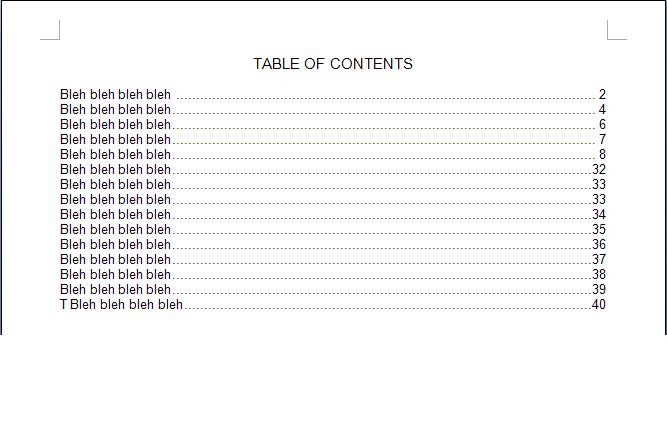 Preview only: no downloadable file is linked to this example.
Printable Table Of Contents Template
 View Printable Table Of Contents Template (image preview)
Editable Table Of Contents Example
 Download Editable Table Of Contents Example (Word DOC)
Table Of Contents Example
 Preview only: no downloadable file is linked to this example.
Frequently Asked Questions
What is the purpose of a table of contents?
It shows the document’s structure and helps readers find sections quickly. Entries should match the actual headings and their order in the document.
How many heading levels should I include?
Include enough levels to support useful navigation. One or two may suit a short report, while a longer manual may need more detail.
Can I make a table of contents manually?
Yes, but you must maintain the entries and page references when the document changes. An automatic contents list is often easier for a document revised regularly.
When should I update the page numbers?
Update them after edits that can affect pagination and check them again in the final delivered file. Images, margins, covers, and spacing changes can all move sections.
Should appendices appear in the contents?
Usually they should when readers need to find them as distinct sections. Match their labels and titles to the actual appendix headings.
Why does an exported contents link need checking?
Export or conversion can affect navigation. Test entries in the final file so readers receive working links and accurate page references.

You must be logged in to post a comment.