
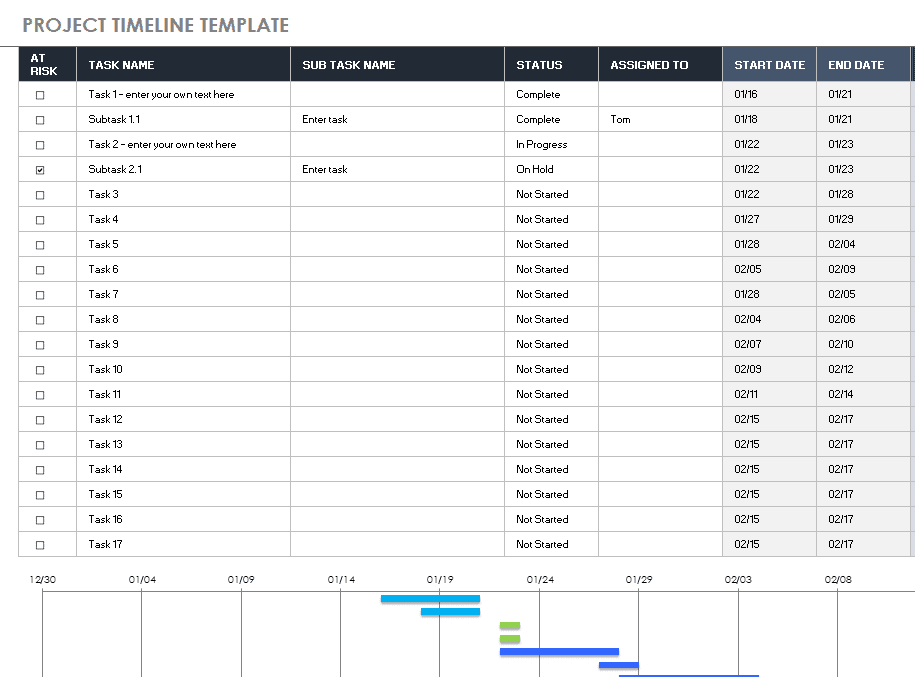
A project timeline is useful only when tasks have owners, dependencies, start dates and realistic completion dates. A slide can be suitable for executive reporting, while a spreadsheet is usually easier for regularly updated task detail.
Choose a timeline format that matches how work is managed
- Improves clarity: A visual timeline makes it far easier for everyone on the team to understand the project’s schedule than a list of dates buried in a document.
- Keeps stakeholders aligned: Sharing a timeline in a meeting or report gives clients and executives a quick way to see progress and upcoming milestones.
- Saves planning time: A ready-made layout means you can spend your time filling in project details instead of designing a chart.
- Highlights dependencies: A well-built timeline makes it easier to see which tasks need to finish before others can start.
- Supports better forecasting: Seeing the full schedule laid out helps you spot potential bottlenecks or overly tight deadlines early.
- Works for any project size: The same basic structure scales from a short internal task to a long, multi-phase client project.
Worked example: For a website launch, research must finish before copy approval, while design and technical setup may proceed in parallel. Show these dependencies rather than presenting every task as an unrelated coloured bar.
Check before use: Keep milestones distinct from activities and agree on the date format and update owner. Check whether your chosen file recalculates dates or simply displays shapes and manually entered labels.
For related guidance and formats, see 4 Project Timeline Excel Templates and 10 Sample Gantt Chart Word Templates.
What’s Included in the Project Timeline Template
- Task or milestone list: Each key activity or deliverable in the project, laid out in the order it needs to happen.
- Start and end dates: Clear date fields for when each task begins and is expected to finish.
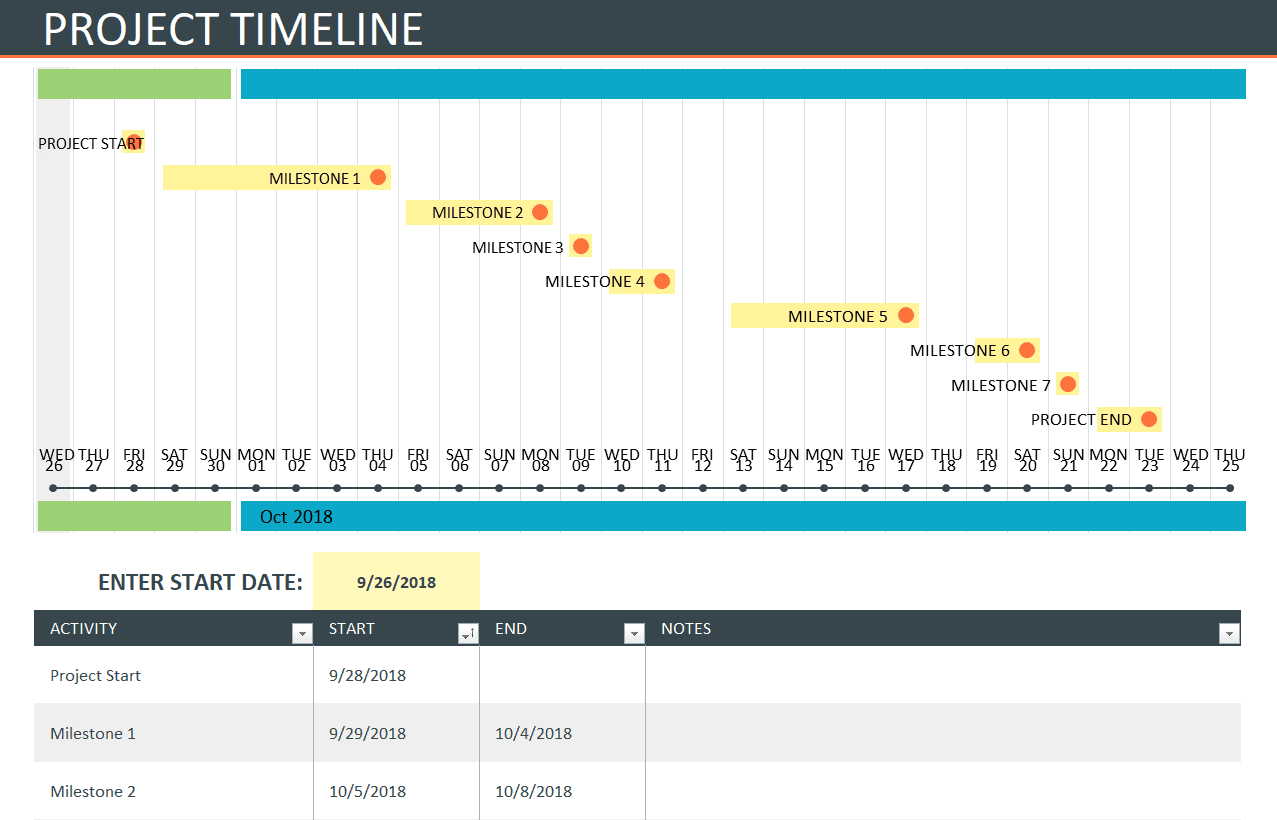
- Visual timeline bar or chart: A graphic representation showing how tasks overlap or follow one another across the project’s duration.
- Phase or category labels: Sections or color-coding to group related tasks together, such as planning, execution, and review phases.
- Owner or team assignment: A place to note who is responsible for each task or milestone.
- Progress indicators: Some versions include a simple way to mark completed, in-progress, or upcoming tasks.
Who Should Use These Templates?
- Project managers who need a clear, shareable schedule for tracking and communicating project progress.
- Small business owners planning product launches, marketing campaigns, or operational projects.
- Freelancers and consultants who want to give clients a professional overview of how a project will unfold.
- Students and academic teams mapping out research projects, theses, or group assignments.
- Event planners coordinating the many moving pieces that come together before a launch date or event.
- Marketing and creative teams planning campaigns with multiple phases and content deadlines.
How to Start Using the Template in 3 Simple Steps
- Step 1 — Choose a template: Browse the nine Excel and PowerPoint templates below and pick the layout that suits your project’s length and complexity.
- Step 2 — Add your tasks and dates: Fill in the key milestones, start and end dates, and task owners for your specific project.
- Step 3 — Share and update: Distribute the timeline to your team or client, and revisit it regularly to keep it up to date as the project progresses.
Project Timeline Template vs. Gantt Chart
Project timelines and Gantt charts are closely related and often used interchangeably, but there’s a subtle difference between them. A basic project timeline focuses on showing key milestones and dates in a simple visual format, which is ideal for quick overviews and stakeholder presentations. A Gantt chart goes a step further, typically showing task durations as horizontal bars, dependencies between tasks, and sometimes resource assignments, making it better suited for detailed day-to-day project management. Several of the templates on this page lean toward the simpler timeline format, which is often exactly what’s needed for presentations, client updates, or a quick planning session, while still giving you room to add more detail if your project calls for it.
Customizing the Template for Your Project
These templates are a starting point, not a fixed format. You can adjust the color scheme to match your brand, add or remove milestone rows depending on your project’s scope, extend the timeframe from four weeks to several months, or add a column for budget or resource tracking if that’s relevant to your project. Since the templates are built in editable Excel and PowerPoint files, none of these adjustments require advanced design skills — basic familiarity with entering data and formatting cells or slides is enough to make the template your own.
Choosing Between the Excel and PowerPoint Versions
The right format depends on how you plan to use the timeline. The Excel-based templates are a strong choice when you need to calculate durations, track numerical data alongside the schedule, or update the timeline frequently as part of your regular project tracking. The PowerPoint-based templates are better suited for presentations, client meetings, or reports where the timeline needs to look polished and be easy to read at a glance without additional context. Many project managers keep both on hand, using the Excel version internally for day-to-day tracking and the PowerPoint version whenever the schedule needs to be presented to others.
Common Mistakes to Avoid
- Overcrowding the timeline: Including too many small tasks can make the timeline hard to read; focus on key milestones instead.
- Unrealistic deadlines: Setting overly ambitious dates early on often leads to a timeline that quickly falls out of date.
- Ignoring dependencies: Failing to account for tasks that rely on others finishing first can throw off the entire schedule.
- Not updating the timeline: A timeline that isn’t kept current quickly loses its usefulness for tracking real progress.
- Skipping stakeholder review: Not sharing the timeline with key stakeholders early can lead to misaligned expectations later.
- Using inconsistent date formats: Mixing date formats across a timeline can create confusion, especially on international teams.
Tips to Get the Most Out of Your Project Timeline Template
- Start with major milestones before filling in smaller tasks, so the overall structure stays clear.
- Color-code by phase or team to make the timeline easier to scan at a glance.
- Review and update weekly so the timeline always reflects the current state of the project.
- Share it early with your team and stakeholders so everyone is working from the same schedule.
- Keep a buffer between major milestones to account for unexpected delays.
- Save a template copy before editing so you always have a clean version ready for your next project.
Using Project Timelines Across the Project Lifecycle
A project timeline isn’t just useful at the kickoff stage — it plays a role throughout the entire project lifecycle. During planning, it helps the team agree on scope and sequence before any work begins. During execution, it becomes a reference point for tracking whether the project is on schedule and for spotting slippage early enough to course-correct. And during the wrap-up phase, a completed timeline serves as a useful record for reviewing what went well and what took longer than expected, which can inform how future projects are planned. Keeping the same timeline format across projects, using templates like the ones on this page, also makes it easier to compare timelines across projects and spot patterns over time.
Presenting a Project Timeline to Clients and Executives
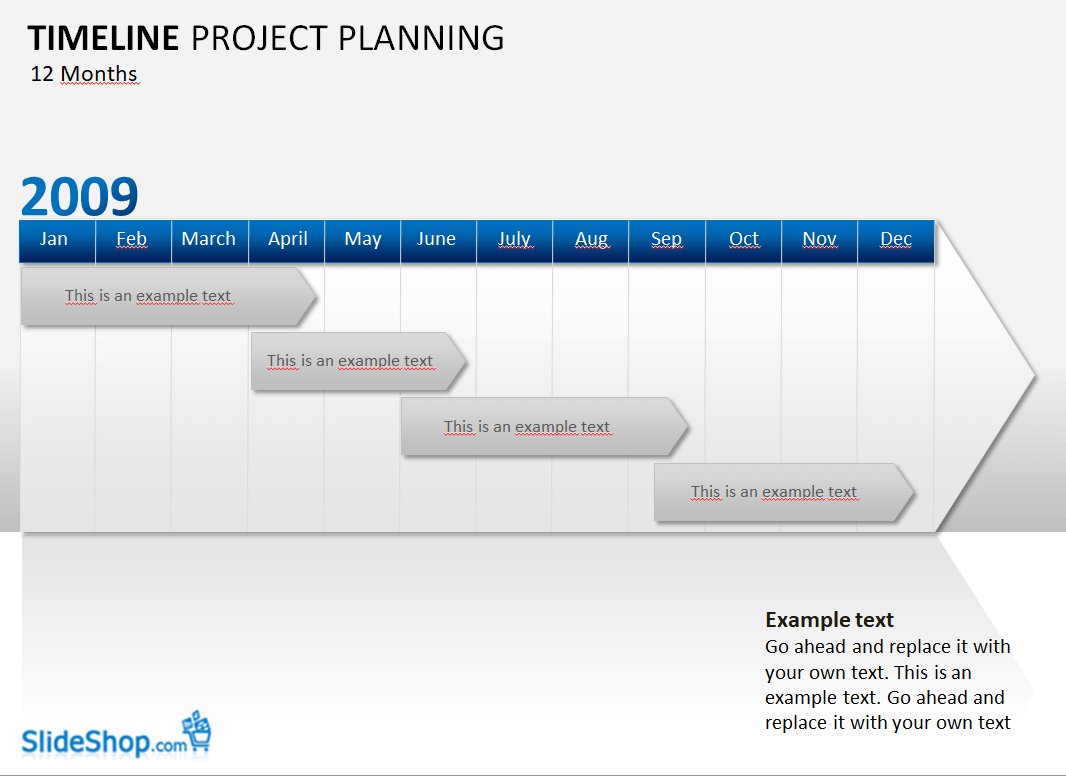
How a timeline looks matters just as much as what it contains when it’s being presented to a client or company leadership. A cluttered or overly technical timeline can make a well-planned project look disorganized, while a clean, well-labeled visual builds confidence that the project is under control. The PowerPoint-based templates on this page are designed with exactly this audience in mind, using clear labels, consistent spacing, and a simple color scheme so the schedule reads clearly even to someone seeing it for the first time. When presenting a timeline externally, it’s usually best to focus on major milestones rather than every internal task, since a simplified view communicates the big picture far more effectively than a timeline crowded with granular detail meant for internal tracking.
Keeping Remote and Hybrid Teams in Sync
For teams working across different locations or time zones, a shared project timeline becomes even more valuable as a single source of truth for where the project stands. Rather than relying on scattered updates across chat messages or emails, a centralized timeline gives every team member the same reference point for deadlines, ownership, and sequencing. Updating the timeline on a regular cadence, such as at the end of each week or sprint, and sharing the revised version with the whole team helps prevent the kind of miscommunication that’s especially common when people aren’t working in the same room. Many teams pair the timeline with a brief written summary of any changes, which helps remote team members quickly understand what shifted since the last update without having to compare every detail themselves.
Bonus template: Milestone briefing template
Use this brief for a project timeline presented in a meeting or slide deck. It concentrates on decision points and dependencies rather than every individual task.
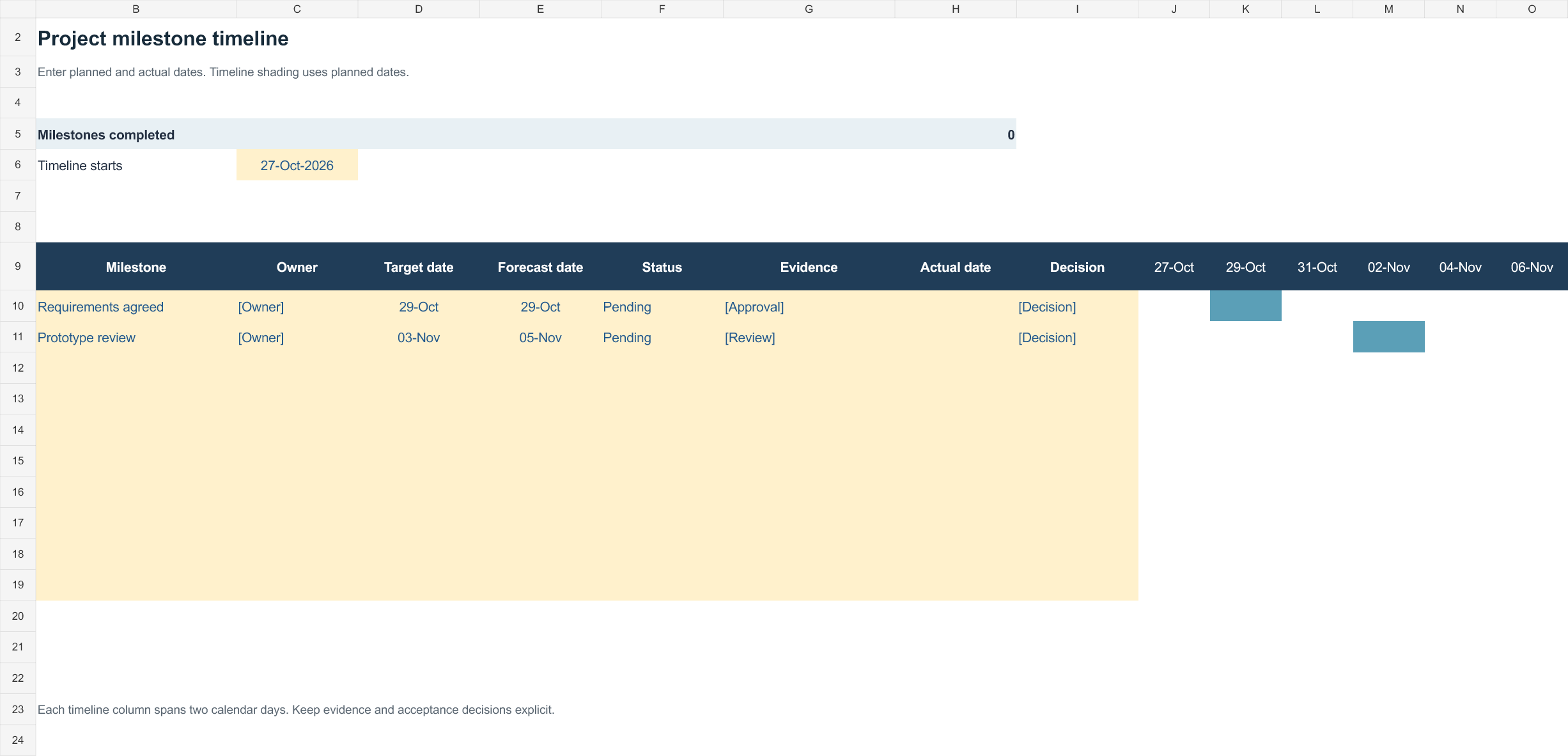
Download the editable Excel workbook
Download Project milestone timeline (.xlsx)
Open in Microsoft Excel. Replace the fictional example data in the highlighted input cells; keep formula cells intact so the summaries update.
Set up the record
- Project: [name]
- Reporting date: [date]
- Baseline version: [reference]
| Milestone | Target date | Owner | Evidence of completion | Dependency / decision |
|---|---|---|---|---|
| Requirements agreed | [date] | Client lead | Approved requirements list | Named stakeholders available |
| Prototype reviewed | [date] | Design lead | Review comments resolved | Requirements agreed |
| Launch decision | [date] | Sponsor | Recorded go / no-go decision | Testing and handover complete |
How to use this template
- Use a clear completion condition for every milestone.
- Keep an approved baseline and show changed forecasts separately.
- Present the decision needed and its owner when a milestone is at risk.
Worked example: If requirements approval moves by three days, flag the dependent prototype review rather than leaving its old date looking unconditional.
Check before use
- Distinguish target dates from completed dates.
- State the reporting date on every shared snapshot.
- Show dependencies that could change the next decision.
Download FREE Project Timeline Templates Here
Milestones Project Timeline Template
Example Project Timeline Template
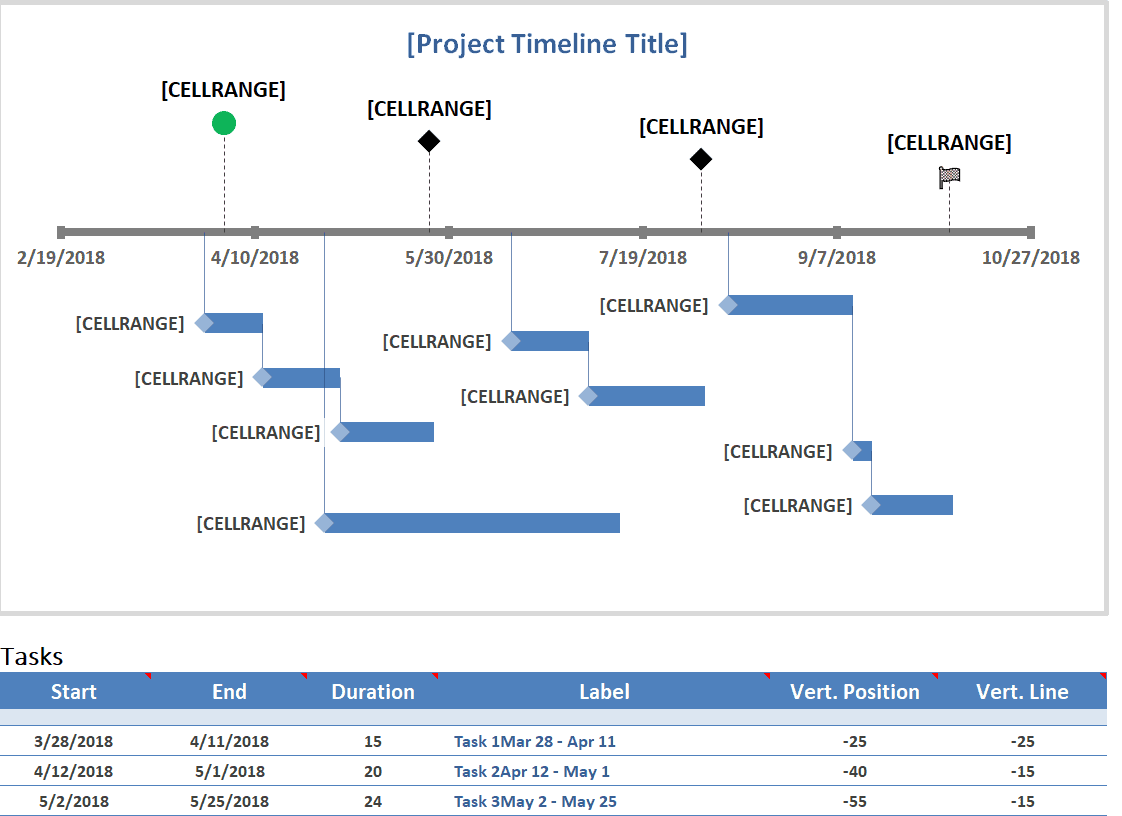
Basic Project Timeline Template PowerPoint
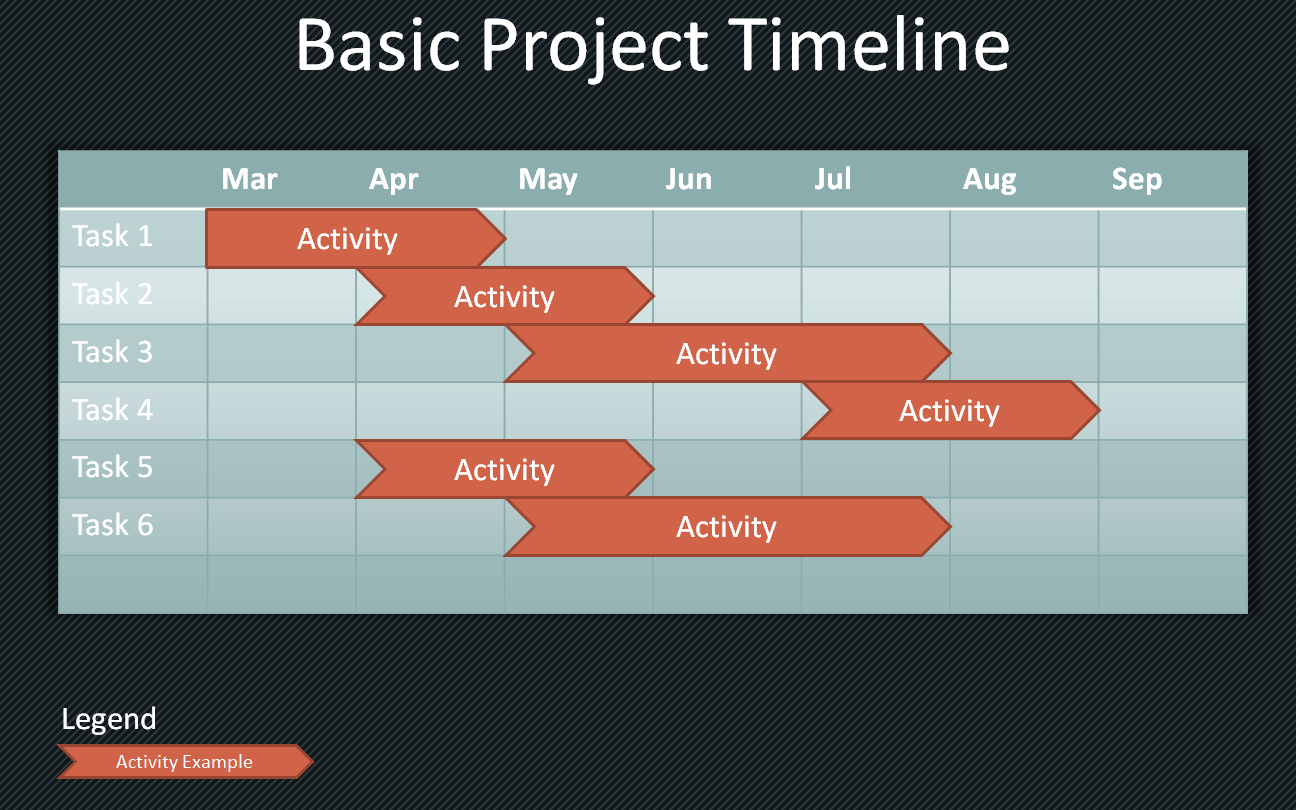
Official Project Timeline Template
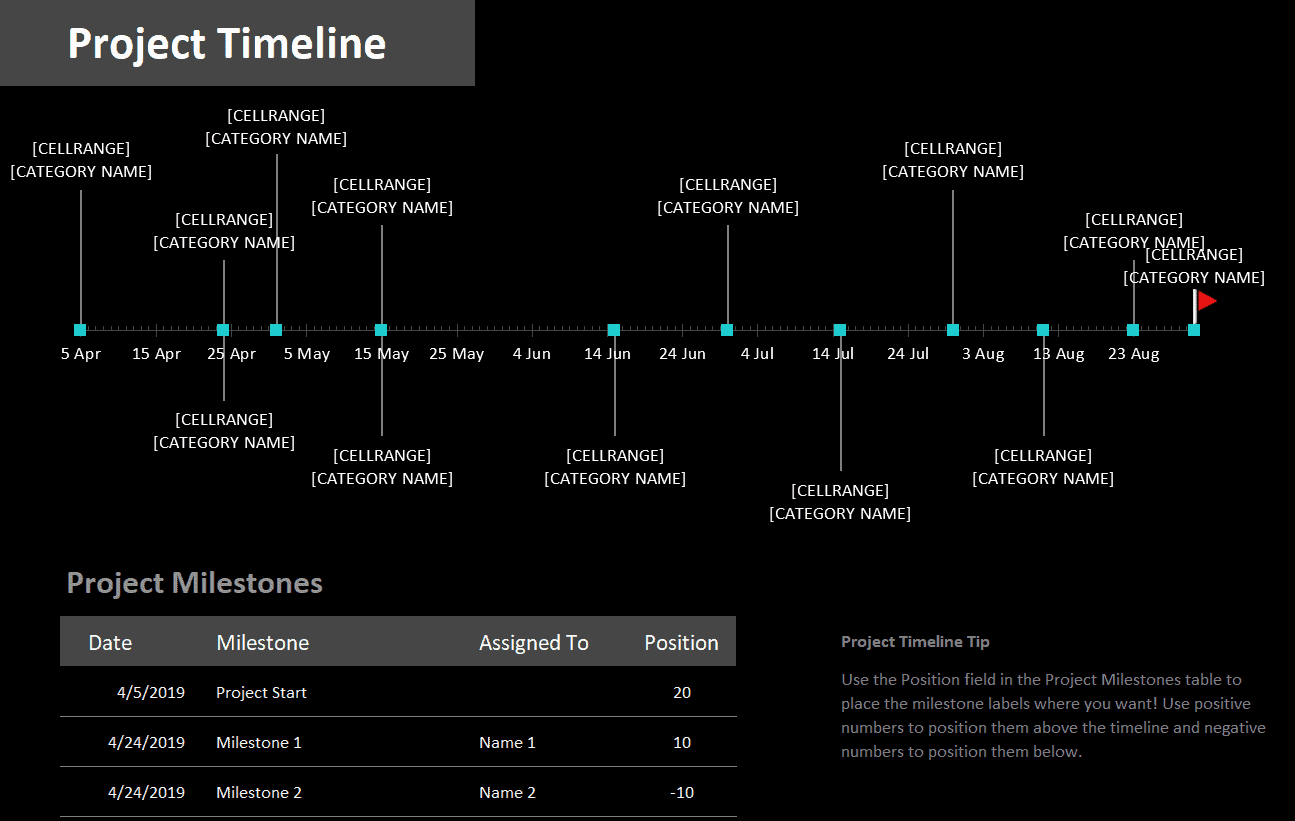
Basic Project Timeline Template
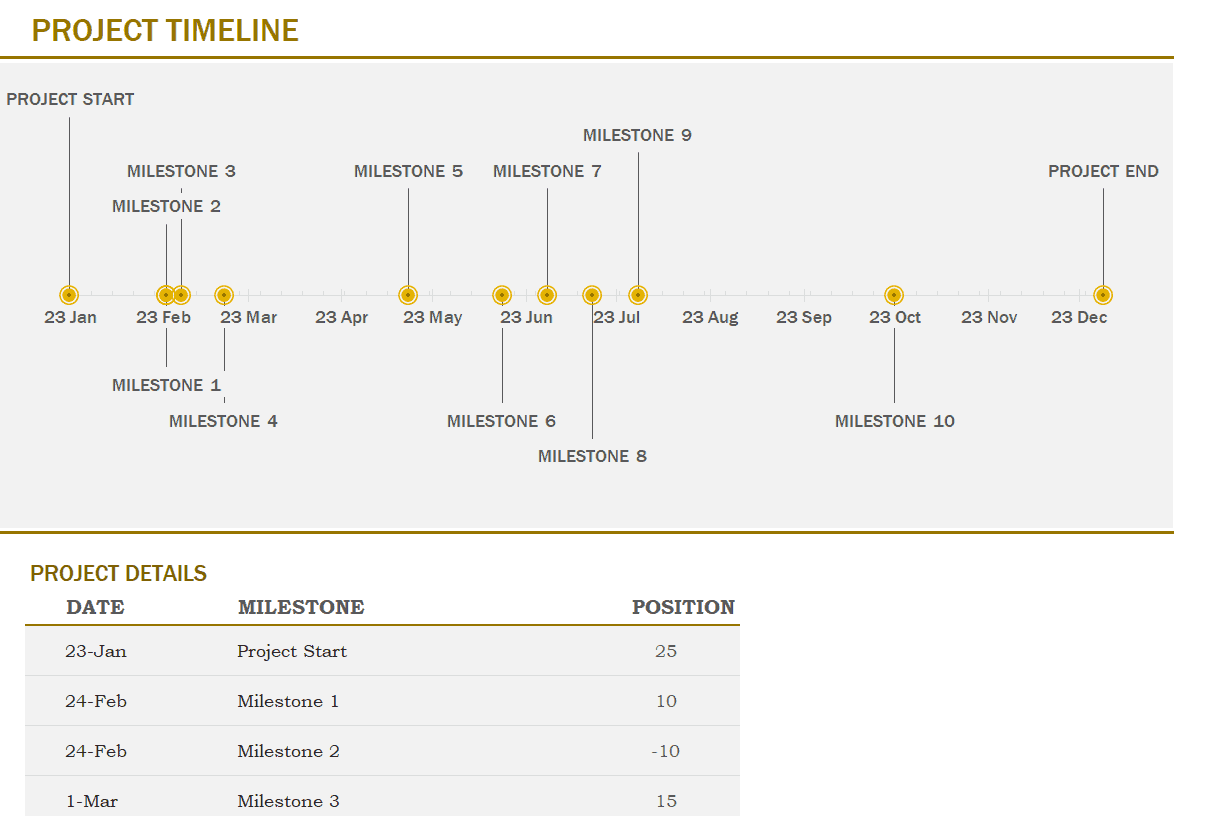
Sample Project Timeline Template in PPTX Format
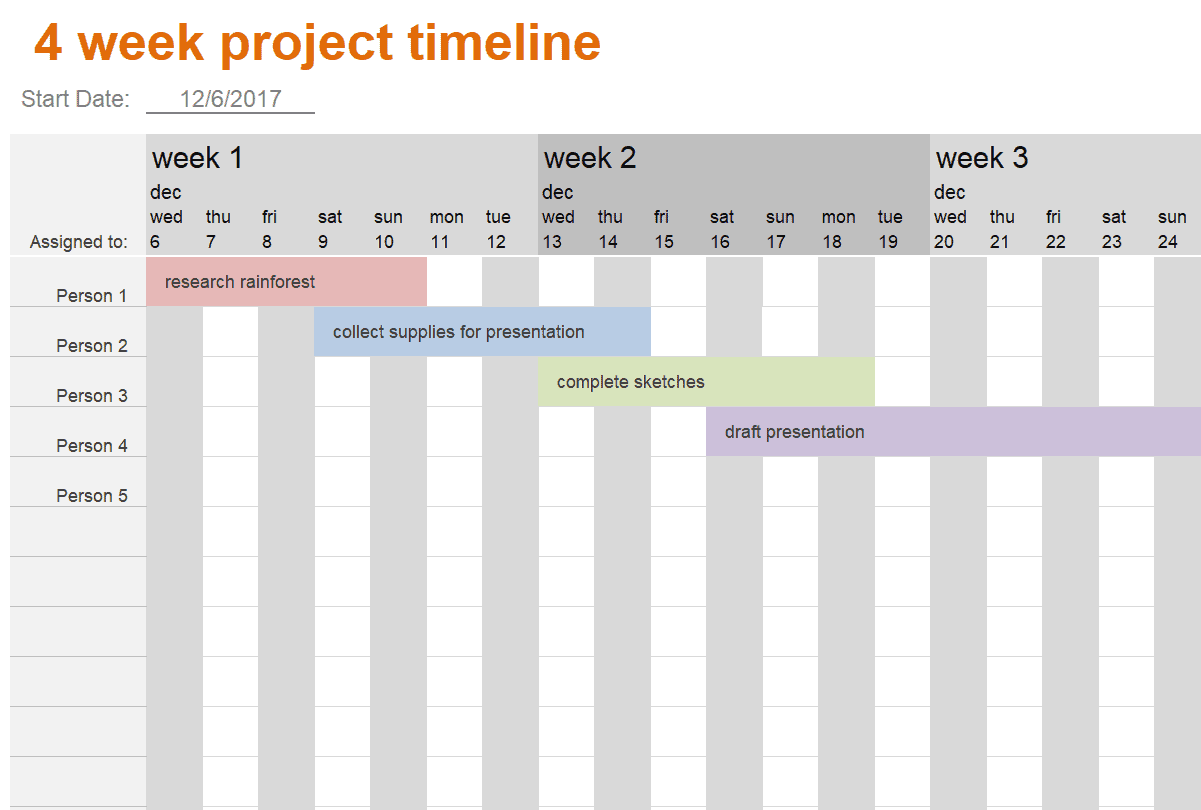
4 Week Project Timeline Template
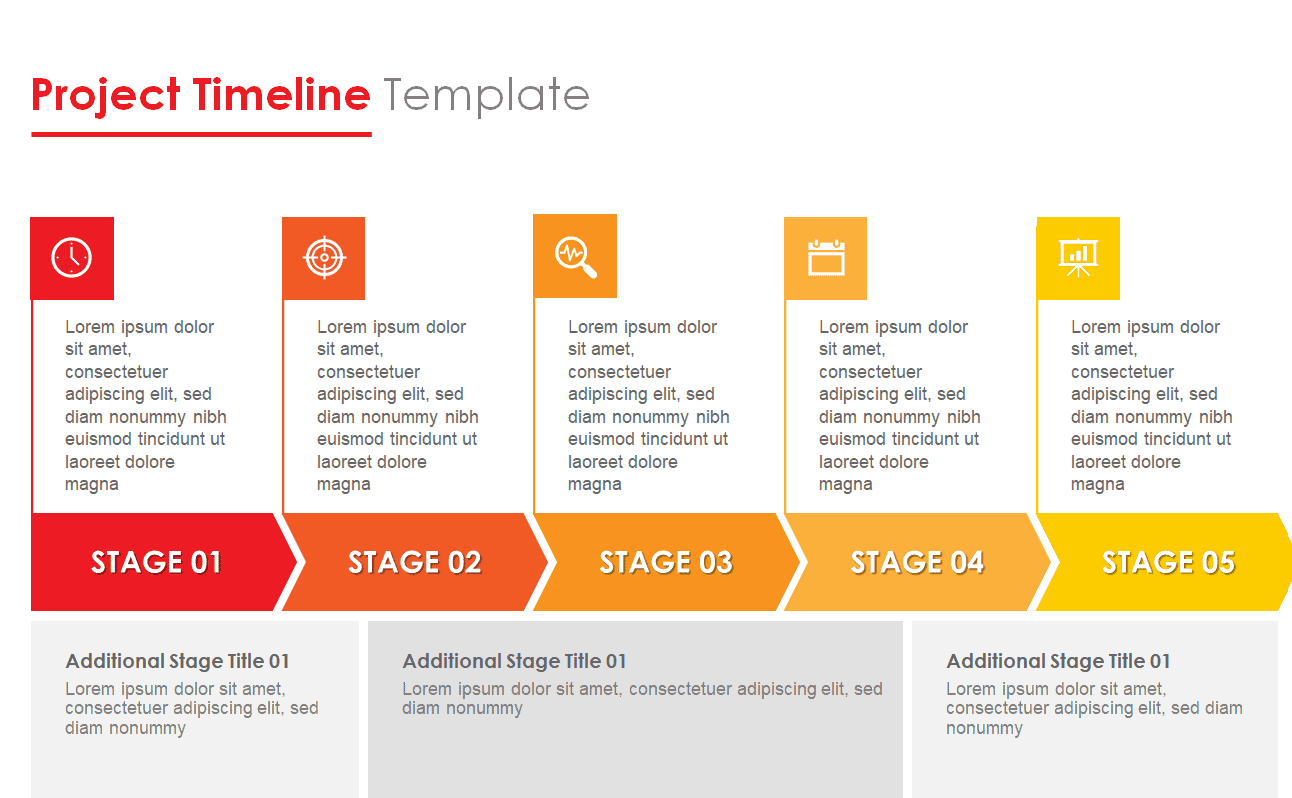
Professional Project Timeline Template
Timeline Project Planning PowerPoint Template
Frequently Asked Questions
Are these project timeline templates free to download?
Yes, all nine project timeline templates on this page are free to download and use for your projects.
Which file formats are available?
The templates are available in Excel and PowerPoint formats, so you can choose whichever fits your planning or presentation needs.
Can I customize the colors and layout?
Yes, all templates are fully editable, so you can adjust colors, fonts, and layout to match your brand or preference.
Do I need Microsoft Office to use these templates?
The templates are built for Excel and PowerPoint but also open in free alternatives such as Google Sheets, Google Slides, or LibreOffice.
How long a project can these templates handle?
The templates can be adapted for projects of almost any length, from a short four-week sprint to a multi-month or multi-phase project, simply by adjusting the date range and milestones.
Can I use these templates for client presentations?
Yes, the PowerPoint-based templates are especially well suited for presenting a project schedule clearly to clients or executives.
How often should I update the timeline?
It’s best to review and update the timeline at least weekly, or at the end of each project sprint, so it always reflects the current status.

You must be logged in to post a comment.