
A flowchart template gives a process a visible structure: where work begins, what happens next, which decisions change the route, and how the work ends. The collection below includes different diagram layouts and resource formats. Use the previews to choose a starting point, then replace the sample steps with a process you can explain and check with the people who perform it.
A useful process flowchart does more than arrange boxes neatly. It helps someone follow a procedure, identify a missing handoff, or see why a request gets delayed. This guide explains how to define the scope, select shapes, write clear labels, and review the result before sharing it.
Decide what question the diagram should answer
Begin with a single purpose. You might need to explain how a customer order moves from receipt to dispatch, how a request receives approval, or how a new employee gets access to a system. Write that purpose above your working notes. If a step does not help answer the question, it may belong in a separate diagram.
Also choose whether you are documenting the current process or proposing a future one. Mixing the two makes reviewers debate a procedure that nobody actually follows. Label a proposed workflow clearly and record the date when the diagram was reviewed.
Set a clear beginning and ending
A process should start with an observable trigger and finish with a recognizable outcome. “Request submitted” is clearer than “Start work,” and “Customer receives confirmation” is clearer than “Finished.” These boundaries keep the diagram focused and make it easier to decide which activities belong inside it.
For a long project, use a project timeline template to show dates and milestones alongside the flowchart. The diagram explains the order and conditions of work; the timeline helps show when that work is expected to happen. They answer complementary planning questions.
Gather the steps before drawing shapes
Ask the people doing the work to describe what actually happens. Record actions, required information, approvals, waiting periods, and common exceptions. Start with short notes rather than polishing the diagram immediately. An existing checklist, request form, or completed transaction can reveal steps that people forget during an interview.
Group the notes into a rough sequence, then check the sequence against a real example. Pay particular attention to work that crosses departments. “Send to finance” may conceal an important requirement, such as an approved reference number or supporting document, that the next person needs.
Use a small, consistent symbol set
Most everyday process diagrams can be understood with a few shapes: a start or end marker, an action box, a decision shape, and arrows showing direction. Add other symbols only when they communicate information your readers need. If a specialized symbol is unfamiliar, include a simple legend.
Consistency matters more than decoration. Use the same shape for the same kind of information throughout the page. Avoid making one action a circle and another a rectangle simply to fill available space. A reader should be able to recognize the role of a shape without studying its color.
Write action labels that describe work
Use a verb and an object wherever practical: “Check stock availability,” “Record customer details,” or “Send approval email.” Vague labels such as “Processing” leave readers guessing what they are expected to do. Keep each box short enough to scan, and put detailed instructions in a supporting document.
Split a box if it contains two activities with different owners or different outcomes. “Check and approve request” can hide the difference between verifying information and deciding whether spending is permitted. Separate boxes make responsibility and review points easier to discuss.
Label every decision route
A decision flowchart needs questions with meaningful alternatives. For example, “Is the request complete?” can lead to “Yes” and “No” routes. Put those labels beside the outgoing arrows so a reader does not have to infer the answer from position or color.
Follow every route until it rejoins the process or reaches an ending. A rejected request may need an explanation sent to the applicant; it should not simply disappear from the page. If a decision has many possible outcomes, consider a separate decision table instead of crowding the diagram with intersecting arrows.
Make ownership and handoffs visible
When responsibility is important, group steps by role or team. A swimlane layout can separate customer service, finance, and operations while showing how work moves between them. Use role names that remain meaningful when individual employees change.
A supporting statement of work can document responsibilities and deliverables for a larger engagement. Keep the flowchart focused on the operational sequence and use the supporting document for detailed commitments. At each handoff, check what information is transferred, how the recipient knows work is ready, and who follows up if it is incomplete.
Include exceptions without overwhelming the page
Map the main route first, then add the exceptions that materially change the work. Missing information, unavailable stock, unsuccessful payment, and a failed quality check may each require a different route. Minor variations can be explained in a note rather than receiving their own branch.
Use connectors or a linked sub-process when a route becomes too complex for one page. Explain where the reader should continue and preserve a clear return point. A diagram that technically contains every detail but cannot be read at normal size is difficult to use during real work.
Work through a customer-order example
Imagine a small shop receives an online enquiry. The process might read: receive enquiry, confirm requested item, check stock, send quotation, receive customer acceptance, arrange payment, prepare order, and confirm dispatch. A stock decision creates two routes: available items continue to quotation, while unavailable items trigger a proposed delivery date or alternative product.
Now test a second example in which the customer changes the quantity after receiving the quotation. Decide where that change returns to the process. This exposes whether stock and price must be checked again, and whether the original quotation should be marked as replaced.
Keep the layout easy to follow
Choose one dominant reading direction, usually from top to bottom or left to right. Align related shapes, leave space for arrow labels, and keep connectors away from box text. Use readable type at the size in which the chart will actually be viewed.
Use color sparingly to reinforce meaning. It should still be possible to understand the chart when printed in grayscale. If the flowchart spans several pages, give each page a descriptive title and make continuation references obvious. A small overview can help readers understand how the separate diagrams fit together.
Review the workflow with its users
Walk through the chart with someone who performs the process and someone who receives its output. Ask each person to describe what they would do at every step. Record differences between the diagram and actual practice rather than assuming the document is correct because a manager approved it.
For a project with formal reviews, a Gantt chart can help schedule drafting, consultation, and approval activities. Before releasing the diagram, confirm the owner, review date, and location of the current version. Remove outdated copies from the places where people normally look for instructions.
Select and adapt a template
Choose a preview with enough room for the number of actions and decisions you need. An executive overview can use fewer boxes than a detailed operational procedure. A request workflow may need prominent approval branches, while a website diagram may focus on navigation between pages.
Resource links and file formats vary across this older collection. A preview shows the appearance of an example, but it does not establish whether every shape will be editable in your software. After opening a resource, check its format, page size, and editing options before investing time in a full redesign.
Check the finished diagram before sharing
Keep an unchanged copy of the original resource, then save your working version with a process name and date. Check the chart at normal viewing size and print a sample if colleagues will use paper copies. Confirm that labels fit inside shapes and that arrowheads remain visible after exporting.
Use a short release checklist: purpose stated, beginning and ending defined, decisions labeled, owners identified, exceptions checked, and version recorded. Ask a colleague to follow an unfamiliar case without additional explanation. Any point where that person hesitates is a useful place to improve the diagram.
Printable Flowchart Templates are Provided Here
Executive Flowchart Template
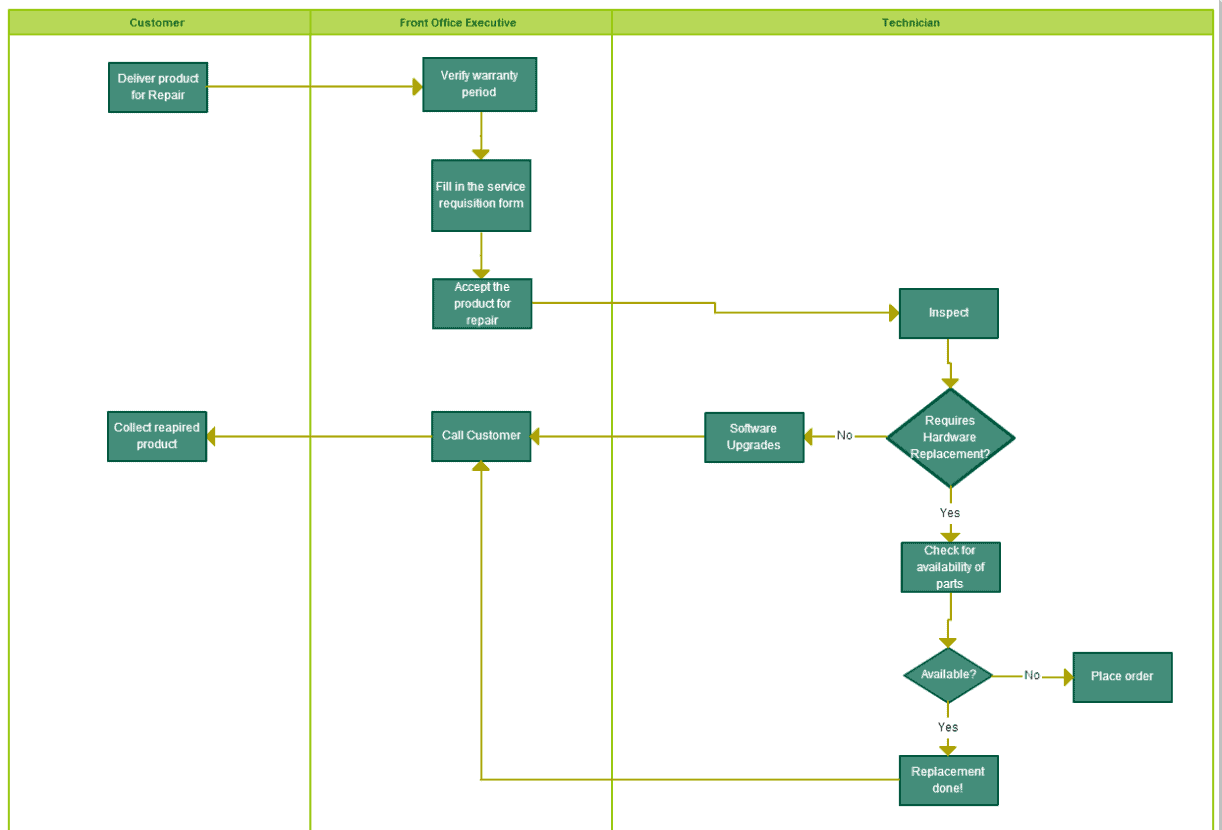
Basic Flowchart Template
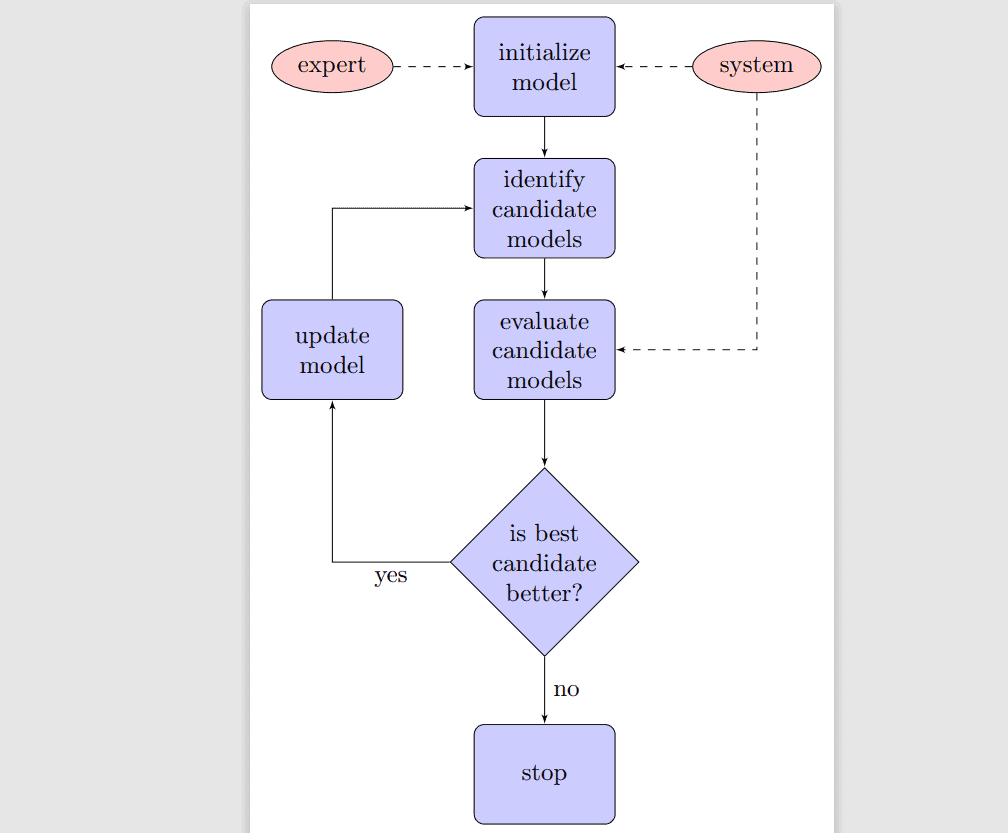
Formal Request Flowchart Template
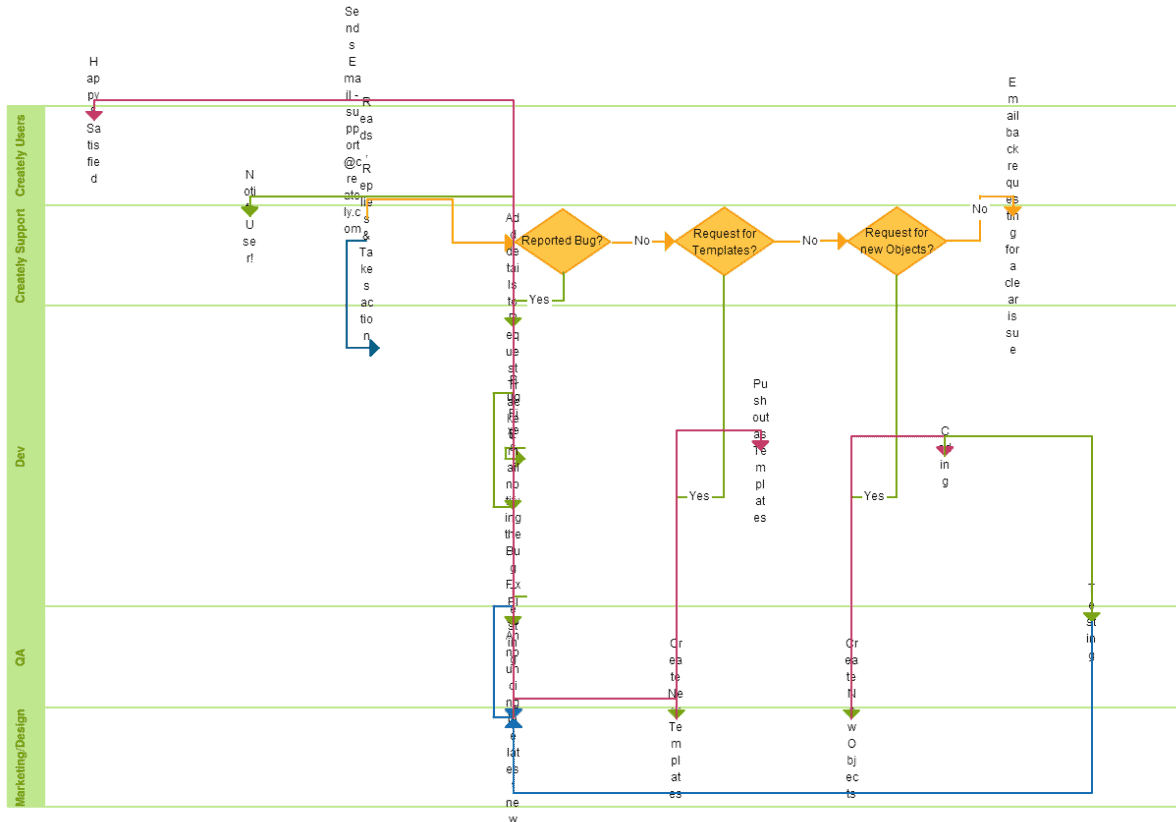
Sample Flowchart Template
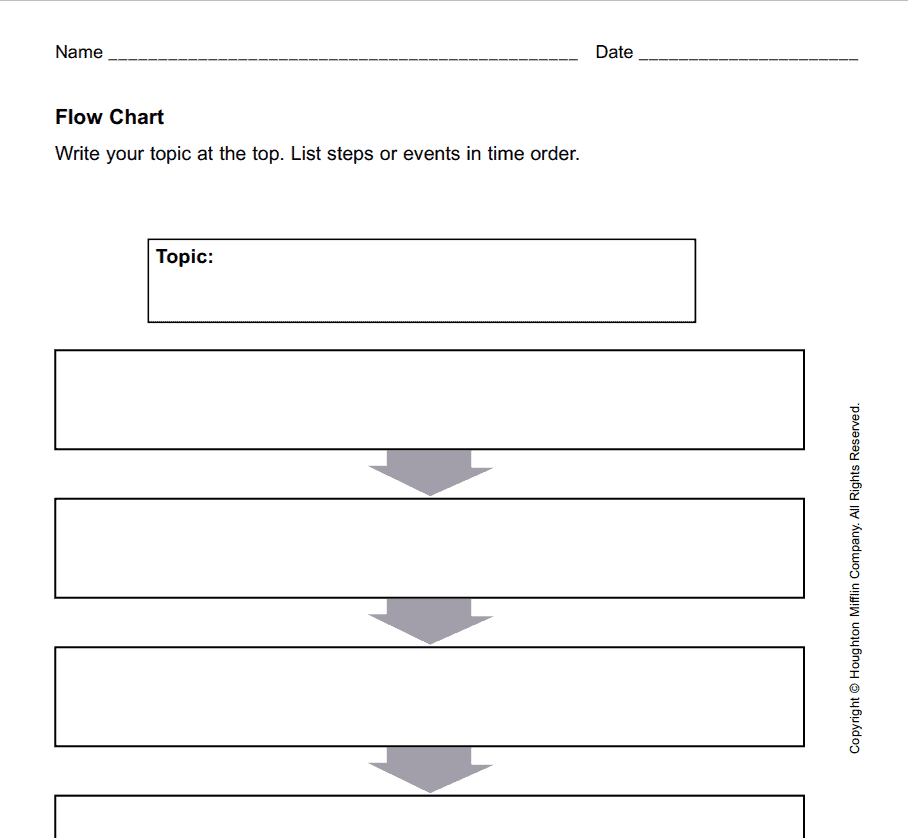
Example Flowchart Template

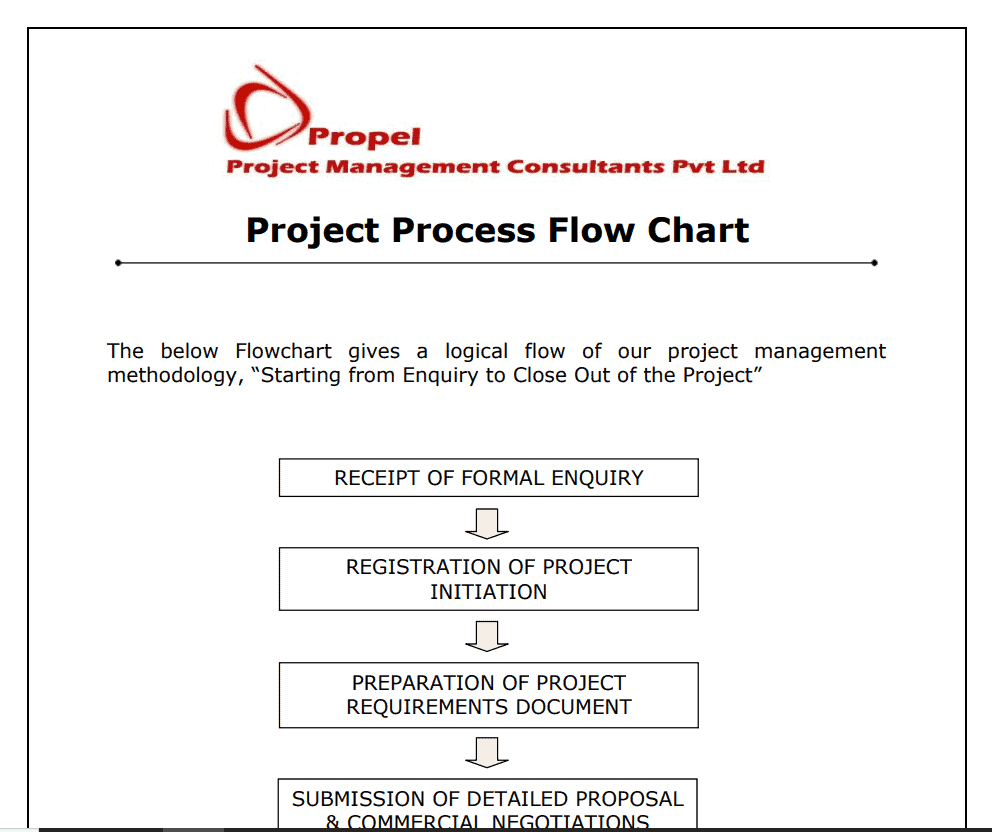
Project Process Flowchart Template
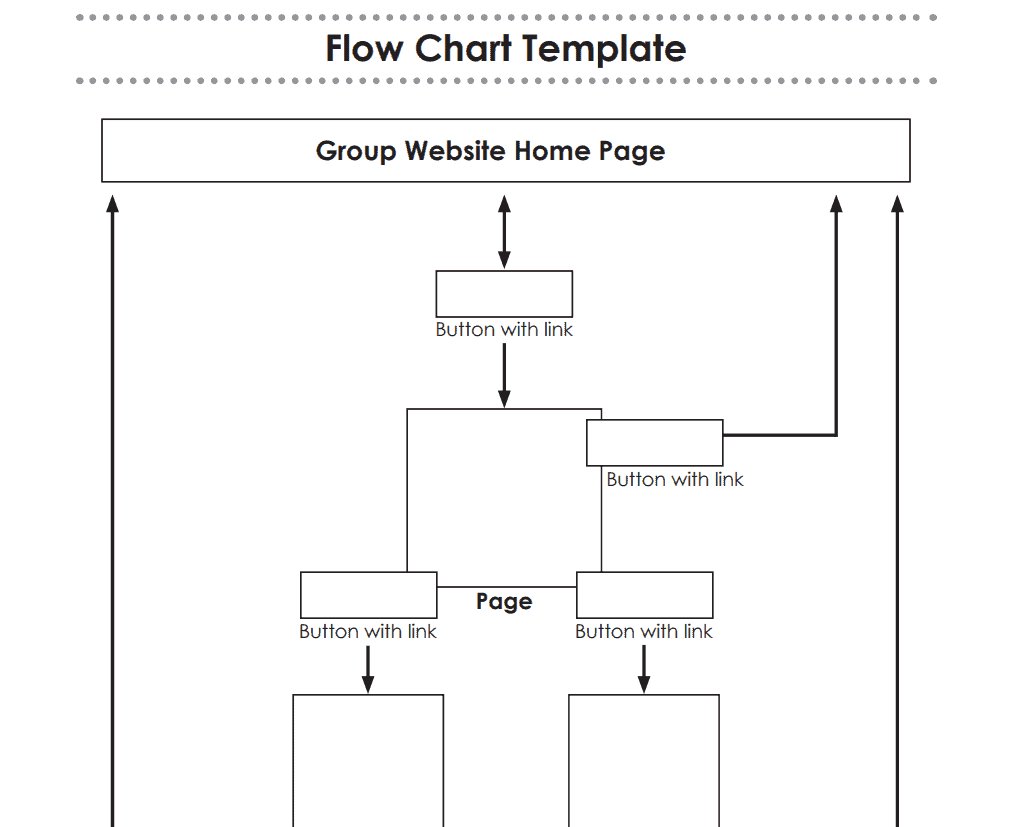
Website Flowchart Template
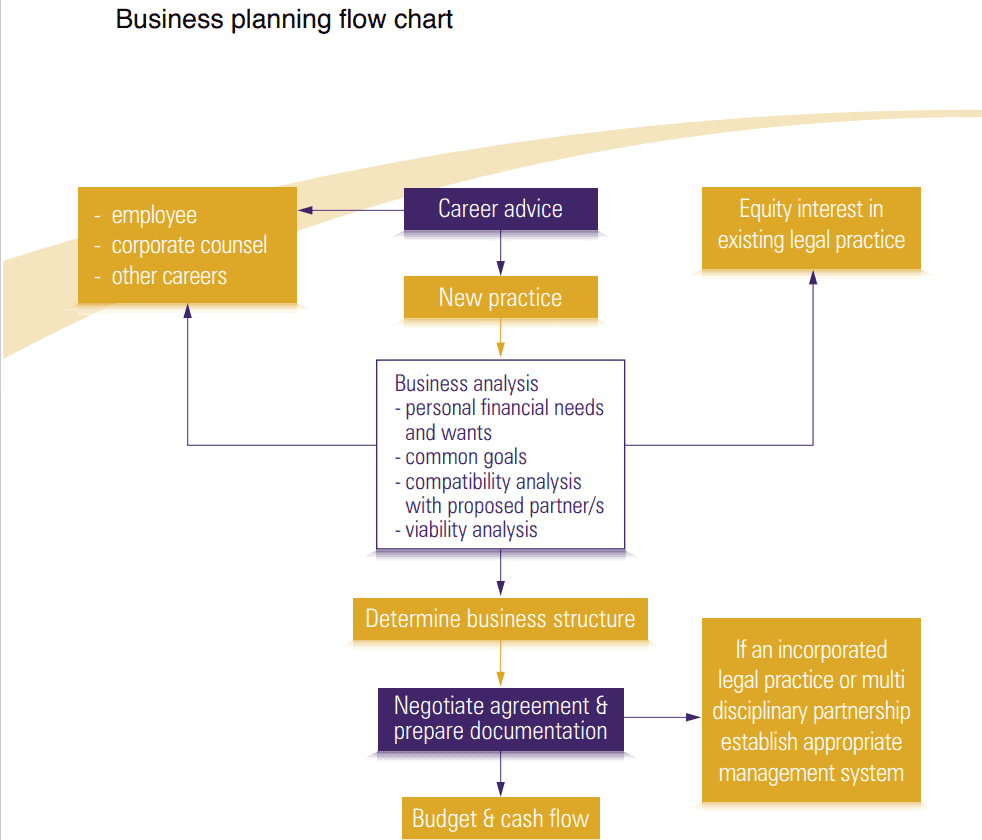
Business Planning Flowchart Template
Editable Flowchart Templates are Provided Here
Order Receiving Flowchart Template
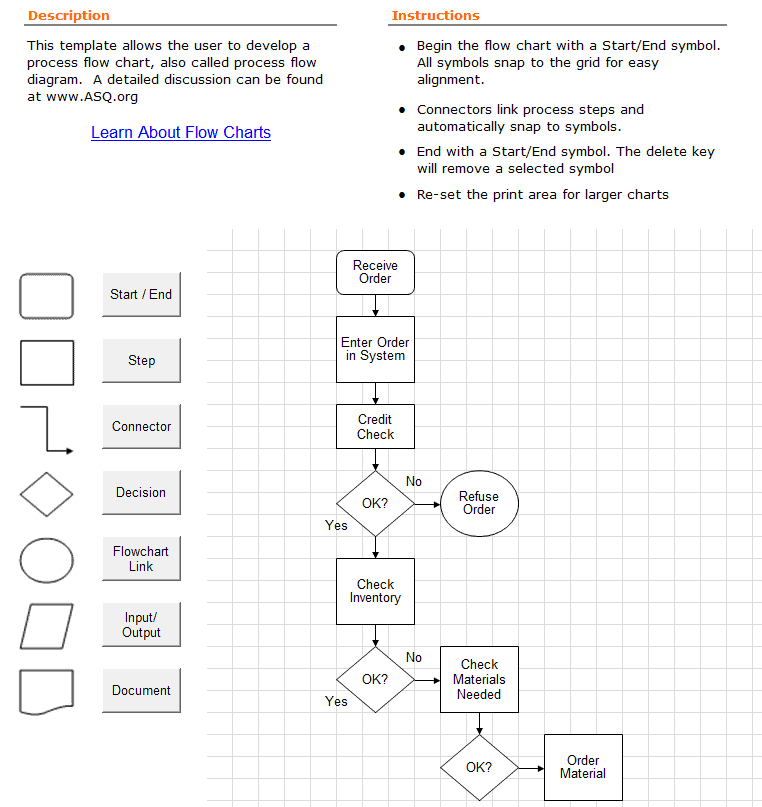
Personal Training Course Flowchart Template
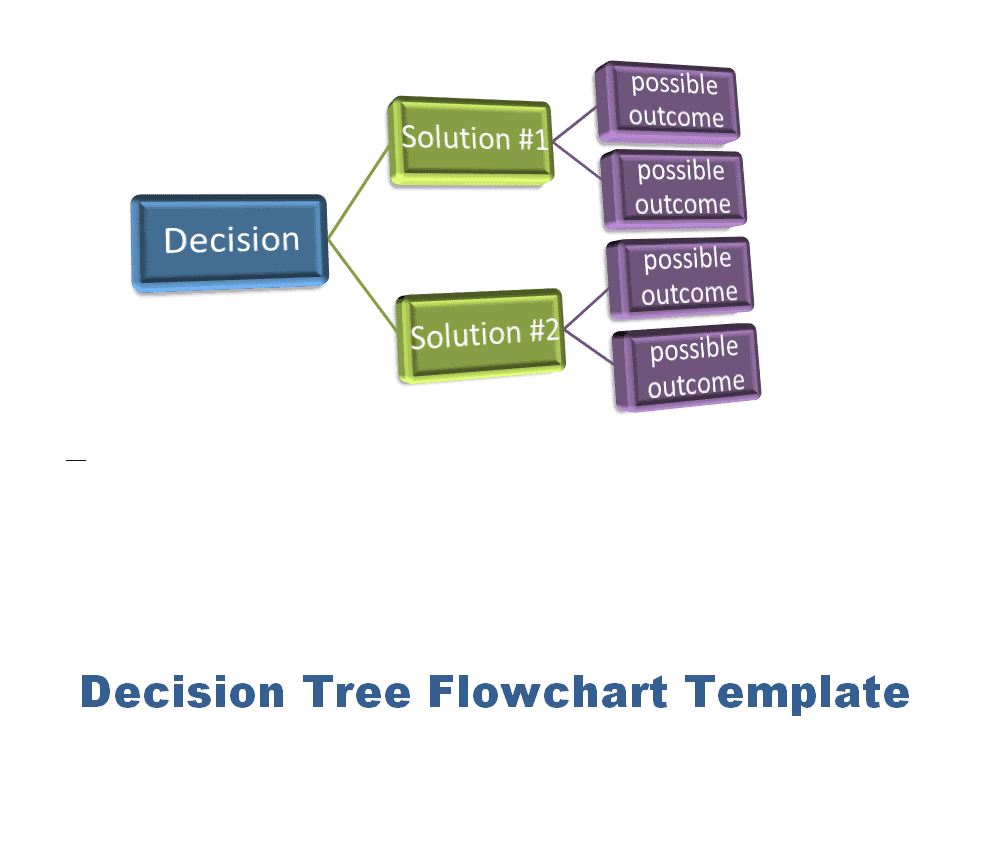
Decision Tree Flowchart Template WORD
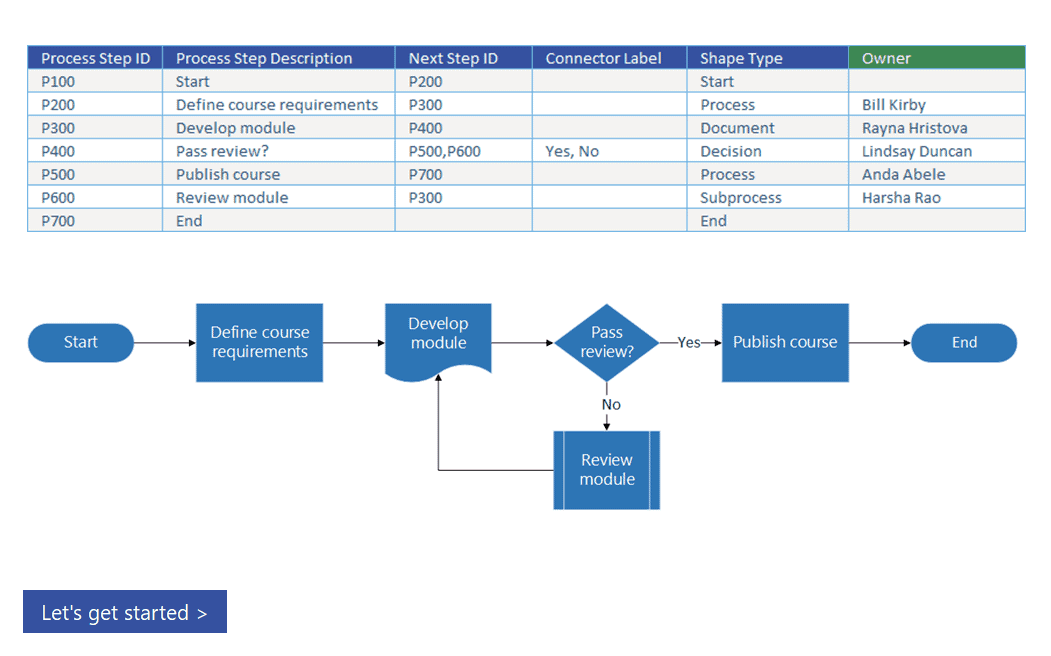
Sample Flowchart Template in PPTX Format
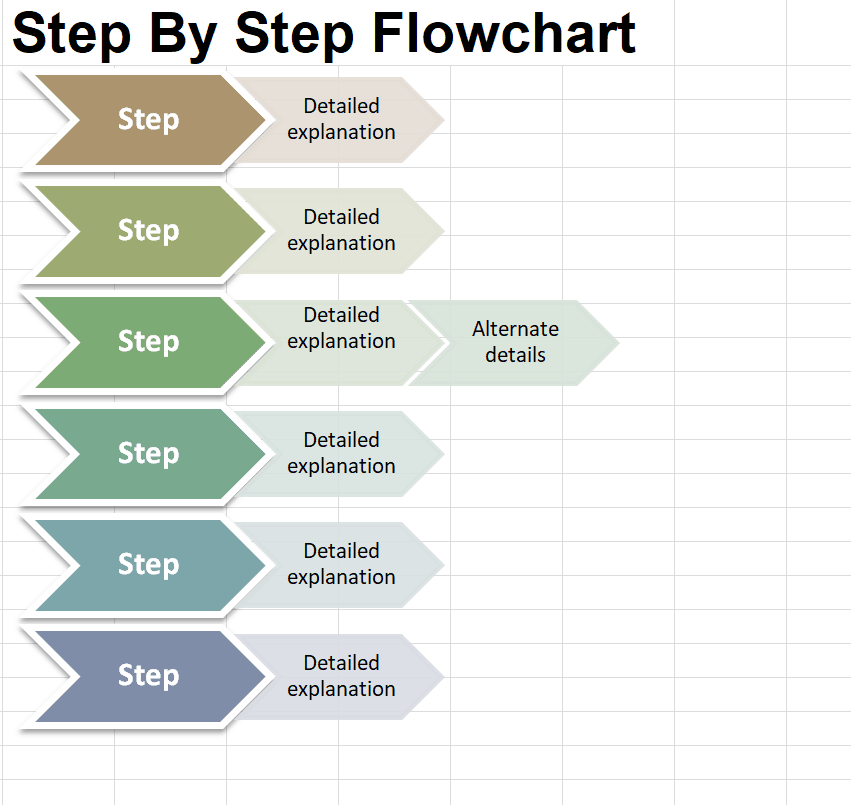
Step by Step Flowchart Template
Simplistic Flowchart Template
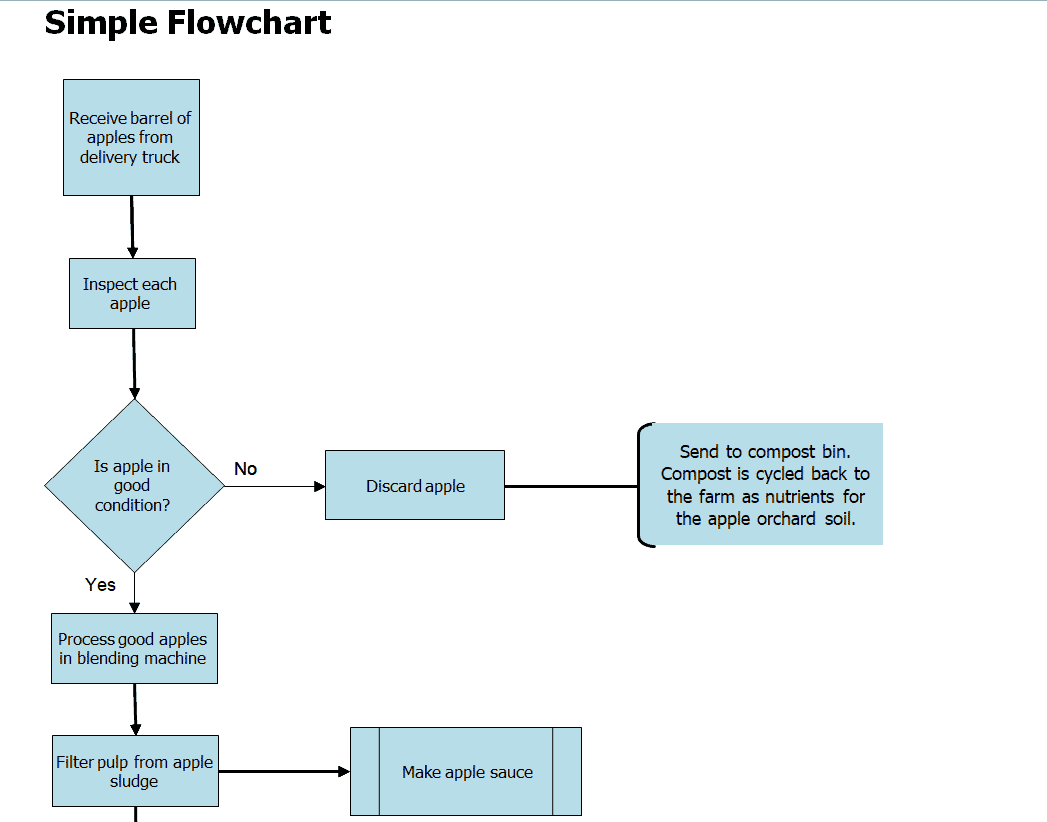
Simple Flowchart Template in PowerPoint

Frequently Asked Questions
What is a flowchart template used for?
It provides a starting layout for showing the steps and decisions in a process. You can use it for procedures, approvals, customer journeys, and other workflows where order and conditions matter.
How detailed should a process flowchart be?
Include enough detail for its intended reader to understand or perform the process. Put lengthy instructions and minor variations in supporting notes or separate diagrams so the main route stays readable.
Do I need drawing skills to make a flowchart?
No. Clear labels, consistent shapes, and a checked sequence matter more than illustration skills. Start with a rough version and improve the layout after the process has been verified.
Can a flowchart include more than one ending?
Yes. A process may finish with approval, rejection, cancellation, or another outcome. Label each ending clearly and follow every decision route to a meaningful result.
How is a flowchart different from a project timeline?
A flowchart shows sequence and decision routes. A timeline shows dates and milestones. Use both when people need to understand how work proceeds and when it is due.
How often should a flowchart be reviewed?
Review it when responsibilities, systems, requirements, or process steps change. Assign an owner and record a review date so users can identify the current version.

You must be logged in to post a comment.