
Storyboard templates help turn an idea into a sequence that other people can review before production starts. Each panel represents a scene, shot, page, or interaction, with room for notes about what the audience sees and hears. The examples below offer different layouts for sketching and organizing a visual story.
You do not need polished artwork to create a useful storyboard. Simple drawings, clear labels, and a realistic sequence can reveal missing explanations, unnecessary scenes, and production problems early. Use this guide to choose a layout, develop your panels, and prepare a board that supports a practical conversation with your team.
Define the audience and purpose
Before drawing a panel, write one sentence describing who the story is for and what they should understand or do afterward. A product demonstration, classroom explanation, fundraising video, and fictional scene need different pacing and information.
List the essential message and the evidence needed to support it. A board becomes crowded when it tries to answer every possible question. Decide which details belong in the main sequence and which can appear in captions, a companion document, or a later piece. Keep the audience statement visible while reviewing the draft.
Choose a format that fits the project
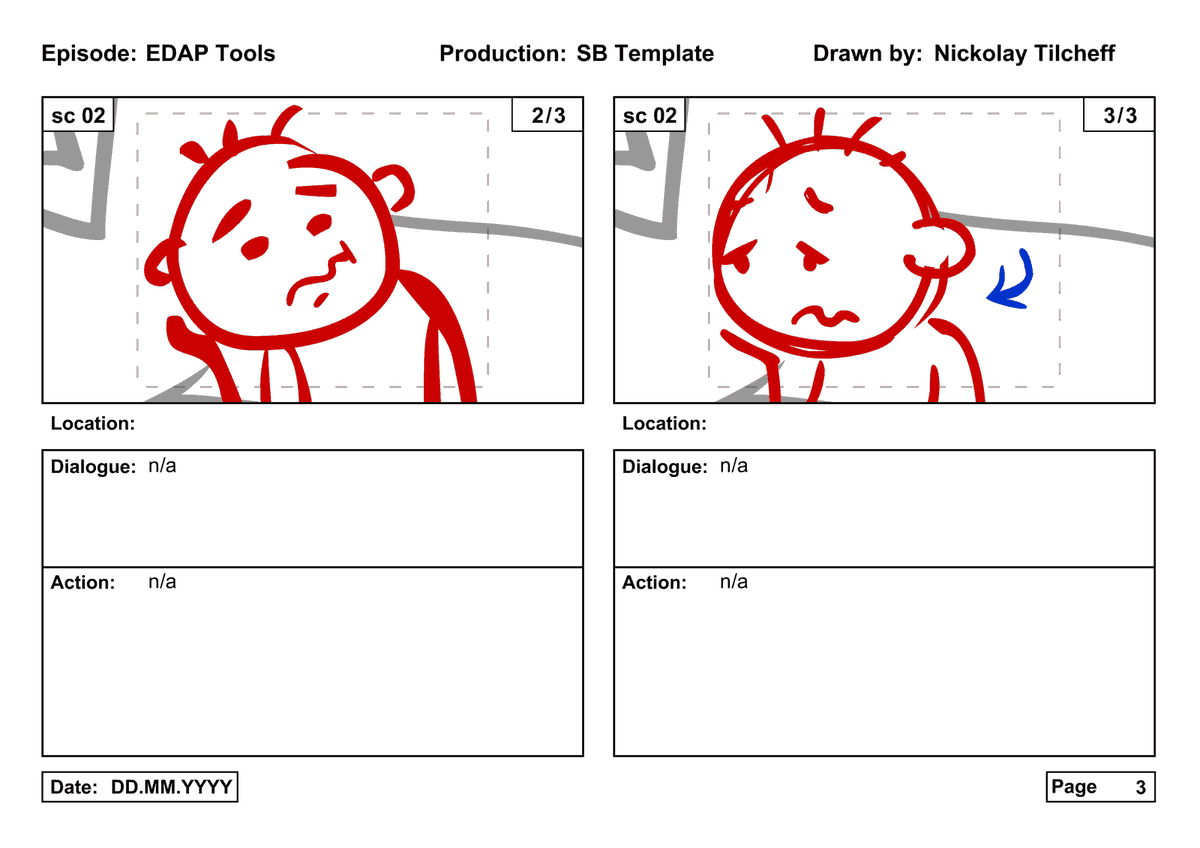
A simple row of frames works well for a short sequence. A layout with separate columns for visuals and narration is useful when spoken explanation drives the story. A book storyboard may benefit from spreads and page-turn notes, while a software walkthrough may need interaction labels.
The collection includes links to different resource types. Check the actual format before assuming it can be edited in Word or another particular program. You can also use the published storyboard template collection to compare alternative layouts when the available space or panel arrangement does not suit your project.
Break the idea into meaningful beats
Write the main events or explanations as short statements. Each statement should advance the story or help the audience understand something new. For a demonstration, the beats might be problem, required materials, setup, main action, result, and closing instruction.
Arrange these beats before deciding the number of panels. One beat may need several shots, while several simple ideas might fit into one static frame with narration. If the order feels confusing in text, drawing elaborate pictures will rarely solve it. Clarify the sequence first.
Sketch what the audience will actually see
Use rough shapes to show the subject, setting, important objects, and direction of movement. Stick figures are acceptable when they communicate position and action. Label anything that might be mistaken for a different object.
A video storyboard should distinguish what appears on screen from what you are merely thinking about as the creator. If the audience needs to notice a small control on a device, show how the shot will make it visible. Avoid writing “viewer understands the problem” without specifying the image or action that conveys it.
Write concise action and camera notes
Describe the action below or beside each panel. “Person opens package and places instructions on table” is more useful than “Unboxing scene.” When framing matters, note whether the shot shows the full setting, a person, or a close view of a detail.
Only include camera language that the team needs and understands. If a specific movement is essential, describe its purpose as well as its direction. An instruction to move closer should explain what the audience needs to see. This helps the camera operator solve the visual problem if the original setup proves impractical.
Separate narration, dialogue, and screen text
Keep spoken words distinct from text that will appear in the image. A narration column can hold a draft script, while a separate note identifies a title, label, or subtitle. This prevents a production team from treating an instruction as dialogue.
Check whether the spoken explanation matches the visible action. If narration refers to a control before it appears, adjust either the script or the shot order. Keep screen text short enough to read within the intended viewing time. Important information should not depend on tiny labels that disappear when the video is watched on a phone.
Estimate timing and transitions
Give each panel an approximate duration or sequence position where timing matters. Add the durations to see whether the planned story fits the available runtime. Treat early estimates as working assumptions and revise them after reading the narration aloud.
Transitions should explain changes in time, location, or subject. A simple cut may be enough; more elaborate effects should support the story rather than distract from it. For a larger production, a project timeline can organize script review, shooting, editing, and approval dates separately from the timing inside the finished video.
Plan sound and accessible explanations
Record music, ambient sound, dialogue, and sound effects only when they serve a purpose. Note where clear speech is essential and where background audio should be reduced. If a scene depends on a sound to convey meaning, consider how that information will also be explained visually or in captions.
A useful storyboard planning worksheet can also flag caption needs, pronunciation notes, and descriptions of important visual actions. These notes are easier to discuss before shooting than after an edit is nearly finished. Confirm the requirements of the audience and delivery channel with the people responsible for publication.
Work through a short demonstration example
Imagine a team creating a one-minute video about organizing a desk. The opening panel shows a cluttered workspace and introduces the problem. The next panels show sorting items, removing unused objects, assigning storage, and preparing the work area. The final panel shows the result and offers one clear action for the viewer.
During review, the team notices that the sorting stage jumps directly to a tidy drawer. Add a panel showing how the categories are chosen. That extra explanation may be more valuable than a decorative opening shot, so shorten the introduction to keep the intended runtime.
Connect the board to production needs
Add references for locations, props, people, and materials when a panel requires preparation. A scene may be easy to draw but difficult to film because the setting is unavailable or the object has not arrived. Flag those dependencies while changes are still inexpensive.
For an external production engagement, use a statement of work to document deliverables and review responsibilities. The storyboard can serve as a creative reference, but it should not carry every commercial detail. Make sure both documents use the same project name and clearly identify which version is approved.
Review continuity and unnecessary repetition
Read the board from beginning to end without relying on your memory of the script. Check whether objects remain in consistent positions, actions connect logically, and changes in location are explained. For a book or presentation, check whether the page or slide sequence introduces ideas before using them.
Remove panels that repeat an explanation without adding value. If reviewers disagree, ask what each panel contributes to the audience’s understanding. A clearer sequence may have fewer panels than the first draft. Preserve enough context for transitions and avoid cutting the step that makes the result believable.
Manage feedback and versions
Number the panels and give each revision a date. Ask reviewers to refer to panel numbers when suggesting changes. “Move the close view in panel six before the explanation in panel five” is much easier to act on than “The middle section feels wrong.”
Keep one person responsible for incorporating agreed feedback. Record open questions instead of silently resolving them in different ways across several copies. When the storyboard is approved, save a reference version and note how later changes will be communicated to the production team.
Prepare a usable working copy
Choose a panel size that leaves enough space for your notes at the intended print size. If you work digitally, check that exported pages preserve the sequence and remain readable. Leave room for handwritten updates if the board will be used during filming.
Keep an unchanged copy of the resource before customizing it. Replace sample names, remove irrelevant fields, and add columns only when they solve a real production need. Test the layout with a few representative panels before filling the entire story; this avoids repeating an awkward format across many pages.
Get Storyboard Templates Here
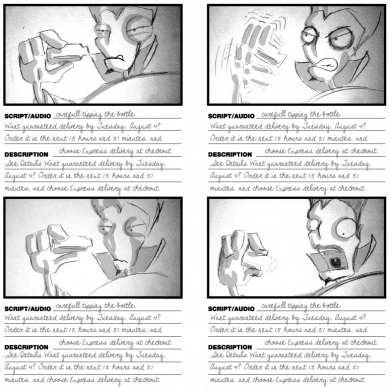
Storyboard Template Free

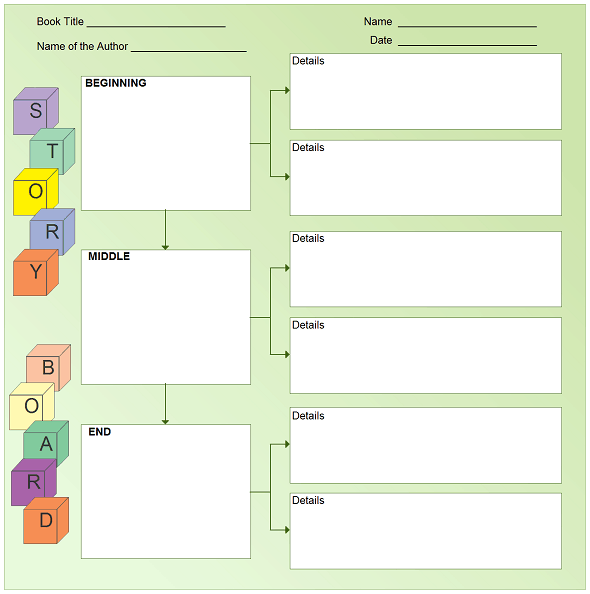
Storyboard Template For Book
Blank Storyboard Template
Printable Storyboard Template
Simple Storyboard Template
Frequently Asked Questions
What belongs in a storyboard panel?
Include a visual sketch or reference, a description of the action, and any necessary narration, dialogue, screen text, or timing notes. The amount of detail depends on who will use the board.
How many panels should a storyboard have?
Use as many as needed to explain the sequence clearly. There is no universal number. A short demonstration may need only a few frames, while a complex scene may require many.
Can I make a storyboard without drawing?
Yes. Use simple shapes, labels, photographs you have permission to use, or rough reference images. The goal is to communicate the sequence rather than create finished illustrations.
Is a storyboard the same as a script?
No. A script records words and actions, while a storyboard shows how those actions and ideas will appear visually. They should agree and can be developed together.
Should a storyboard include music?
Include sound notes when they affect the story, mood, timing, or production. Keep music instructions distinct from spoken dialogue and note where speech must remain easy to hear.
Can I change a storyboard after approval?
Changes are possible, but communicate them clearly because they may affect shooting, props, scheduling, and editing. Keep the approved version and identify the revised panels.

You must be logged in to post a comment.