
Use monthly timesheet templates to summarize actual work across a month while retaining daily detail and the relevant payroll boundaries.
Download Five Editable Monthly Timesheet Templates
Choose the layout that fits your needs. Select an image to open the full-size preview.
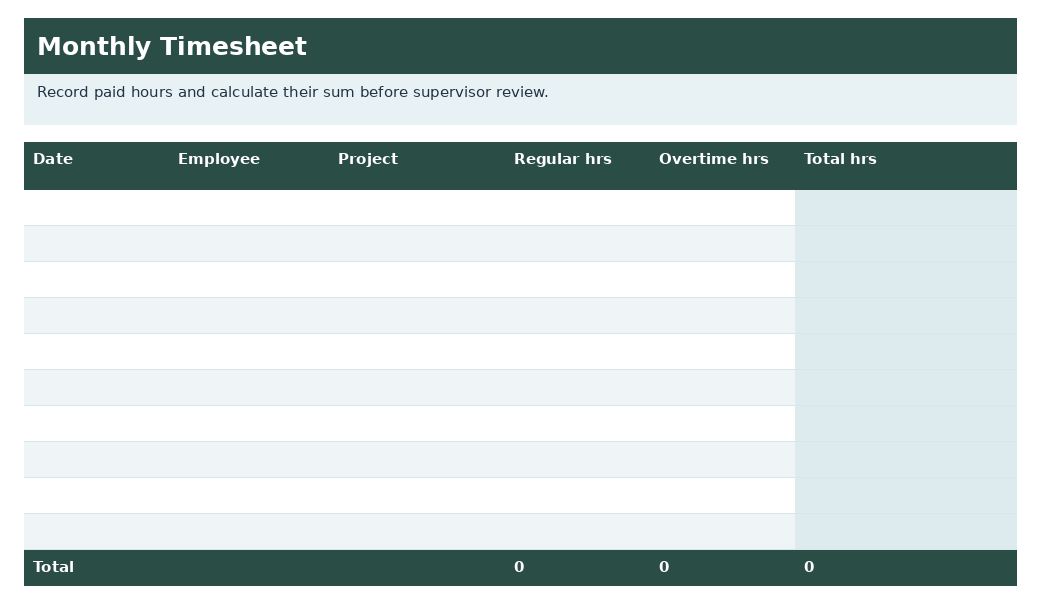
Monthly Timesheet Template
Record paid hours and calculate their sum before supervisor review.
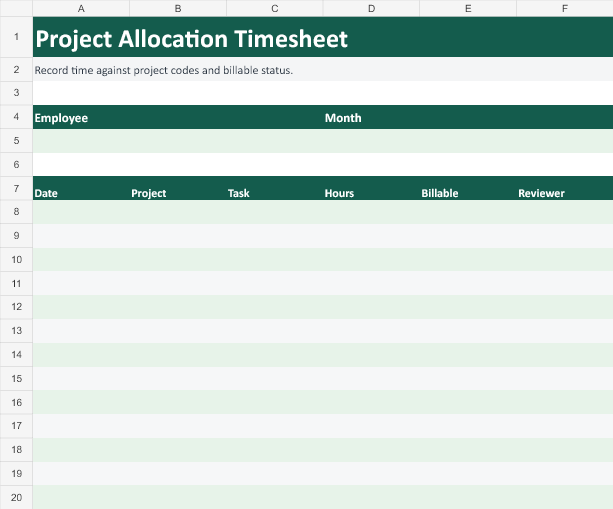
Project Allocation Timesheet
Record time against project codes and billable status.
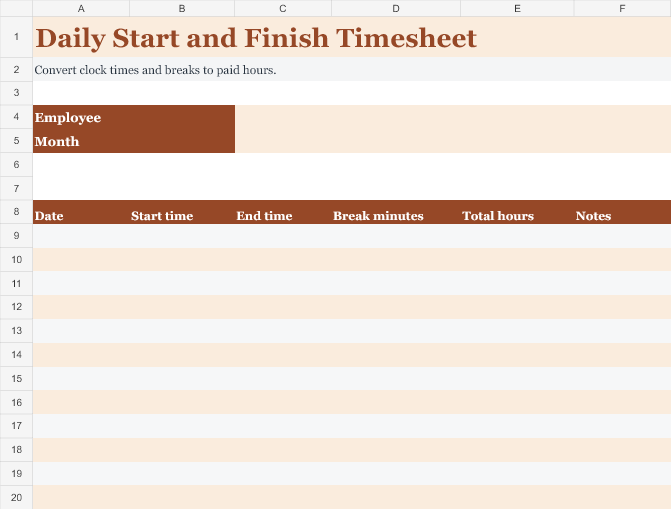
Daily Start and Finish Timesheet
Convert clock times and breaks to paid hours.
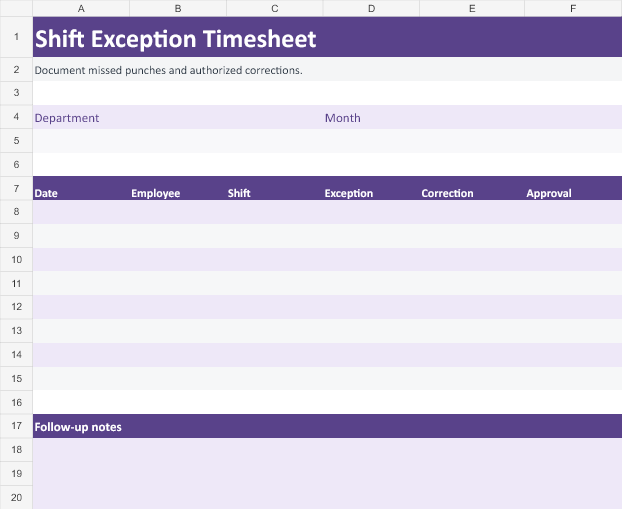
Shift Exception Timesheet
Document missed punches and authorized corrections.
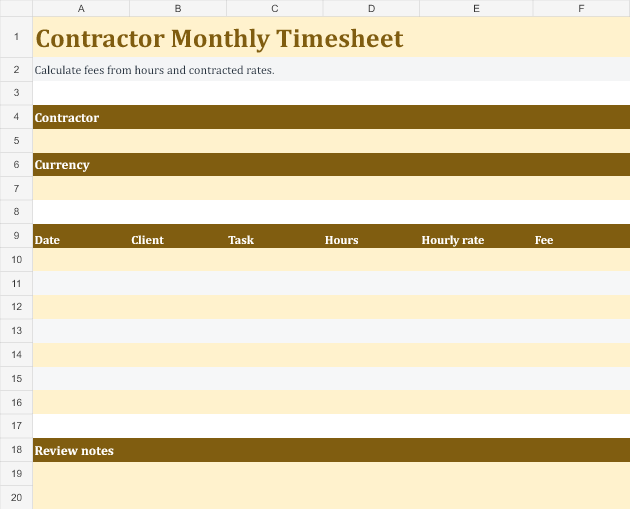
Contractor Monthly Timesheet
Calculate fees from hours and contracted rates.
Editable downloads and previews
Use the file links where provided. A preview image alone is not an editable document.
Template previews and source links
Monthly Timesheet Template Excel
 The older external file is unavailable. Its preview is retained for reference.
Editable Monthly Timesheet Template
 The older external file is unavailable. Its preview is retained for reference.
A monthly timesheet can support project costing and payroll review, but a calendar month may not match a pay period or overtime calculation period. Preserve daily facts and the relevant workweek divisions. Do not let a monthly total hide missed entries, overnight shifts, or corrections.
Choose a suitable template
Choose a time or attendance layout that matches the recording purpose. Presence, hours worked, project allocation, and payroll classification are related but different records. Define the reporting period and status legend before use. Check that the sheet can accommodate the actual work pattern, including partial days, overnight intervals, or a workweek that crosses a month boundary.
Important details to prepare
Person and month
Identify the worker and exact reporting month. State whether the sheet is for payroll, project tracking, or both. Check the entry against the actual roster or reporting period. A correct value attached to the wrong person or month can still produce an incorrect administrative result.
Daily intervals
Record actual start and finish intervals, with dates for overnight work. Planned hours belong in a separate reference column. Record what happened rather than replacing it with the planned schedule. If the source is unclear, flag the item for review instead of assuming a standard day.
Breaks and absence
Record breaks and approved absence categories using appropriate policy and privacy controls. Do not replace missing time with assumed standard hours. Use the agreed legend or interval method consistently. A private explanation can remain in a controlled record while the shared sheet uses a proportionate status.
Project allocation
Use consistent project or cost codes and reconcile allocated hours to the daily total. Avoid counting the same hour in two projects. Check calculations using a simple example and keep the relevant units visible. A value written as 7:30 and a decimal value of 7.30 do not mean the same number of hours.
Totals
Show daily and relevant weekly totals before the monthly summary. Keep decimal hours distinct from hours-and-minutes notation. Retain the daily or interval detail supporting the total. A summary should make review easier without hiding an omission or a duplicate entry.
Review
Record submission, corrections, and authorized review. Payroll treatment must follow the applicable rules rather than the spreadsheet’s default labels. Follow the authorized correction and review process. Approval should confirm the facts and required treatment rather than simply making an incomplete sheet appear finished.
How to complete the template
Record actual facts promptly using the organization’s agreed process. Keep planned schedules separate from recorded activity and resolve missing entries with the appropriate person. Use one time convention consistently and explain the difference between decimal hours and hours-and-minutes notation. Sensitive absence information should use the appropriate private channel rather than a note visible to every colleague using the schedule.
Worked example
An employee records 7.5 hours across two projects on one day: 4 hours on one and 3.5 on the other. The daily total remains 7.5, not 15. A week spanning two months retains its workweek identity for the appropriate review. Month-end approval checks missing entries and corrections before the data is used.
Check accuracy before use
Review a typical day and an unusual day before relying on the layout. Check interval arithmetic, dates around midnight, break handling, and the relationship between daily and period totals. Make sure allocated project hours do not exceed actual recorded time through duplication. Pay and leave treatment depend on applicable rules and policy; a template’s default formula or label is not authority for a legal conclusion.
Related resources for the next step
Use work schedule templates to compare planned time with actual entries.
Use attendance worksheets to maintain attendance records.
Use project timeline templates to review project timing separately from hours worked.
Give monthly timesheet totals a clear source
An employee splits an eight-hour workday into five hours on one project and three on another. Use separate project rows on that date. Record regular hours and overtime in their respective columns according to the organization’s process. The total should reflect the approved daily record once, even when hours are allocated to several jobs.
Check the first and last days of the month
When a weekly timesheet crosses a month boundary, allocate its dates to the relevant period before totaling them. Agree how overnight shifts are reported and record that convention with the workbook. Avoid copying an entire week into both months just because its approval date falls in the later period.
Use decimal hours consistently
If the organization records decimal hours, one hour and thirty minutes is 1.5. Check how any source system exports time before pasting values. If Excel receives a clock-time value where the workbook expects a decimal, the resulting total may appear much smaller than expected.
Find an incorrect allocation by reviewing one employee
Filter to the person and compare daily totals with the underlying approved times. If one line has two project codes in the notes, split the time only when the allocation is known. This can correct the project report without changing the person’s total recorded hours.
Compare totals before you send the workbook
Check that the sum of regular and overtime hours agrees with Total hrs. If you added rows, enter a test hour at the bottom and confirm that it is included in the summary. Remove the test entry, save the reviewed month, and keep any unresolved correction marked for follow-up.

You must be logged in to post a comment.